
This guide uses the Connected applications screen and the BOW embed SDK. If your deployment still shows only OAuth Apps, use a release that includes Connected applications before following these steps. For a custom frontend built directly on the Completion API, use Embed BOW Chat with the API.
Before you start
- An administrator with
manage_settingsto register the application. - A BOW agent with connected data and a working model. The Music Store demo is suitable for a first integration.
- Permission to create, publish, and share the chatbot artifact.
- Test users who already belong to your BOW organization and can access the intended agents.
- A host page where you can load JavaScript and display an iframe from your BOW deployment.
1. Build the chatbot in BOW
Start a report with the Music Store agent and ask:Build a Music Store assistant for our ERP. Use the built-in chat components with streaming answers, Stop, conversation history, starter questions, and tables or charts when supported. Use our logo and blue brand color. Keep thinking hidden by default. Make the chat fill its container; the host SDK will provide the floating button.The Build a chat assistant skill guides this workflow. Check Agents → Skills → Catalog if it is missing or has an available update. Open the artifact and test a real question, such as “How many tracks are in the Music Store?” Refine the colors, welcome text, logo, and layout in the same conversation. In the artifact’s Settings → Viewers → Agents and model, choose the intended agents and model. A model the viewer cannot use falls back to their default. These settings apply to conversations inside the app; the separate Allow chat toggle controls the additional chat bubble. Configure the agent’s actual instructions for the behavior you want. Asking the builder to change the interface does not automatically change the chatbot’s instructions. Use a dedicated agent when the behavior should apply only to this assistant.
Embedded artifact conversations currently use a read/query tool subset. Do not assume every MCP action or Completion API option is available. Thinking display is optional and depends on the model; hiding it in the UI does not remove it from the authenticated API response.
2. Register the host application
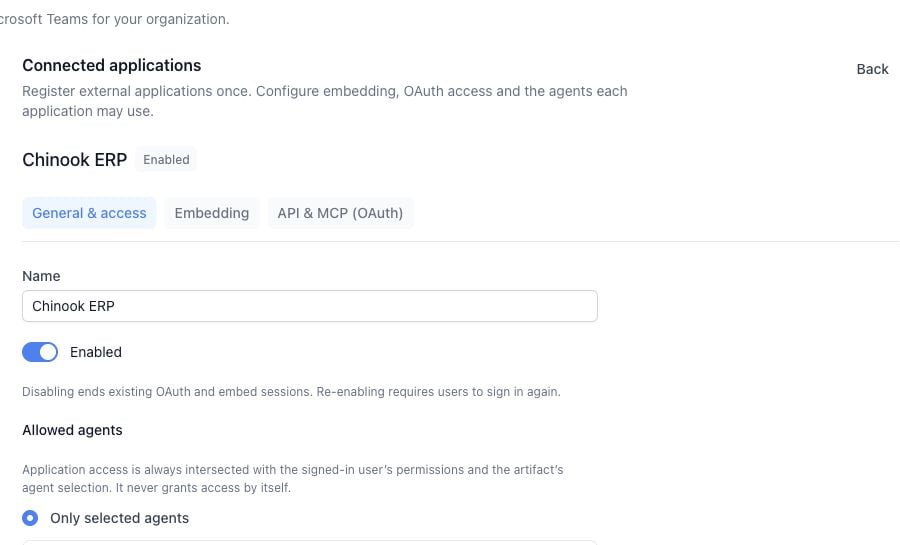
- Open Settings → Channels → Connected applications.
- Select Add application and name it, for example Chinook ERP.
- In General & access, select Only selected agents and enable Music Store.
- Leave the application enabled and select Save.
3. Configure embedding and sign-in
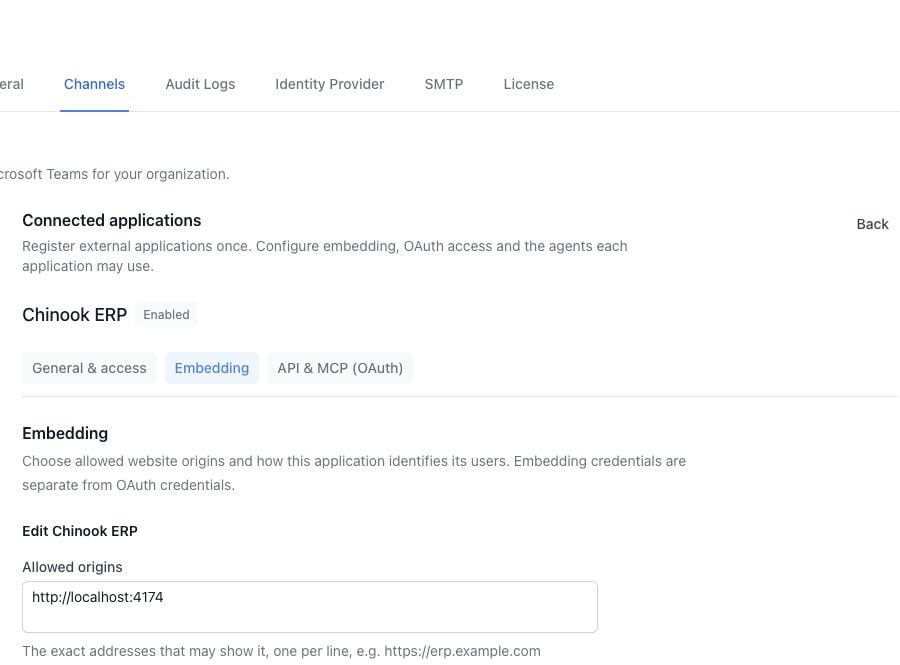
Open Embedding → Configure embedding. Add your host’s exact origin under Allowed origins, for example:
Start with BOW sign-in for the quickest working integration. Select it and save.
If BOW and the ERP both use Entra
With BOW sign-in, BOW can reuse an existing BOW session or the identity provider’s SSO session. The popup may complete without another password, but Microsoft can still require interaction. Signing into the ERP alone does not create a BOW session. Use Signed by your backend when you want your application’s authenticated session to identify the employee without a BOW sign-in popup. See backend assertions below. An Identity provider token identifies the employee; it is not a delegated Power BI or Fabric access token. See Entra OBO when the assistant must query Microsoft data as that employee.4. Publish and allow the application
- Publish the chatbot artifact.
- Use Share to give the intended people or groups viewing access. Settings → Access shows who can open it.
- Open Settings → Embed.
- Under Embeddable in, allow Chinook ERP and save the change.
- Select that application and choose the Floating snippet.
5. Add the floating widget
Copy the generated snippet into your host page. The snippet supplies the correct application ID and published artifact reference. Do not substitute an artifact version ID. For BOW sign-in, it has this shape. Replace the example URL and both placeholder IDs with the values from your snippet:baseUrl at the BOW site root, without /api.
Open the host page, click the floating button, and sign in. The assistant should appear inside the panel. Closing and reopening the panel preserves the mounted conversation; use Stop to cancel a running answer.
To place the assistant in a page instead, copy the In a page snippet, which supplies a container with a defined height.
Sign in programmatically with your backend
Use this option when the ERP already authenticates employees and you can add a server endpoint.- In the application’s Embedding configuration, choose Signed by your backend.
- Choose Match people by and configure the matching identity source or member attribute. The assertion’s
submust match the identity stored for that employee in BOW. Do not assume an email address or the ERP’s local user ID is the correct subject. - Enter an Issuer that your backend will use.
- Leave Create people on first sign-in off for this existing-user setup.
- Save and store the one-time private key in your backend’s secret storage.
- Copy the generated Backend example in Python or Node.js.
The generated example uses
POST /bow/assertion on your backend and returns {"assertion": "..."}. This route is yours to implement, not a BOW endpoint. Derive the employee from your authenticated server session, apply your normal request protections, and return Cache-Control: no-store. Never accept the identity to sign from a browser-supplied user ID.
Add this option to the BOWEmbed.mount configuration:
identity.getIdToken to return that user’s current ID token. The provider’s configured identity claim must map to the same person in BOW. Follow your identity library’s renewal and interaction flow when silent acquisition is unavailable.
Access Power BI or Fabric with Entra OBO
Embedding authentication and delegated access to a data source are separate setup steps. For an ERP that already uses Entra and needs downstream OBO:- On the same Connected application, open API & MCP (OAuth) and configure the BOW app access surface.
- Enable Entra token exchange and configure the provider and external Entra application ID.
- Follow External Entra applications to request the BOW-audience delegated access token and exchange it from your backend.
- Configure the matching per-user Power BI or Fabric connection and the required consent.
- After successful exchange, use the signed-host-assertion flow above to authenticate the embedded artifact as that same BOW user. Keep the exchanged OAuth token on your backend.
- Test an actual query as two users with different data permissions.
Customize the experience and pass context
Use chat with the artifact builder to change the assistant’s logo, colors, language, welcome message, and layout. The host SDK’stitle, accentColor, and position customize the outer floating launcher; they do not redesign the artifact inside it.
Pass the currently selected record as advisory context:
Add this option to BOWEmbed.mount:
useArtifactData().host_context during render. Ask the builder to handle missing context and use the selected record in the intended interaction.
Context does not automatically become a prompt or an MCP tool argument. Build and verify that forwarding explicitly. Never use browser context as authenticated identity, roles, row-level access rules, or trusted system instructions.
When the host signs out or switches users, call embed.logout(), end the host session, and destroy the old widget with embed.destroy() before mounting for a new user. Your assertion endpoint must stop issuing assertions for the old session.
Verify before rollout
Test from the real host origin with ordinary employee accounts, not only the artifact owner.- Chat: Send a question, observe streaming, stop a running answer, ask a follow-up, and reopen history.
- UI: Open and close the launcher, test a narrow window, and confirm tables or supported charts render.
- Identity: Sign out and switch users. Confirm the second user cannot see the first user’s conversations.
- Permissions: Try a user without artifact access and a user without access to the selected agent. Both should be denied at the relevant boundary.
- Application controls: Check an unlisted origin and an artifact that has not allowed the application.
- Revocation: Disable the Connected application and confirm access stops. Re-enabling requires users to sign in again.
- OBO: If used, query the real Power BI or Fabric data as each user and confirm their downstream permissions.
- Context: Change the selected record and confirm the assistant uses the new value only where you explicitly wired it.