
Before you start
- You manage the agent. The Evals row only shows in the agent tree for people who can manage the agent’s evals.
- You know the right answers. An eval is only as good as its expected answer. Check each number or name once, for example by asking the agent and reading the SQL it ran, before you write it into a test.
Step 1: Open the agent’s evals
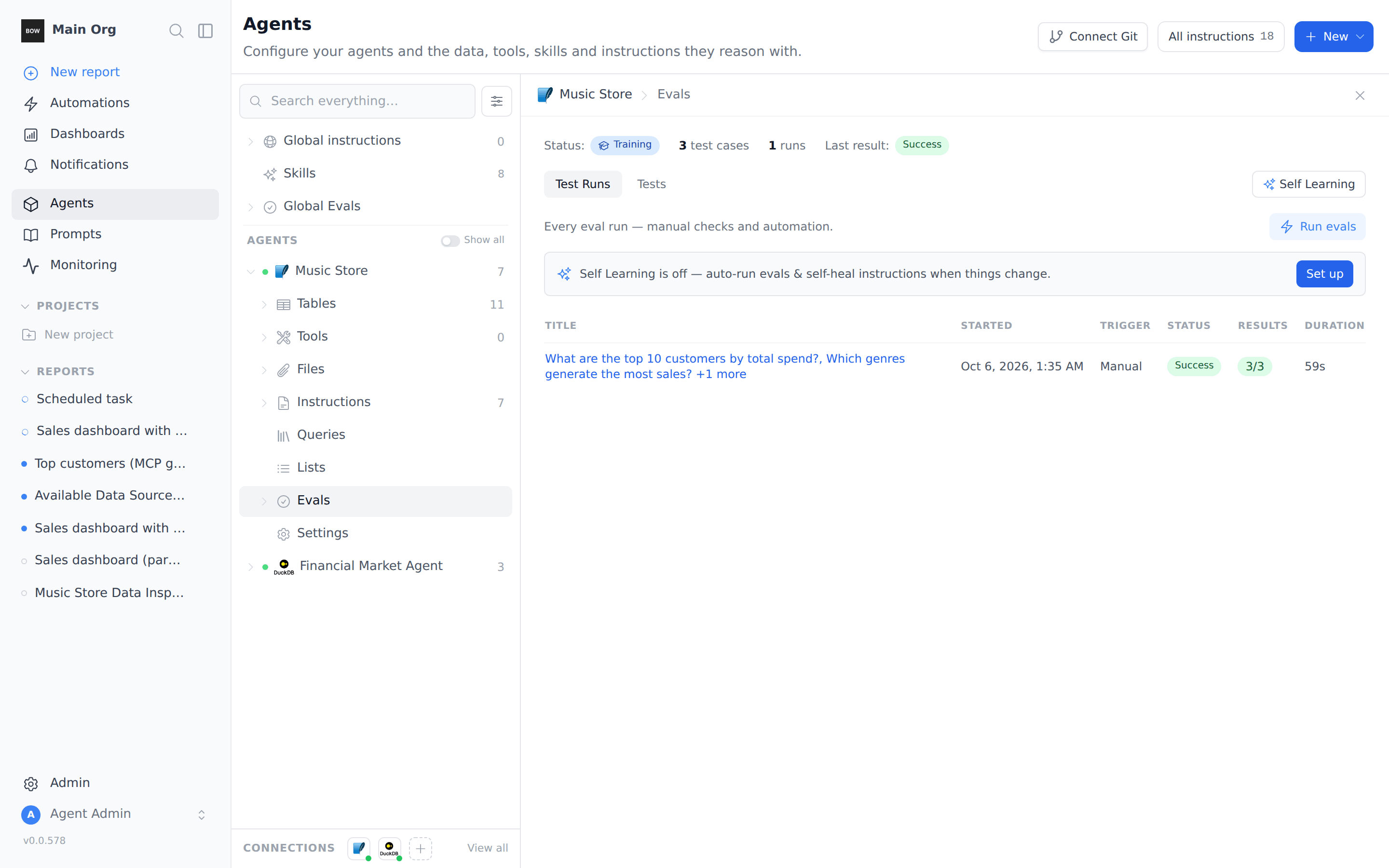
Open Agents, expand the agent, and click Evals. The panel shows the agent’s Status (its current stage, for example Training), how many test cases and runs it has, and the Last result. Two tabs sit below: Test Runs lists every run, and Tests lists every test case.Self Learning runs evals for you when instructions change. This guide runs them by hand. See Evals to set up Self Learning.
Step 2: Create a suite
A suite is a folder of test cases that you run together. Hover the Evals row in the tree and click the folder icon (New folder). Name the suite, for example Music Store basics, and click Create.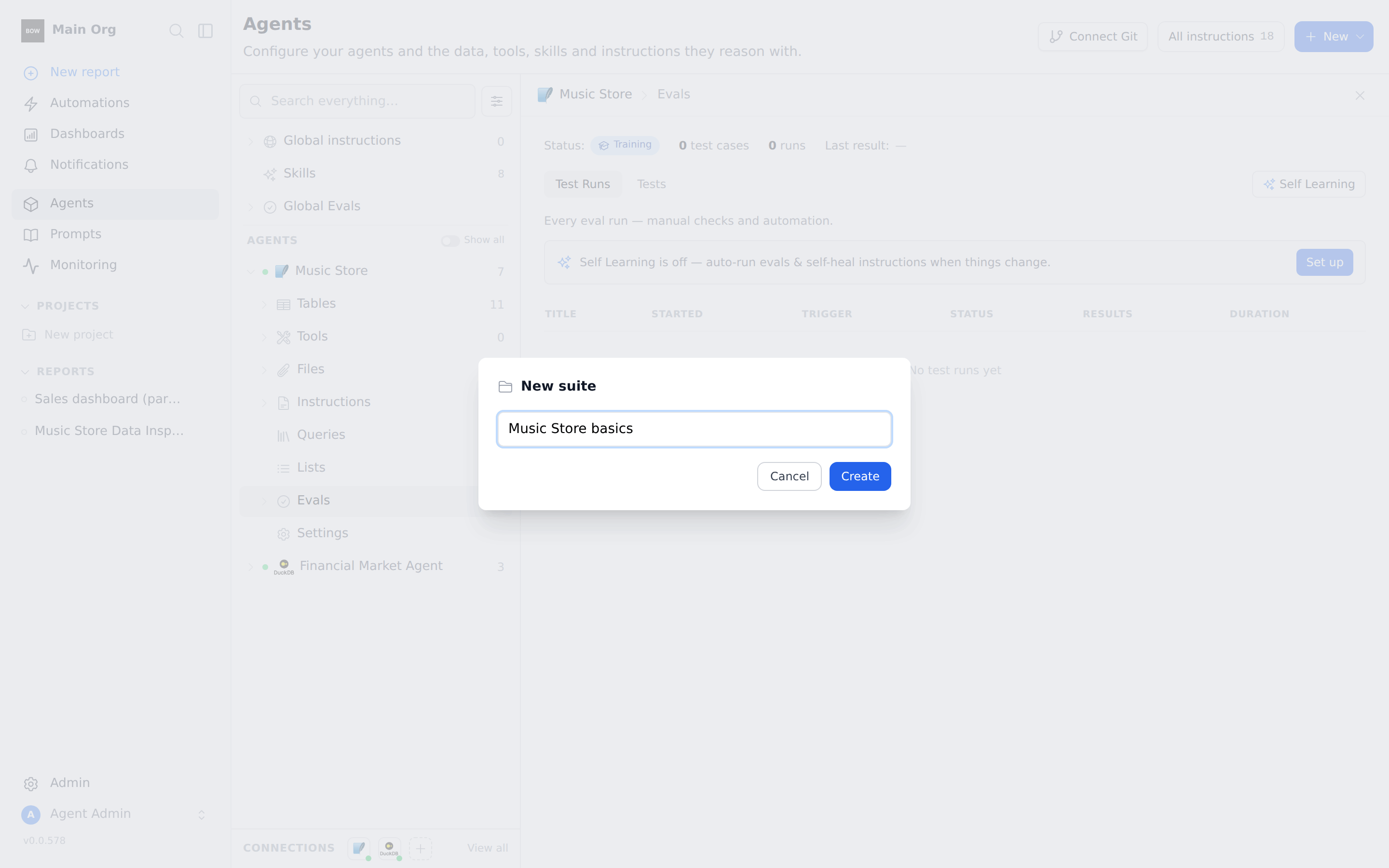
Step 3: Add a test case
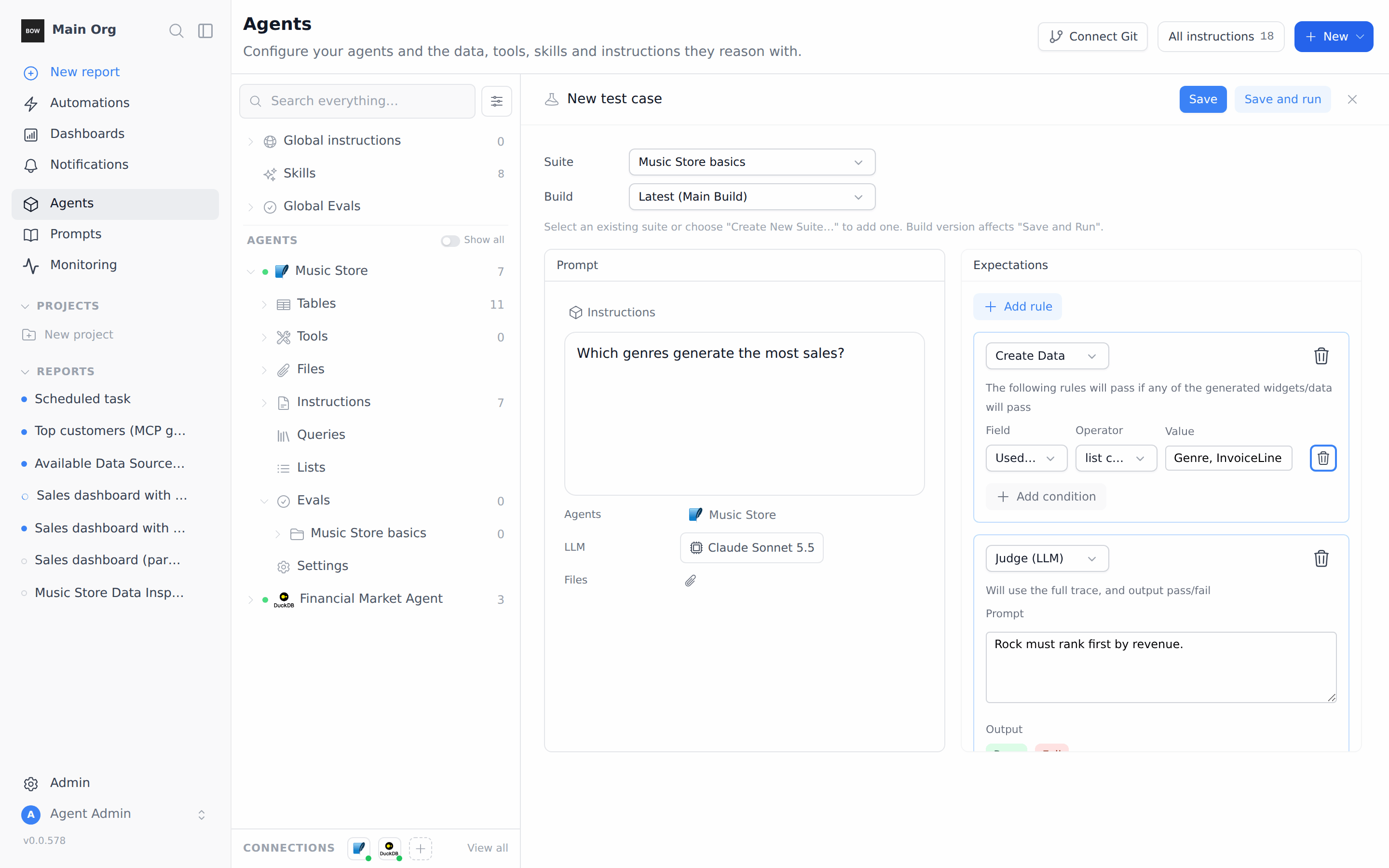
Hover the suite and click + (Add). A New test case editor opens on the right, with the suite already picked.-
In Prompt, type the question a user would ask:
Which genres generate the most sales?
The agent is already selected under Agents. -
Under Expectations, a Judge (LLM) rule is already there. In its Prompt box, write what a correct answer must say:
Rock must rank first by revenue.
The judge reads the agent’s full answer and its steps, and returns Pass or Fail with its reasoning. -
To also check how the agent got there, click Add rule, then change the new rule’s type from Judge (LLM) to Create Data. Set Field to Used tables, Operator to list contains all, and Value to
Genre, InvoiceLine. - Click Save. To run the case right away, click Save and run instead.
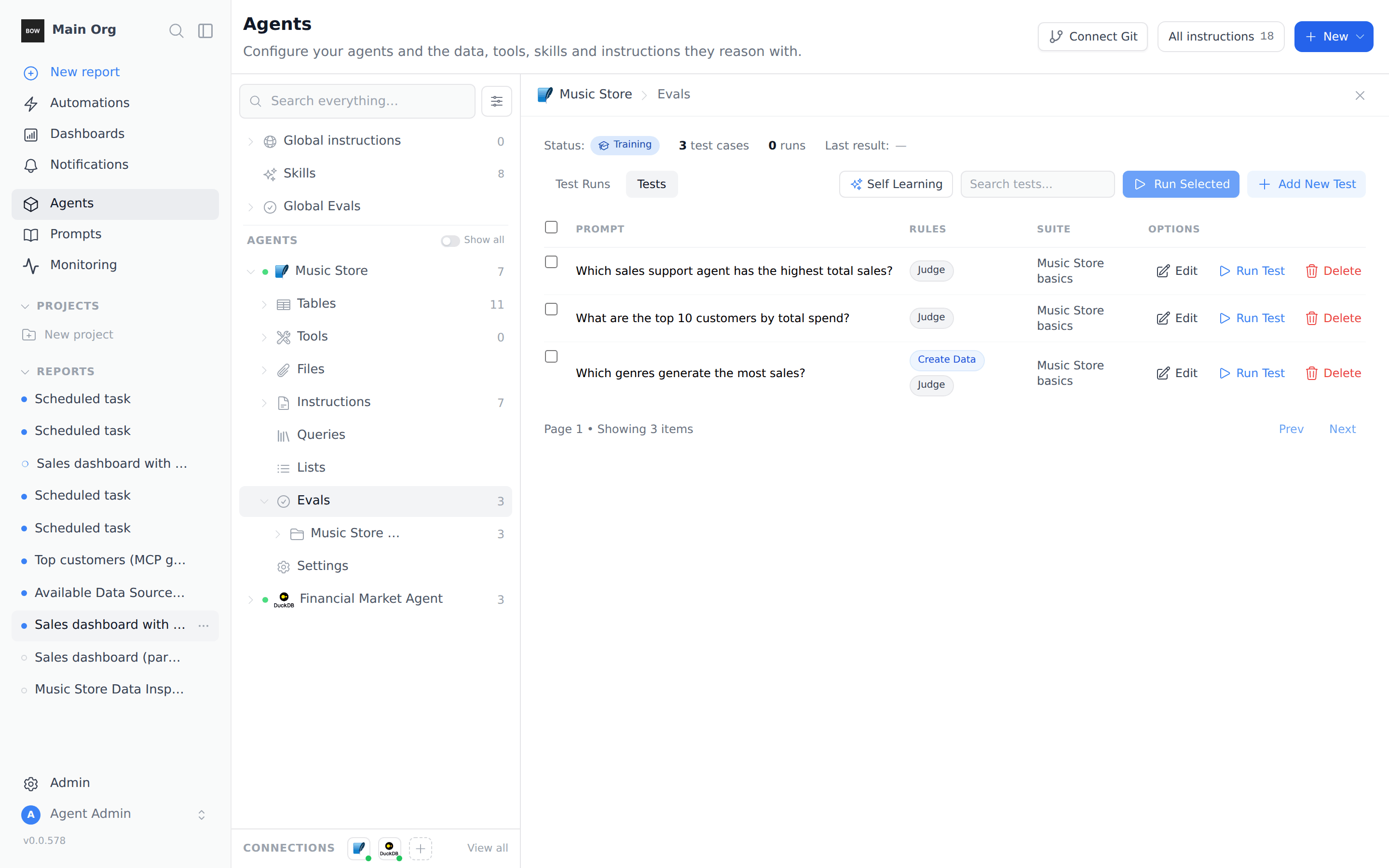
Open the Tests tab to see all three. The Rules column shows which kinds of rules each case uses.
Step 4: Run the suite
Hover the suite in the tree and click the play icon (Run this suite). Every case in the suite runs as one test run, and the run opens in the panel. To run only some cases, open the Tests tab, tick them, and click Run Selected. To run a single case, click Run Test on its row. Each case starts a real conversation with the agent, so a run takes about as long as asking the questions yourself. When it finishes you see the run’s status and a Pass, Fail, and Error count.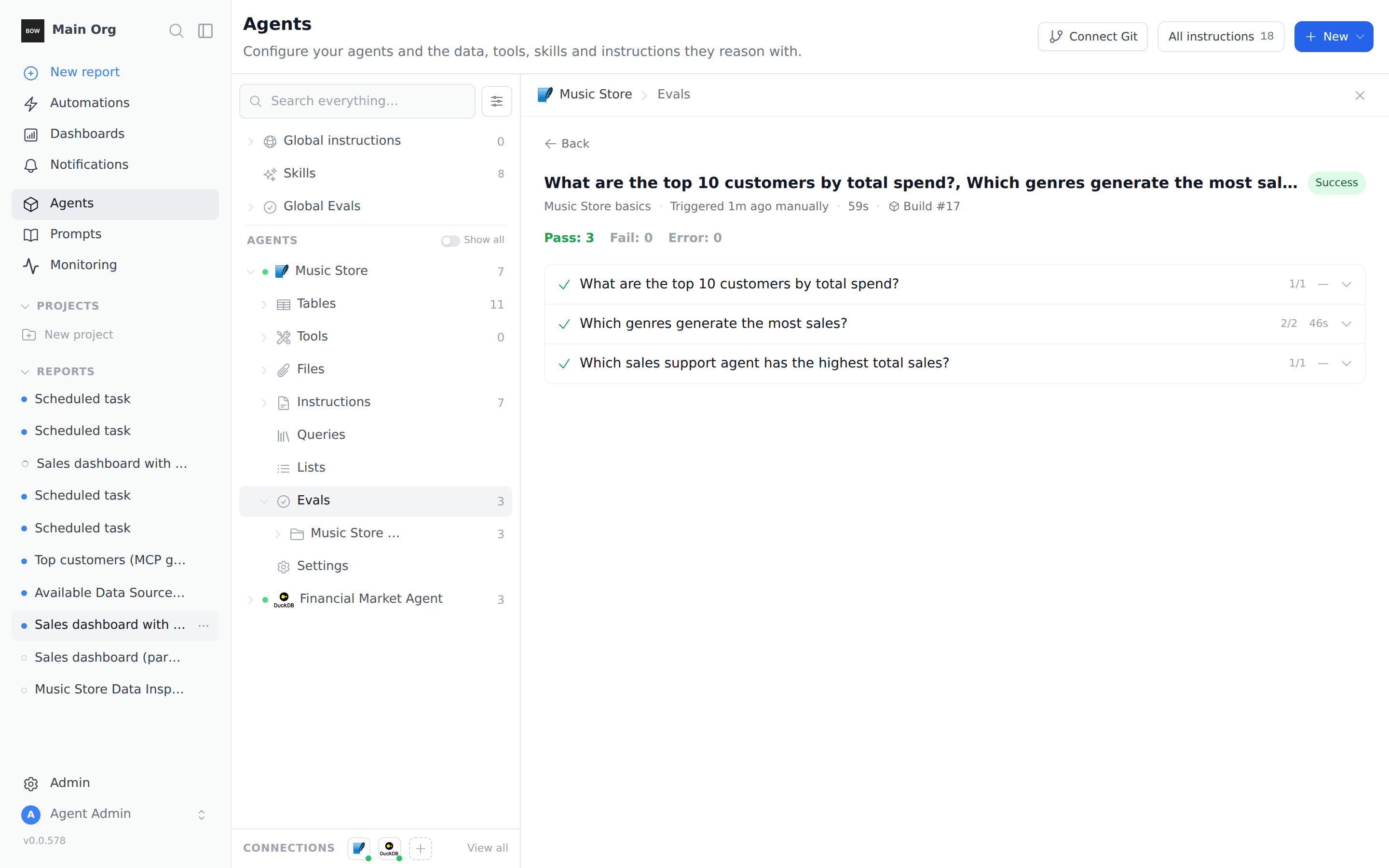
Step 5: Read why a case passed or failed
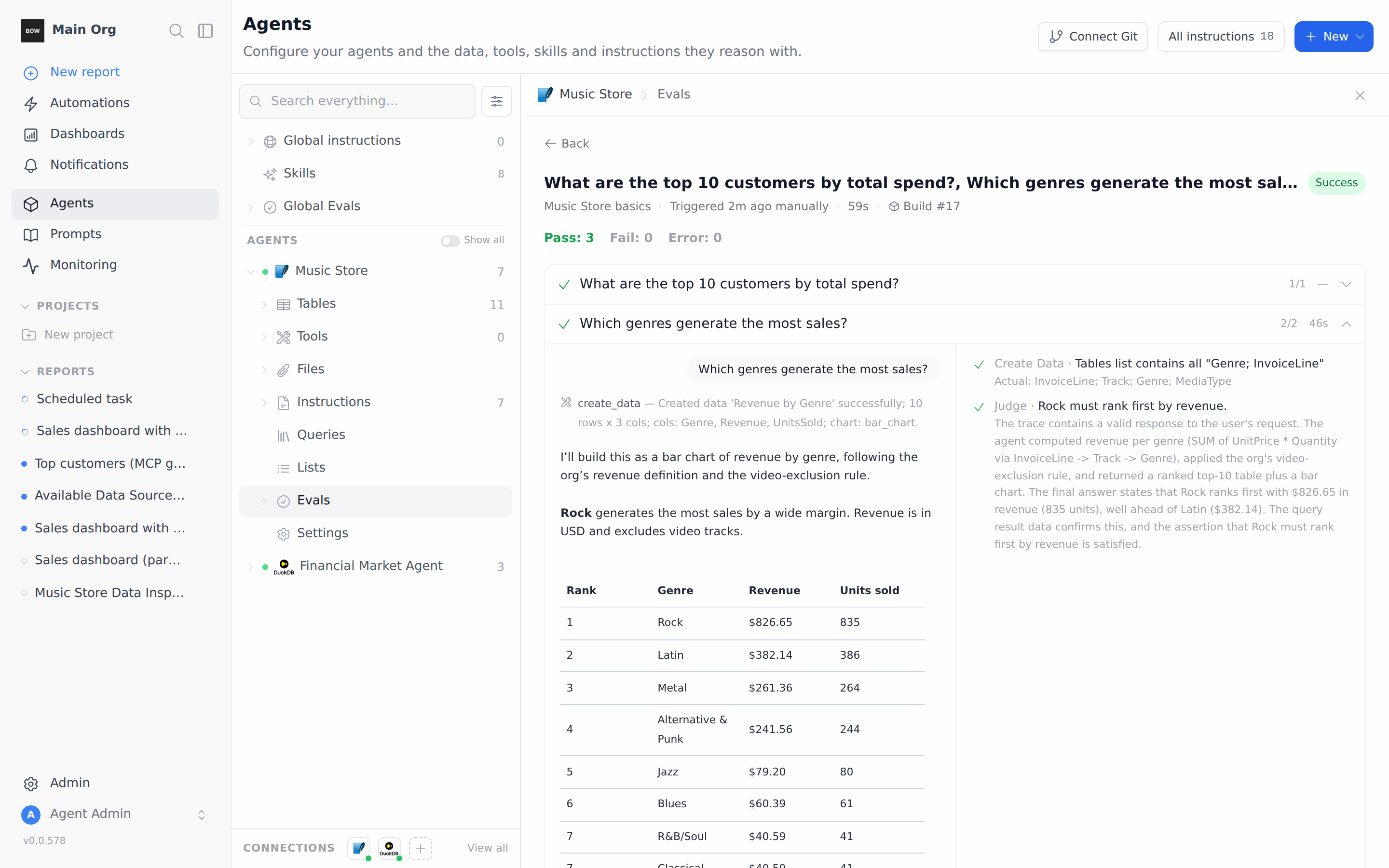
Click a case to expand it. The left side shows the conversation: the question, the tools the agent used, and its answer. The right side lists each rule with a check or a cross:- A Create Data rule shows the expected tables and the Actual tables the agent queried.
- A Judge rule shows the judge’s reasoning, so you can see what it checked and why it decided.
Step 6: Create an eval from a training chat
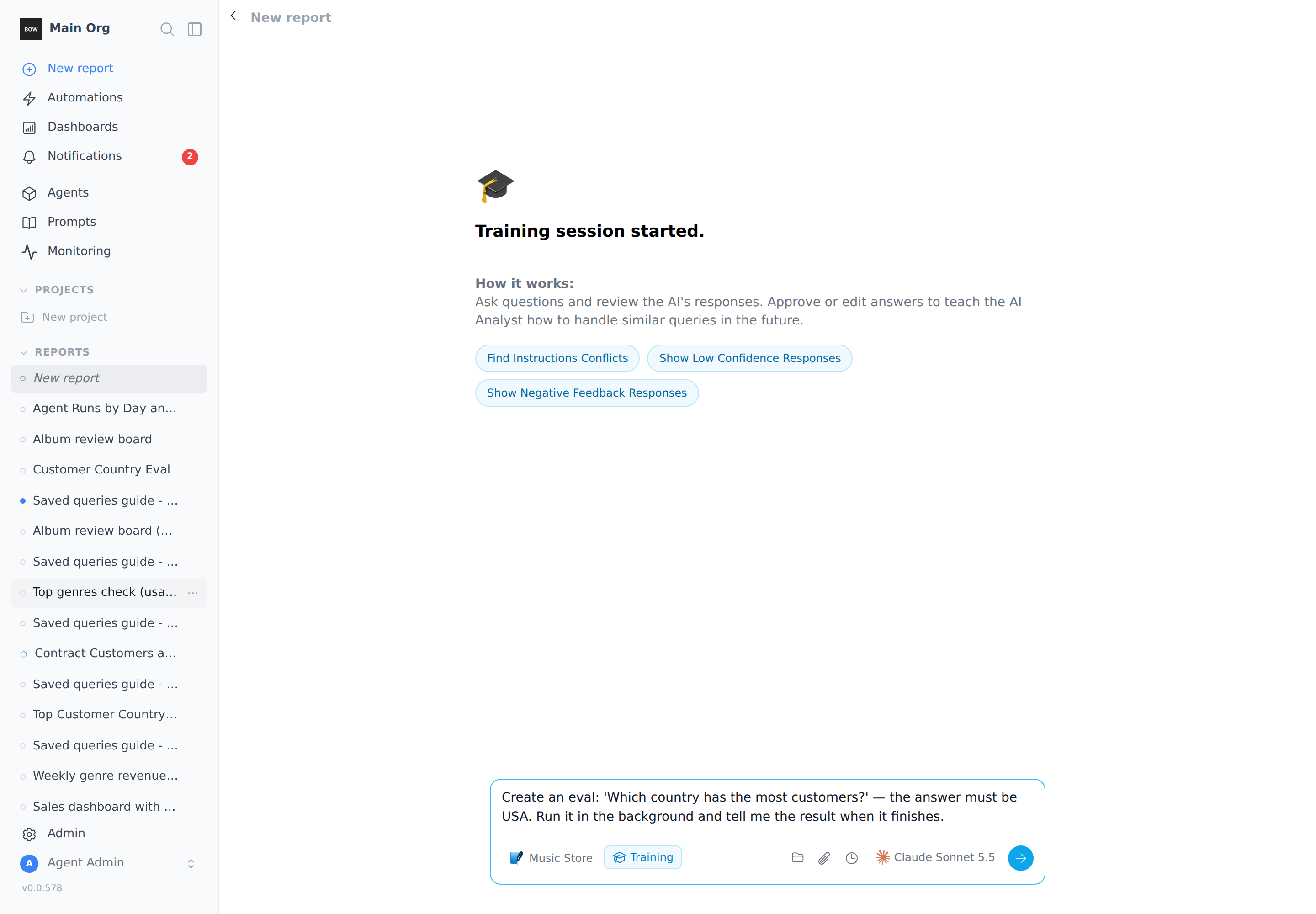
You can also ask the agent to write and run an eval for you during a training session.- Open Agents, select the agent, click ⋯ at the top right, and choose Start a training session.
-
Ask for the eval and give the expected answer:
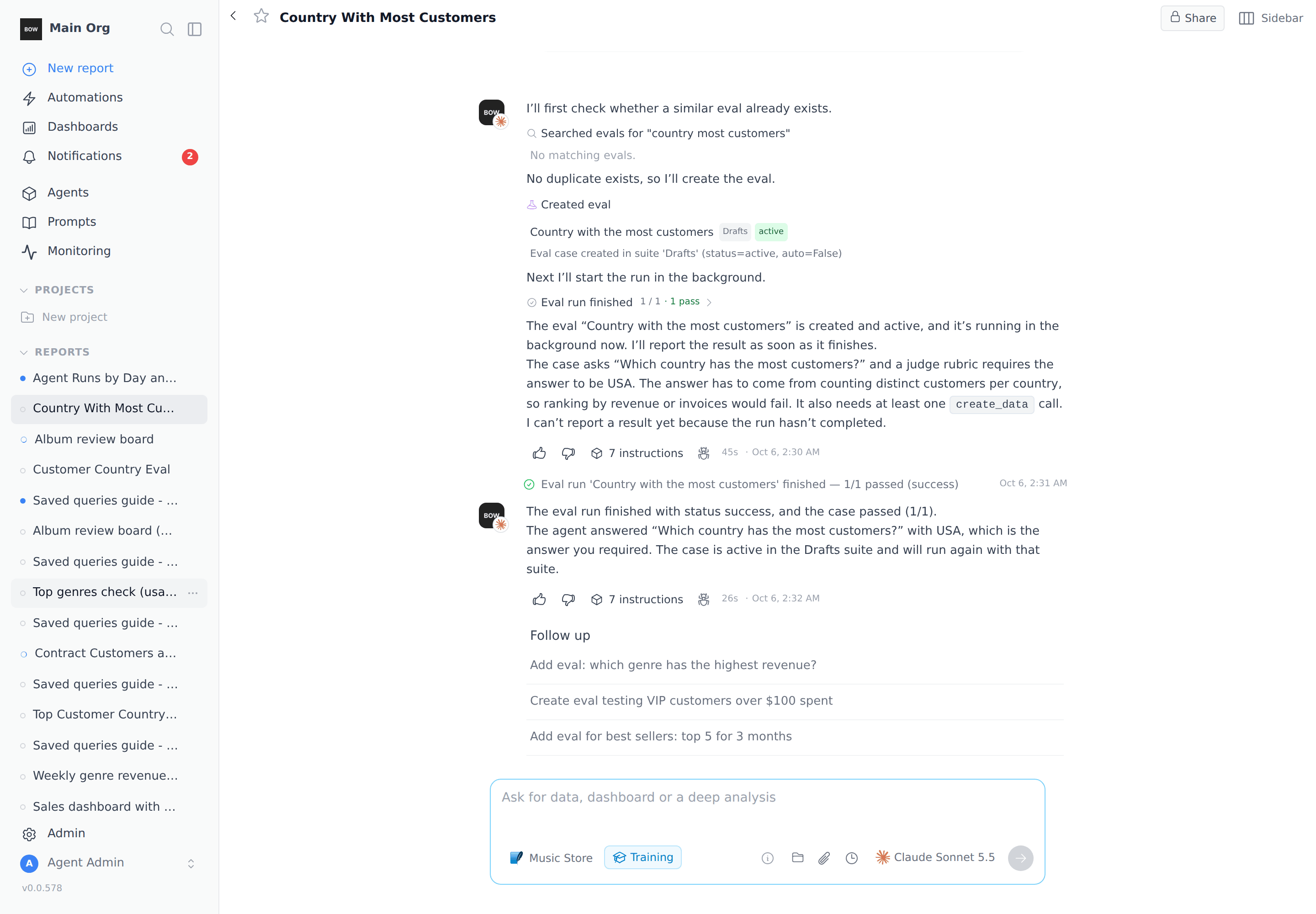
Create an eval: ‘Which country has the most customers?’ — the answer must be USA. Run it in the background and tell me the result when it finishes.
More prompts to try
Tips
- Pin answers that don’t change. History in the data doesn’t move, so “Rock ranks first” makes a stable test. A count of “this month’s orders” doesn’t.
- Say what should fail. A judge prompt that names the wrong answers (“Fail if it names Margaret Park”) catches more mistakes than one that only names the right one.
- Check the method, not just the number. Add a Create Data rule on Used tables when the right answer depends on joining the right tables.
- Run the suite after every instruction change. A passing suite means the change didn’t break an answer that used to be right.
Troubleshooting
- A run stays at “In progress”. Runs that ask the agent several questions take a few minutes. If a run is stuck for much longer, click Stop in the run and start it again.
- “eval runs are already in progress”. An organization can only have a few eval runs going at once. Wait for one to finish, or stop it, and try again.
- A case shows Error instead of Fail. Error means the agent never finished answering, so nothing was judged. Run the case again.