Bag of words exposes an MCP (Model Context Protocol) server that allows you to connect external AI tools like Claude Desktop, Cursor, or any MCP-compatible client directly to your data sources. This enables you to query your data using natural language from your favorite AI tools.With the MCP Server, you can:
Query data from Claude Desktop: Ask questions about your data directly in Claude
Use Cursor for data analysis: Leverage your IDE’s AI capabilities with your connected data sources
Integrate with any MCP client: Build custom workflows using the standardized MCP protocol
The Bag of words MCP Server exposes the following tools for AI assistants to interact with your data:
Tool Name
Description
create_report
Creates a new analysis session (report). Call this at the start of a conversation to get a report_id for subsequent tool calls. Auto-attaches all active data sources.
get_context
Retrieves available data sources, tables, and metadata resources. Useful for understanding what data is available before running queries. Supports optional regex pattern filtering.
inspect_data
Quick, ephemeral data inspection for exploration and debugging. Previews data (head/tail), checks column types, and validates assumptions. Results are logged but not saved as persistent visualizations. Returns a sample of 3 rows.
create_data
Creates tracked, reproducible data visualizations (chart or table) with Query/Step/Visualization persistence. Results are saved to the report and can be shared/added to dashboards. Tables are auto-discovered from the prompt if not provided.
list_instructions
Lists instructions from the current live build. Instructions are organizational knowledge that guide AI behavior. Supports filtering by status, category, and text search.
create_instruction
Creates a new instruction that guides AI code generation and data analysis. Auto-versioned with build integration. Admins get instant approval; non-admins go to pending approval.
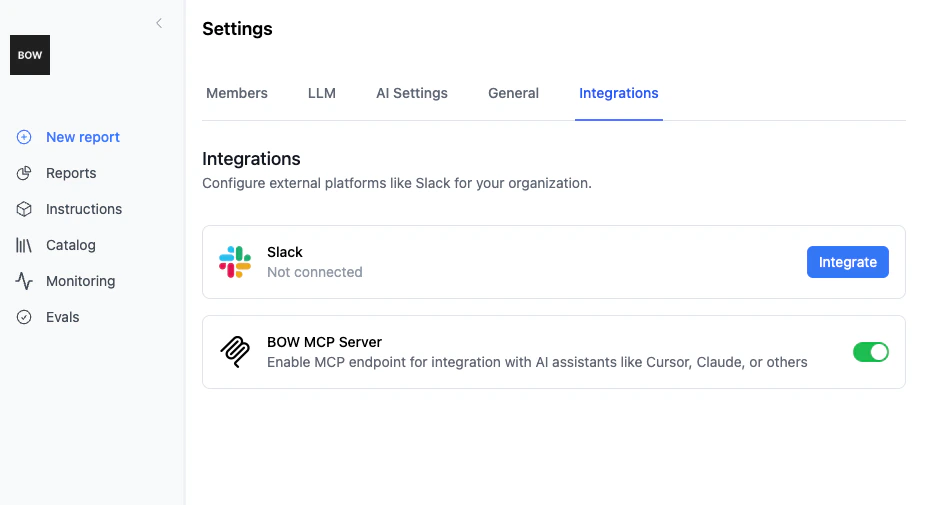
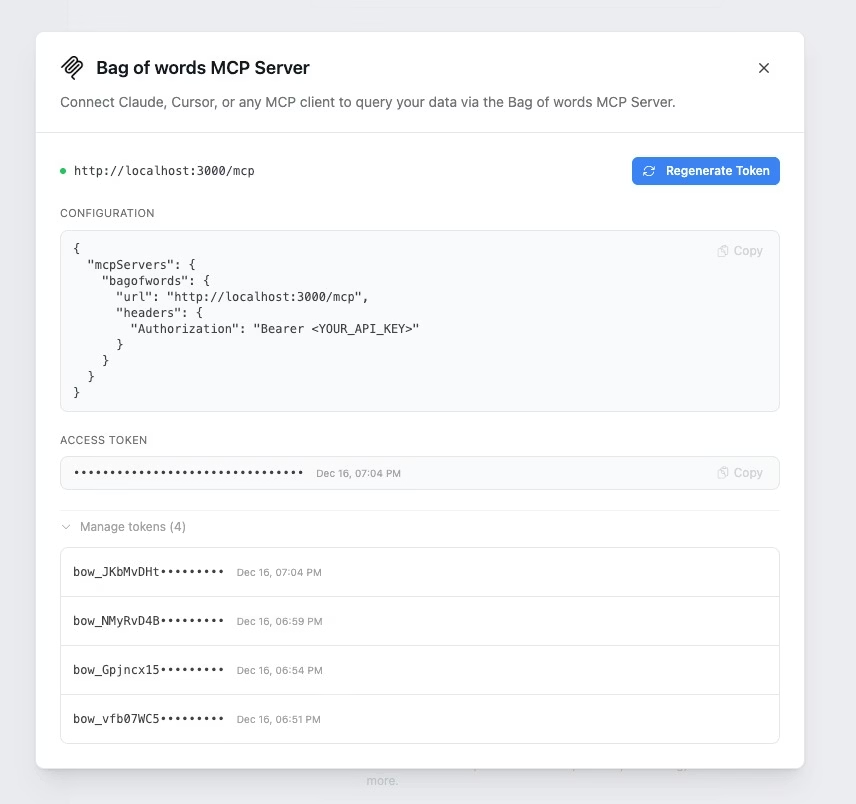
Administrators can enable or disable the MCP endpoint from Settings → Integrations.Toggle the BOW MCP Server switch to enable MCP endpoint for integration with AI assistants like Cursor, Claude, or others.
Add the configuration to your Claude Desktop settings file:macOS: ~/Library/Application Support/Claude/claude_desktop_config.jsonWindows: %APPDATA%\Claude\claude_desktop_config.json
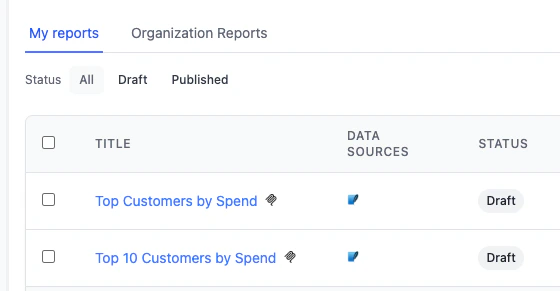
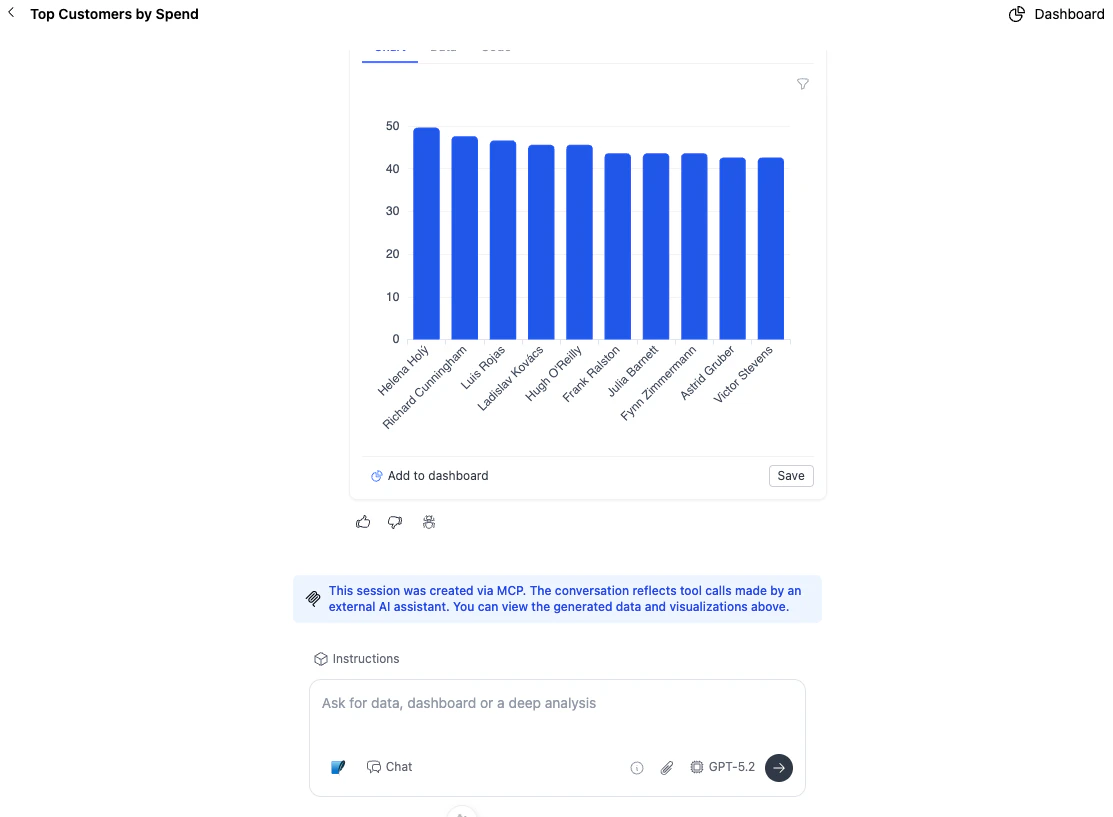
Reports created through MCP connections are automatically tracked in your Reports page and marked with an MCP icon for easy identification.When you open an MCP-generated report, you’ll see a banner indicating it was created via MCP. The report displays the generated data and visualizations from the tool calls made by the external AI assistant.
Important: For MCP-generated reports, the actual LLM completion/prompt content is not saved, but all tool usage is tracked 100%.This means you can see exactly what data was queried and which tools were used, while the conversational context from the external client (Claude, Cursor, etc.) remains private.