
Choose a model strategy
Your organization can use one model for everything, or offer a governed catalog with different strengths and cost profiles. Model settings expose the capabilities that matter for agent work, including context window, vision, reasoning support, and structured output.- Automatic routing selects an appropriate available model for the task.
- Explicit selection lets people choose from the models they are allowed to use.
- Fallback chains keep work moving when a preferred model is unavailable.
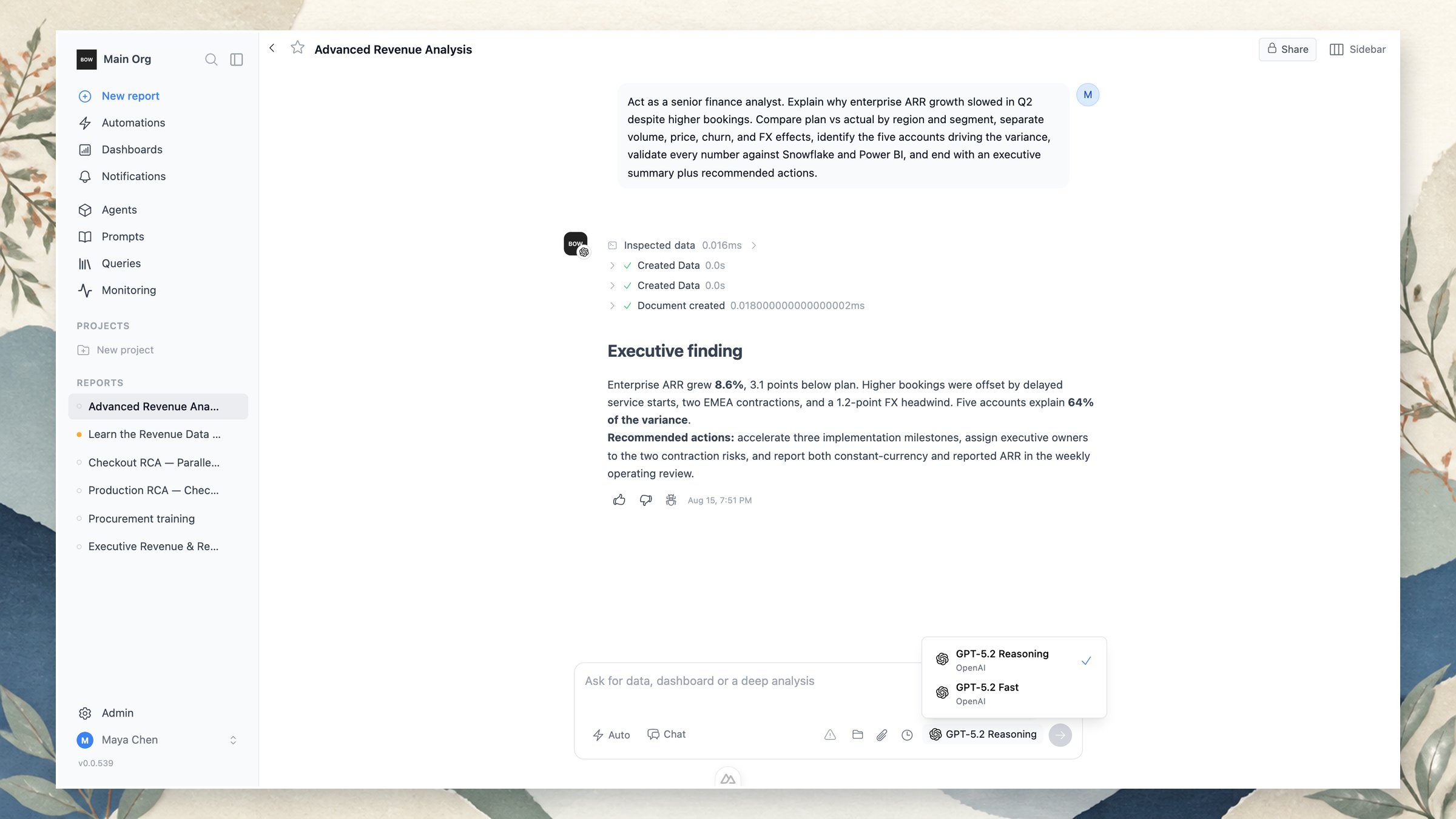
Route models inside a chat
The composer shows the model that will handle the next turn. Select it to choose from the models enabled for your organization. The selection stays with the report, so follow-up work uses the intended model unless you change it or use automatic routing. Use Auto when routing is enabled and you want Bag of words to choose from the approved catalog for the task. Use an explicit model when the session needs a predictable reasoning, latency, or cost profile. Organization defaults and fallback behavior still apply if the preferred model is unavailable.Add providers and credentials
- Open Settings → LLMs.
- Add an approved provider and its API credentials, or configure an organization endpoint.
- Enable the models you want to make available and review their capability metadata.
- Set organization-wide defaults, routing, and fallback behavior.
- Assign access so people see only the models they are permitted to use.
The exact models shown in the interface depend on your deployment and the providers your administrator has enabled. Keep model and credential access under the same governance standards as your data connections.
Custom headers and identity forwarding
If your LLM traffic goes through a gateway or proxy (for routing, cost attribution, or audit), each provider can attach extra HTTP headers to every request it sends. Open the provider from Settings → LLMs and expand Custom headers. The section is not shown on the initial onboarding form — edit the provider after it is created. There are two kinds of headers:- Static headers are fixed key/value pairs sent on every request to that provider — for example a gateway routing key or a cost-center tag.
- Identity forwarding rules send the signed-in user’s identity as headers, so a gateway can attribute cost or apply policy per user. Each rule names a header and picks a source.
SSO profile metadata
membership.attr:<key> reads the profile metadata synced from your identity provider when the user signs in. Enable profile sync and choose which fields to store under Settings → Identity; only synced fields have a value at request time.
For example, to let a gateway split spend by department and person:
- Static headers are applied first, then forwarding rules. A rule that targets the same header name as a static header wins.
- A rule whose value is empty for the current user (for example, an attribute that was never synced) is left out rather than sent blank.
- Forwarding rules only resolve inside a user-triggered run. Requests made outside one — testing the connection, scheduled jobs — carry the static headers only.
- Header names must be valid HTTP tokens, values are trimmed to a single line, and a provider can have at most 24 headers and rules combined.
Use the right model for the work
Use high-reasoning models for complex investigations and root-cause analysis, faster models for straightforward exploration, and capable multimodal models when the task includes files or images. Agent tools, instructions, data access, and evaluations stay independent of the selected model, so you can improve or change the model layer without rebuilding your agent design.Manage agents
See how models fit alongside an agent’s tools, data, instructions, and evaluations.