
Enable app resources
An organization administrator enables Artifact resources under Settings → AI Settings, in Agent capabilities. It is off by default. This setting allows persistent records, private files and approved AI operations. Turning it off blocks resource access; it does not delete the saved records or files. Existing dashboard artifacts can still display their analytical content.The Data apps skill helps the agent build these apps. In Agents → Skills → Catalog, check whether it is enabled and whether an update is available. A deployment updates the catalog, but does not automatically replace a skill already installed in your organization. See updating installed skills.
Create a task board
Start a report and ask:Build a kanban board where each person can add and manage their own tasks. Save the tasks so they are still there when I reopen it.The agent can create the app and its task collection together. Open the artifact, add a task, then reload to check that it was saved. Continue in the same conversation:
Add a priority and a due date.
Let members of the Operations group see all tasks, while everyone else sees only their own.The first request changes the fields and interface. The second changes resource permissions. You can keep refining the existing artifact rather than starting another app.
What an app can use
Records and files belong to the artifact across interface versions. Updating the layout does not create a fresh collection.
Blog with drafts and cover images
Build a blog with saved drafts and cover images. Only I can edit posts. Visitors should see published posts, never drafts.Then ask:
Let the Editors group manage posts too.Use the existing report sharing controls to make the page accessible to the intended readers. The collection’s permissions decide which posts those readers can see. Publishing a blog post is a change to that record’s status; it is not a separate artifact publishing step.
File summarizer with a streamed answer
Build an app where I upload a PDF, ask a question about it and see the answer stream in. Save the finished answer so I can return to it.Ask the agent to provide upload progress, a cancel action and an error state that preserves your input. Saving the finished response requires a record collection; streaming an answer alone does not save it. AI operations run through the configured backend and model access. Users do not paste provider API keys into the app. A disconnected stream does not become a background job or resume after a page reload.
Share and control access
There are two separate decisions:- Who can open the artifact? Use the report’s existing sharing controls.
- What can they do with its data? Ask the agent to configure permissions on each resource.
Inspect Resources and Analytics
Open the artifact’s ⋯ menu.Resources
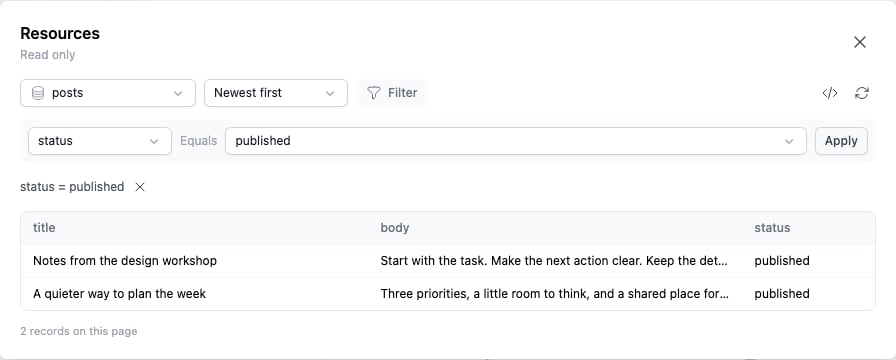
Choose Resources to inspect stored records without editing them:- Select a collection.
- Choose newest or oldest first.
- Open Filter, choose an indexed field, select or enter a value, then Apply.
- Clear the condition to return to the unfiltered collection.
- Use the schema icon to inspect field names and types, or select a record to inspect its values.
Analytics
Choose Analytics and select a time range to see views, authenticated unique viewers and daily activity. Anonymous visits contribute to views, but are not counted as unique people.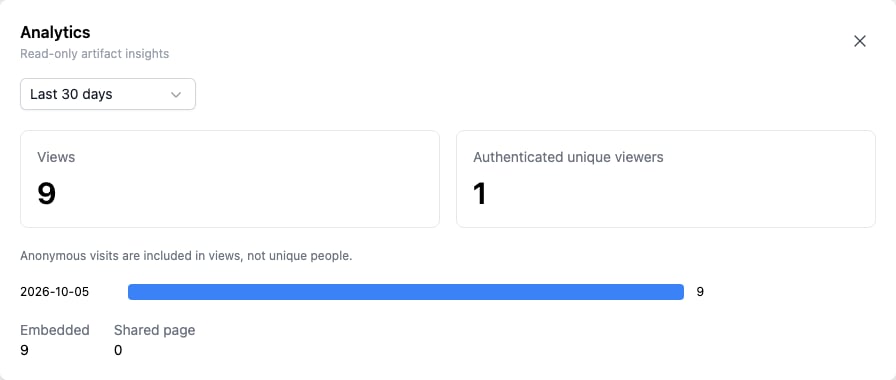
Choose the right kind of data
- App records: information entered or managed through an artifact, such as tasks and blog posts.
- Agent Lists: structured information an agent extracts from sources, with evidence and review history.
- Parameterized queries: inputs that rerun an analytical query against a connected source.
Troubleshooting
For dashboards focused on source data, see Dashboard artifacts.