
Before you start
- You can publish to the agent. This guide uses an admin account. When you save, the dialog says As an admin, your query will be published directly.
- The agent has data. The examples use the Music Store demo agent.
Step 1: Ask for the data you want to save
Start a new report with the agent and ask a question.Show total revenue by genreCheck the result. Open the Data and Code tabs and make sure the numbers and the logic are right. Whatever you save here is what the agent will serve later.
Step 2: Save the query
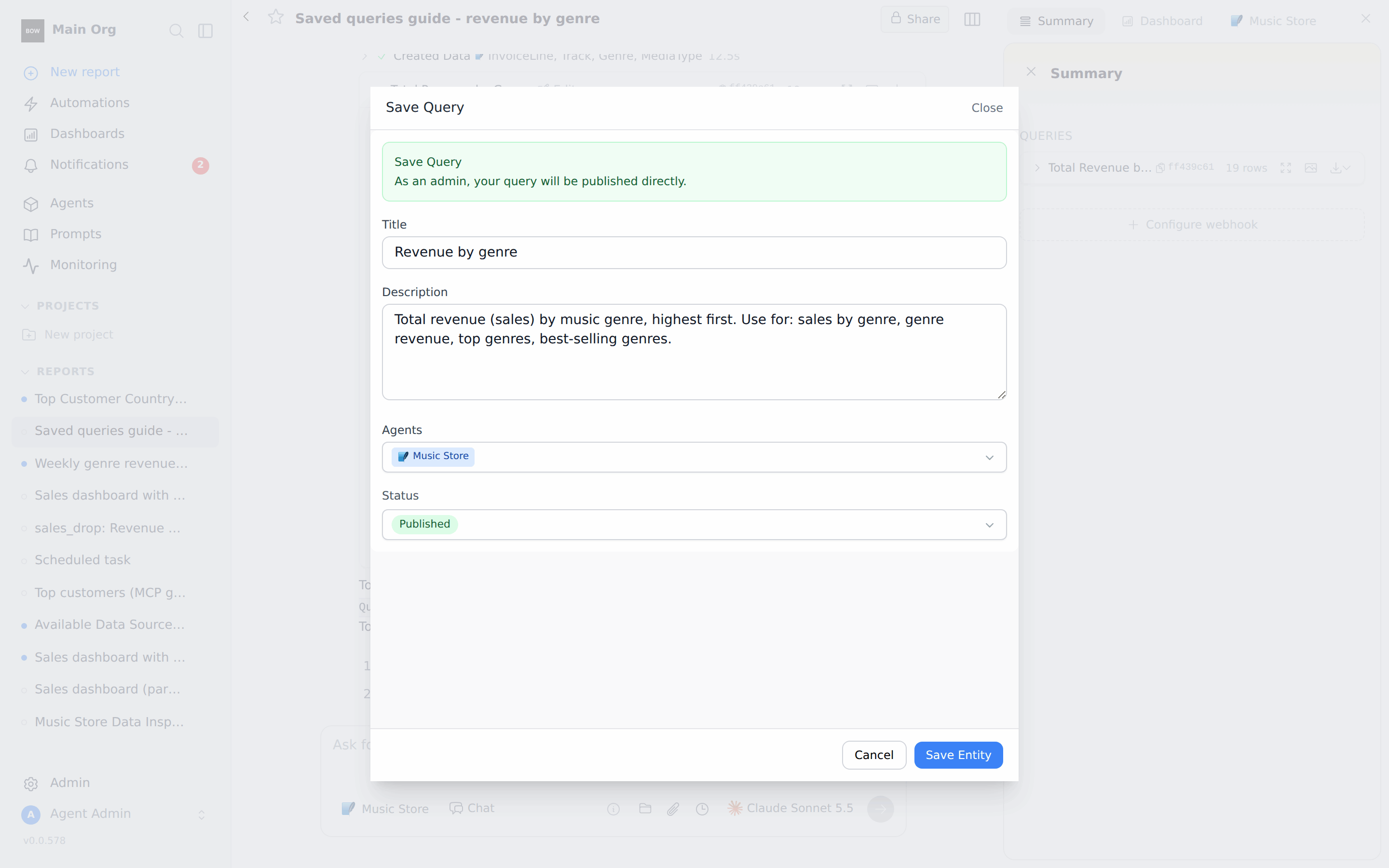
Under the chart, click Save Query.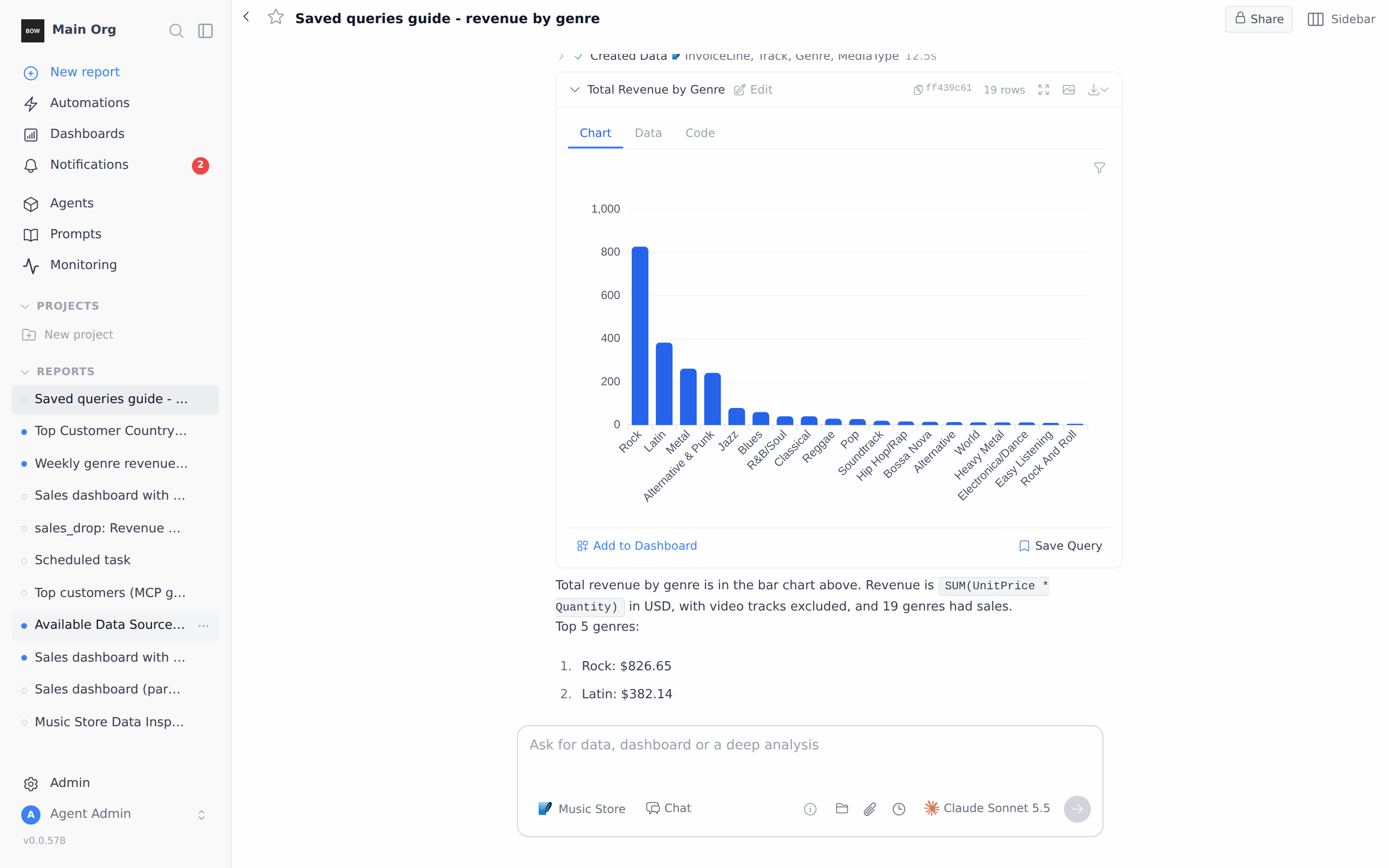
- Title – a short name, for example Revenue by genre.
- Description – write it with the words people actually type. The agent finds saved queries by matching words in the title and description. For example: Total revenue (sales) by music genre, highest first. Use for: sales by genre, genre revenue, top genres, best-selling genres.
- Agents – the agents that can use this query. It starts with the agent from your report.
- Status – keep Published. The agent only uses published saved queries. The other options are Draft and Archived.
Step 3: Ask again in a new report
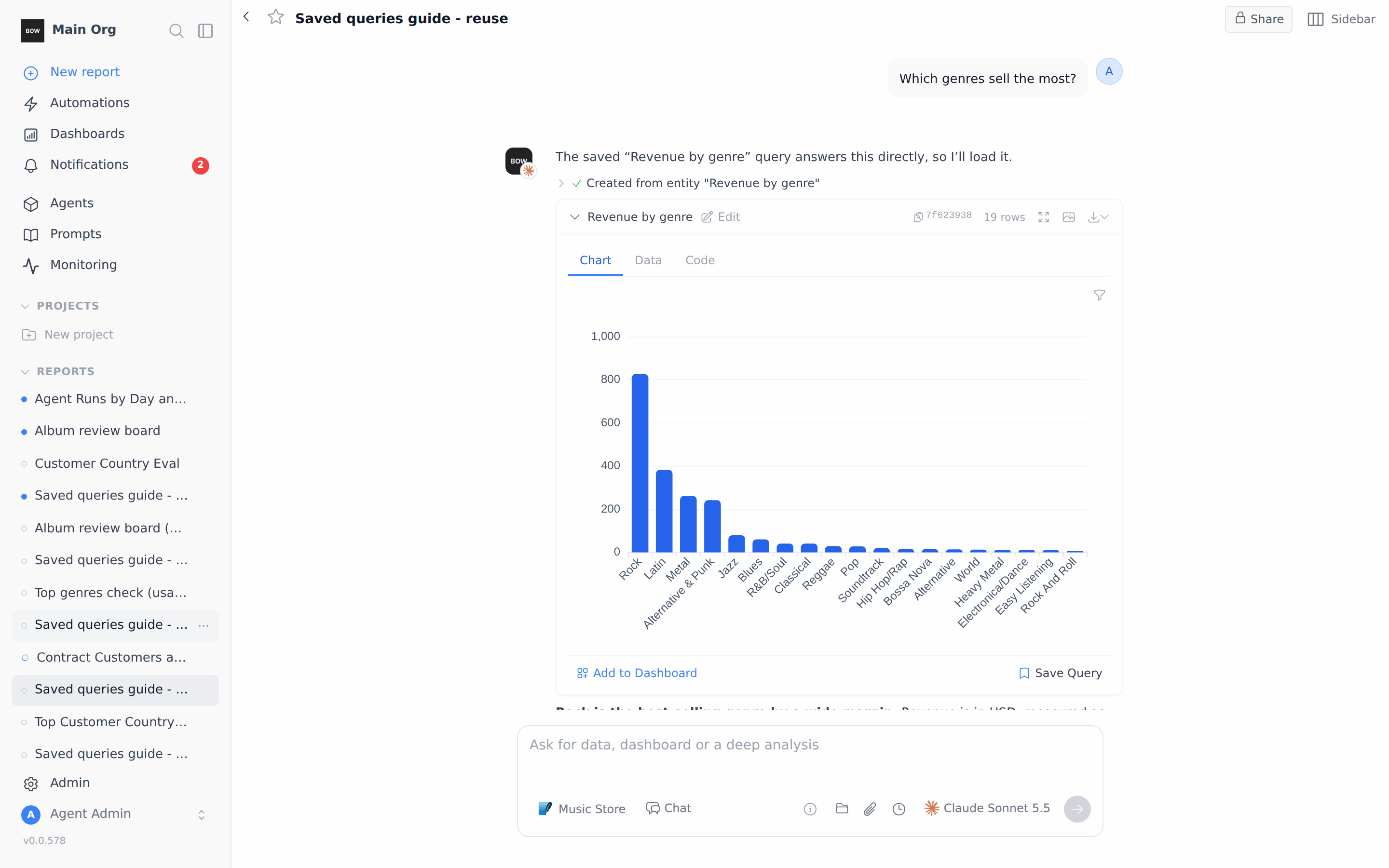
Start a new report with the same agent and ask the question in your own words.Which genres sell the most?The agent finds the saved query and loads it instead of writing a new one. While it works you see Loading from catalog. When it finishes, the step reads Created from entity “Revenue by genre”, and the chart and data come from the saved query. In our test, this answer took one tool call (load the saved query) and no SQL generation. It finished in 15 seconds, compared with 26 seconds for the first answer that wrote the SQL.
Step 4: Save a query with a parameter
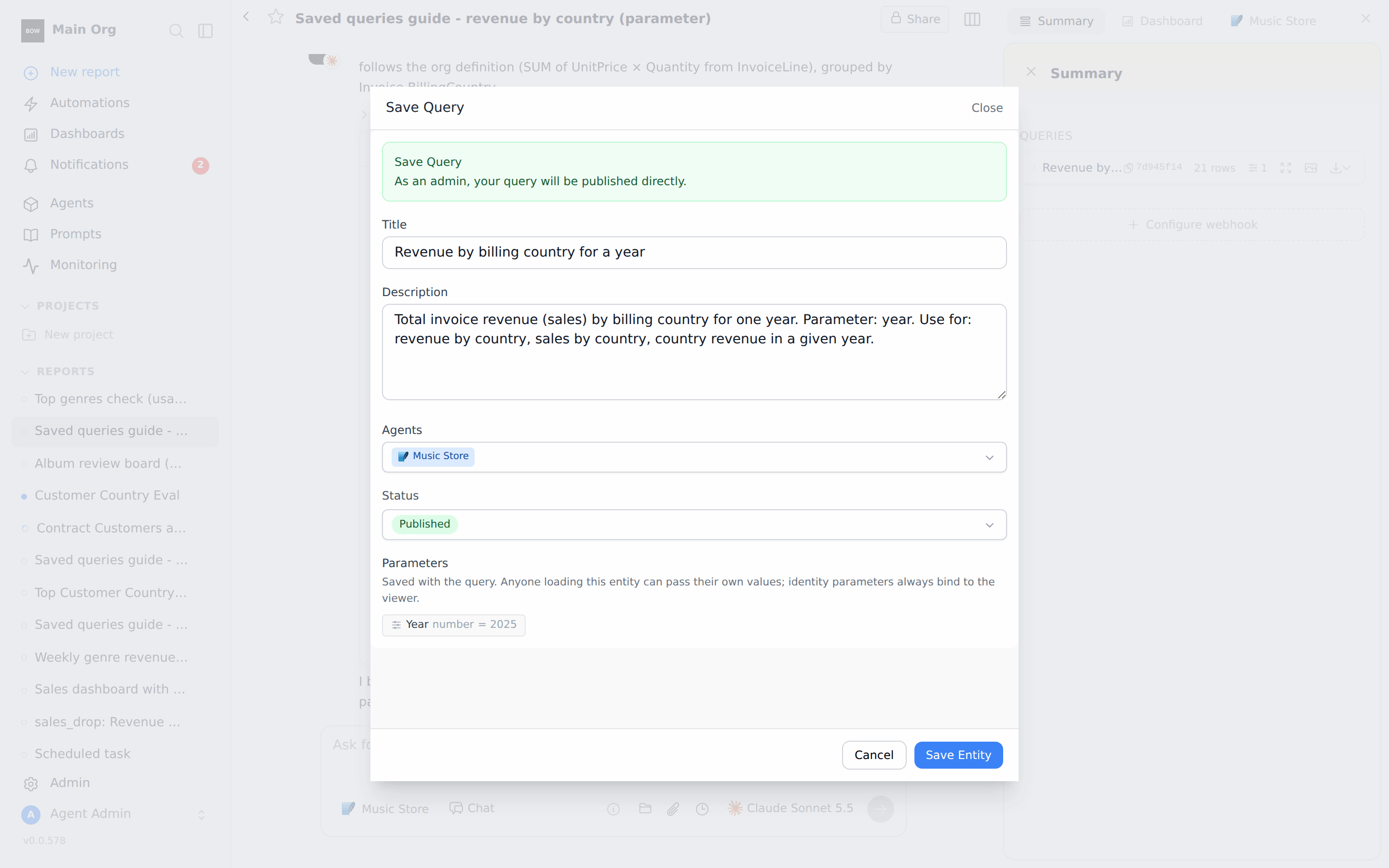
A parameter lets one saved query answer many versions of a question, like “revenue by country” for any year. Ask for the parameter when you build the query.Show total invoice revenue by billing country for one year at a time. Make the year a parameter I can change later, defaulting to 2025.Click Save Query. The dialog now has a Parameters section that lists the parameter and its default, here Year · number · = 2025.
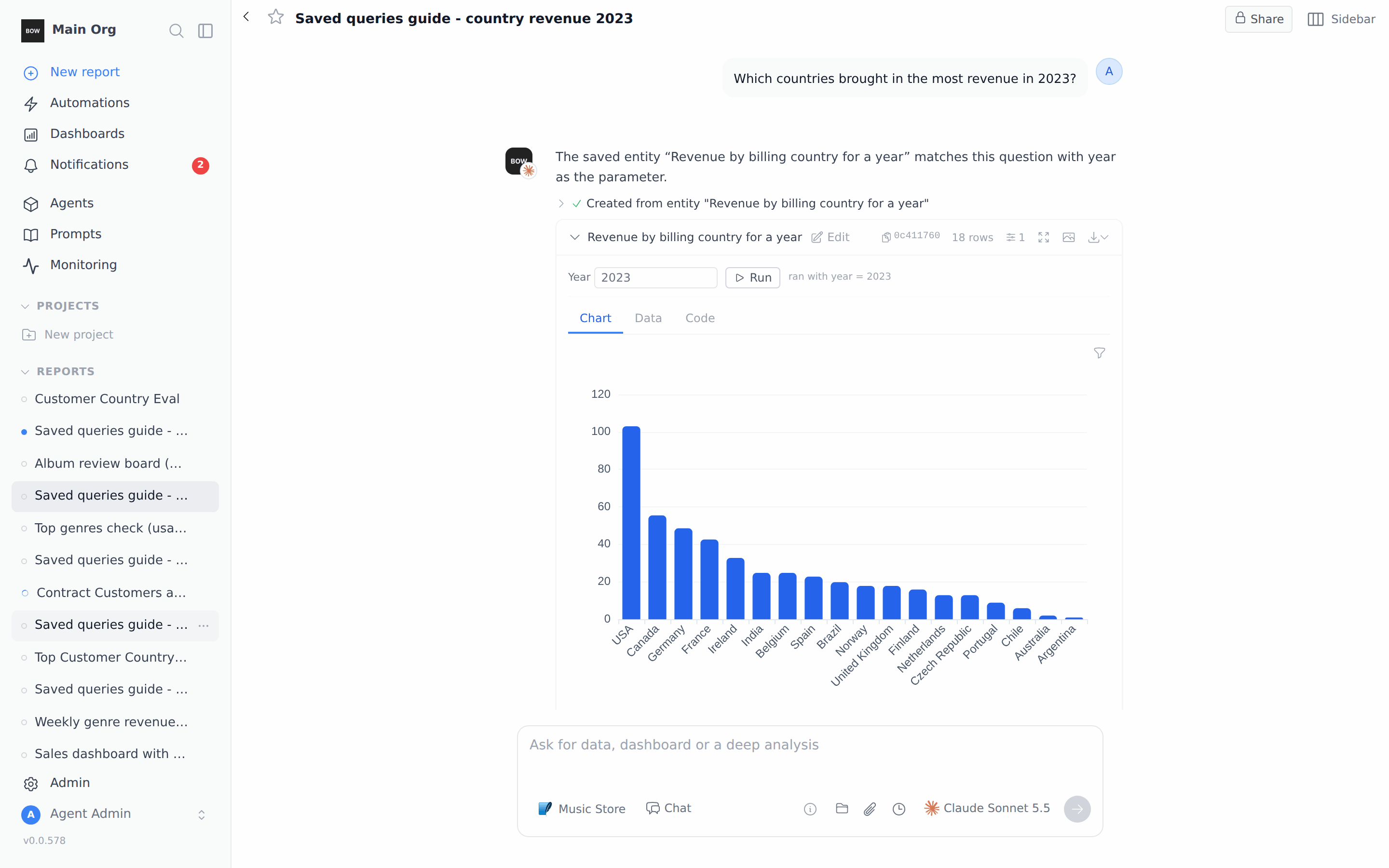
Which countries brought in the most revenue in 2023?The agent loads the saved query with your value. The result shows a Year box with Run, and ran with year = 2023. Type another year and click Run to change it without asking again.
Step 5: Find and run your saved queries
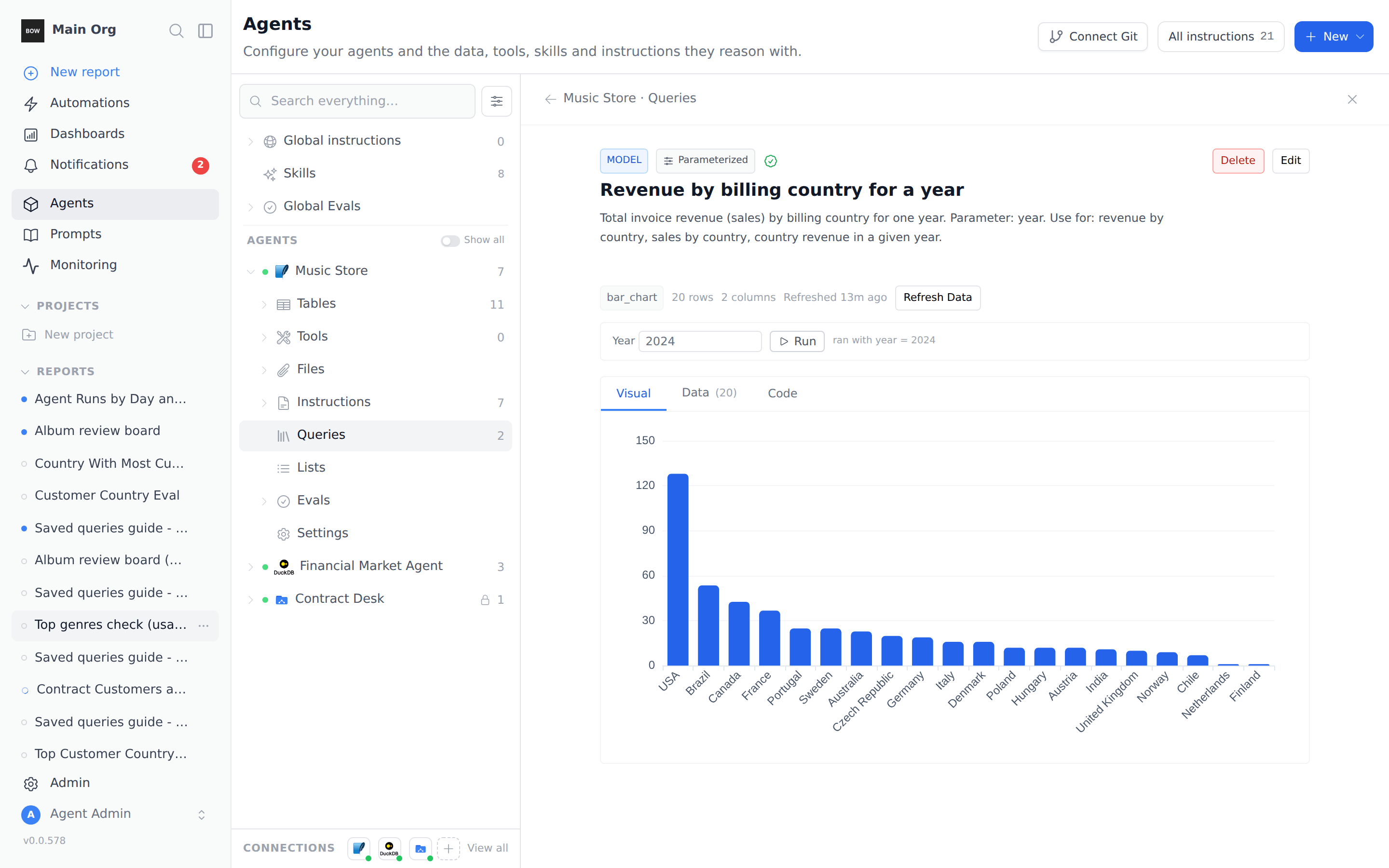
Open Agents, expand the agent, and click Queries. The number next to it is how many saved queries the agent has. Use Search entities… to filter the list, or New query to write one yourself.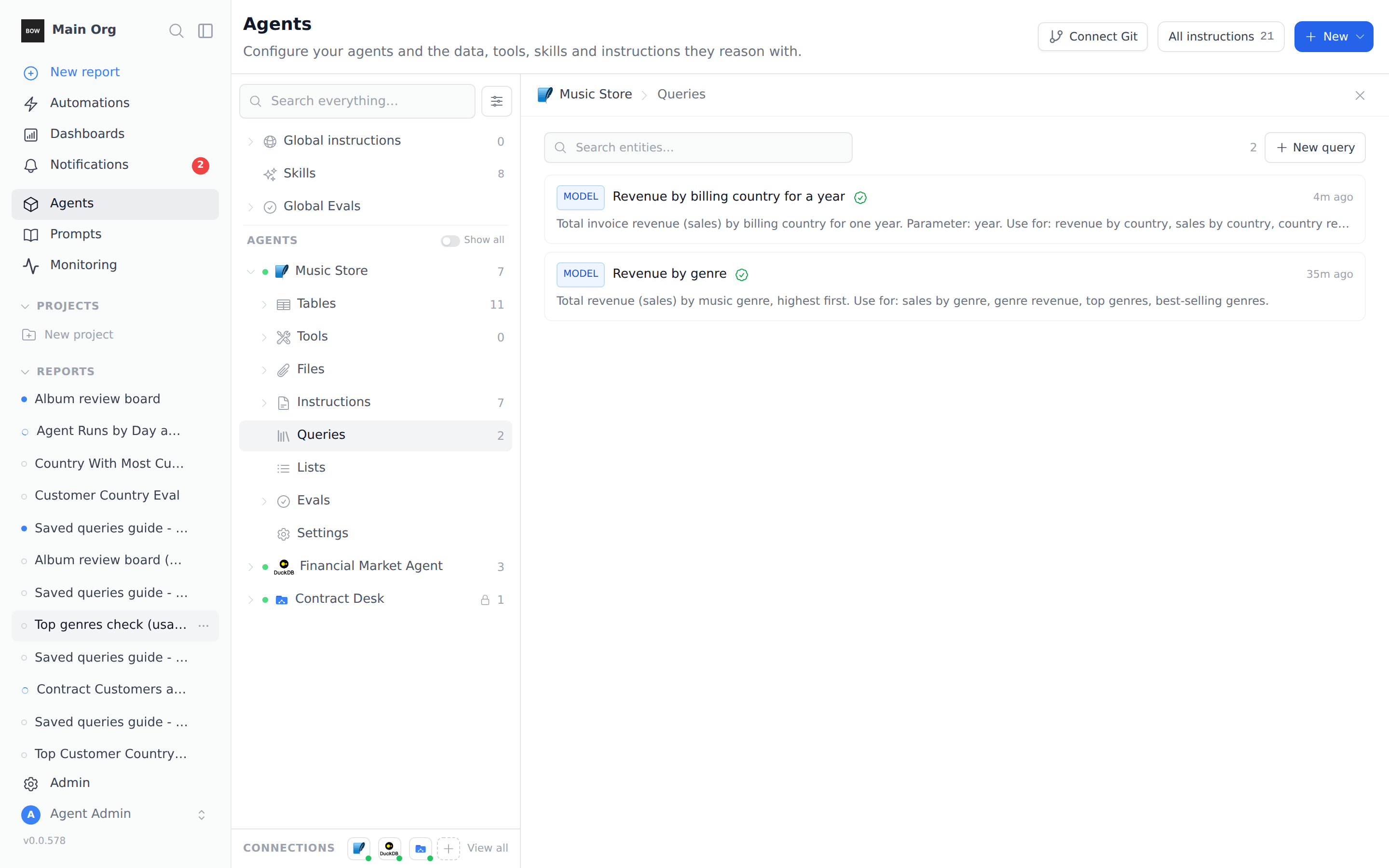
Step 6: Point the agent to a saved query with @
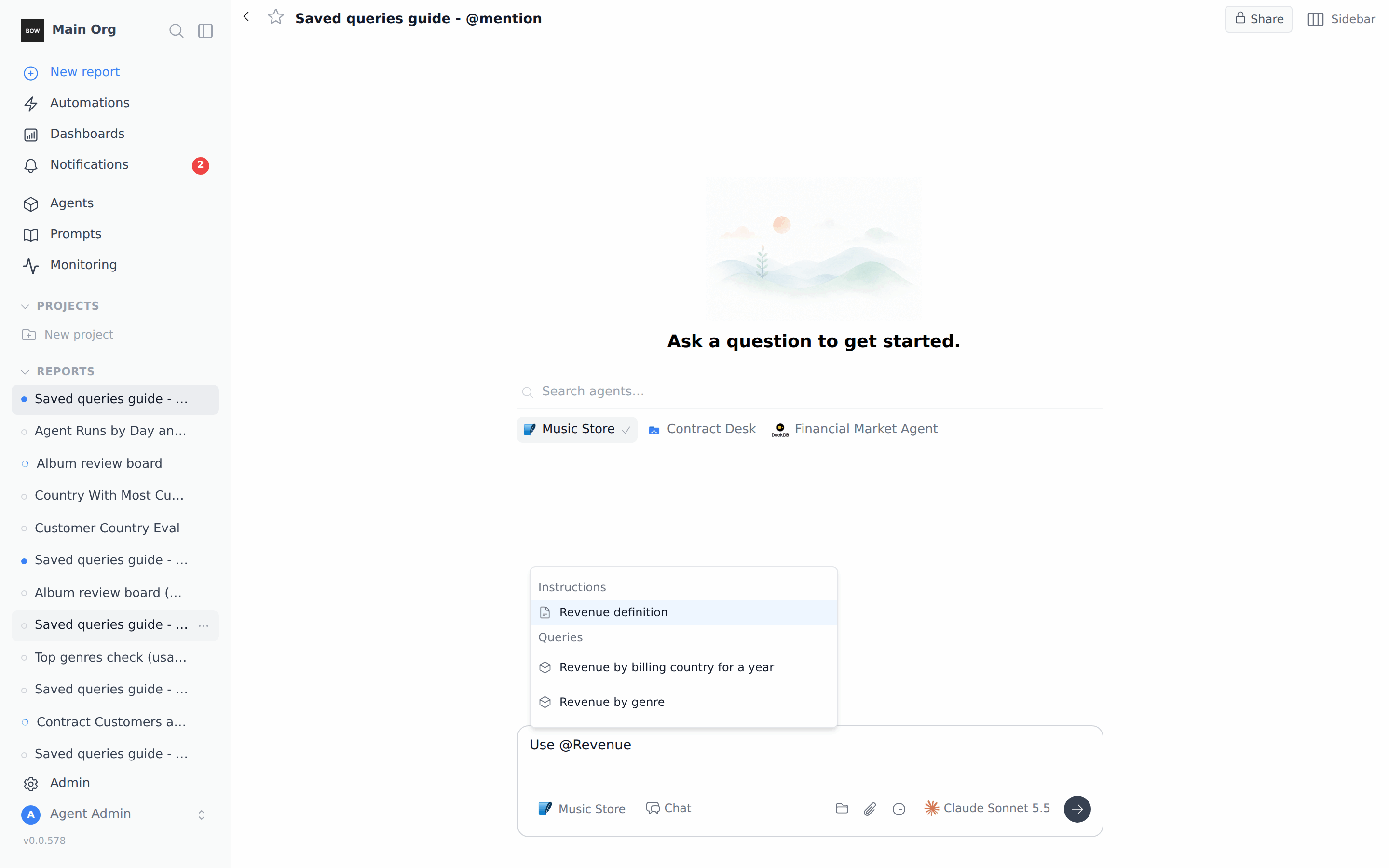
You can tell the agent exactly which saved query to use. In the prompt box, type @ and choose Queries, or keep typing the name. Pick the query and finish the prompt.Show @Revenue by billing country for a year for 2024
More prompts to try
Tips
- Check before you save. A saved query is served as-is. Review the Data and Code tabs first.
- Describe it the way people ask. Add the phrases people type (“sales by genre”, “top genres”) to the description. That is how the agent finds it.
- Name the parameters. Mention each parameter in the title or description, such as for a year or Parameter: year.
- Keep one query per question. If you change a saved query, edit it from Agents → Queries instead of saving a second copy.