
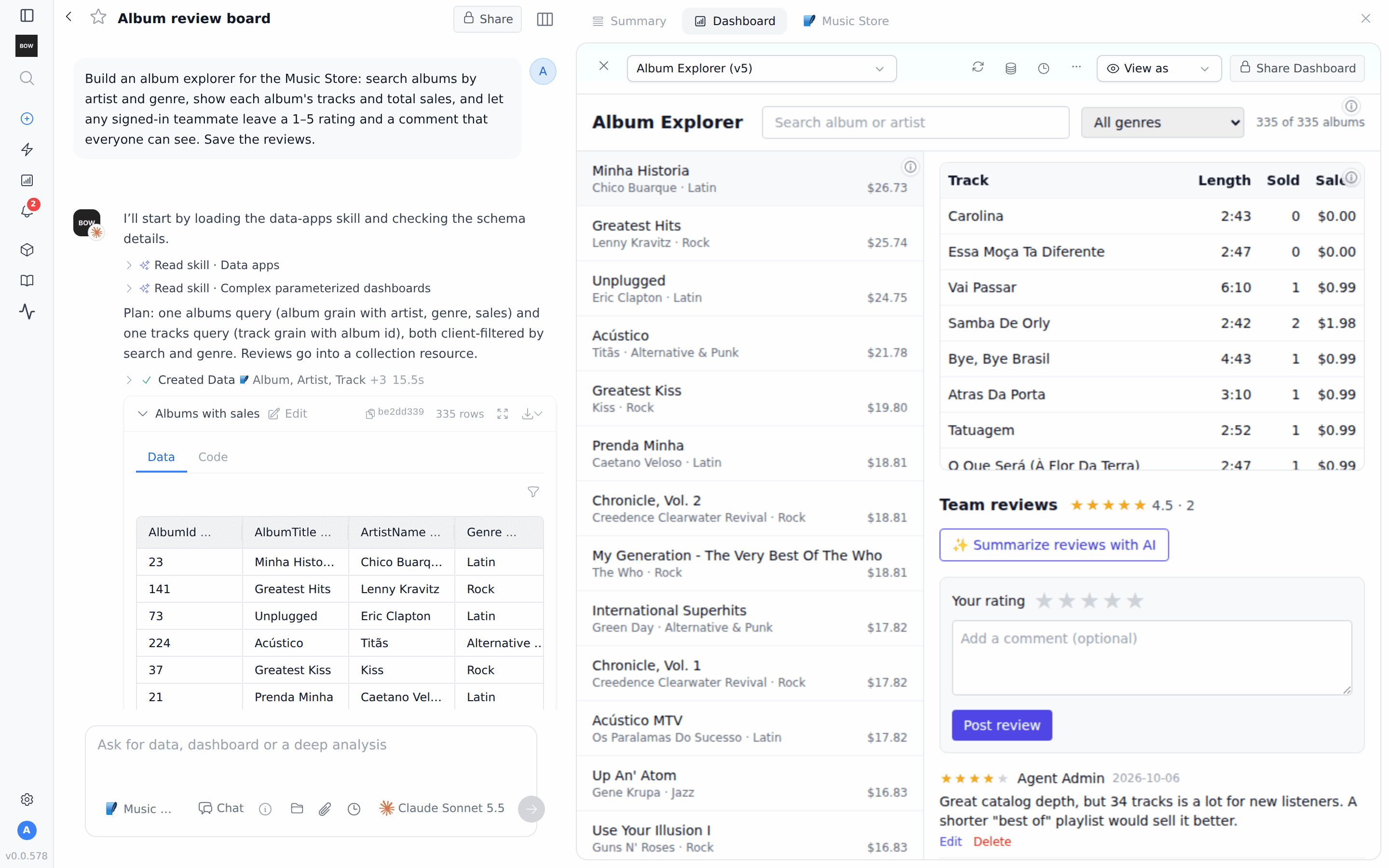
Beta. Saved data in dashboards is new and off by default. An admin turns it on with Artifact resources. Behavior may change.
What a dashboard remembers
A dashboard keeps track of different kinds of information. Some of it is saved and some is not:
Records, files and AI operations are artifact resources. This guide uses records and an AI operation. Files, for uploads such as PDFs or images, are the third kind.
Before you start
- Artifact resources is on. An admin turns it on in Settings → AI Settings → Agent capabilities → Artifact resources. It is off by default.
- The Data apps skill is enabled. Open Agents → Skills. Data apps should appear on the Enabled tab. If the Catalog tab shows Update available for it, click Update.
- You can use an agent with data. This guide uses the Music Store demo agent.
Step 1: Ask for the explorer
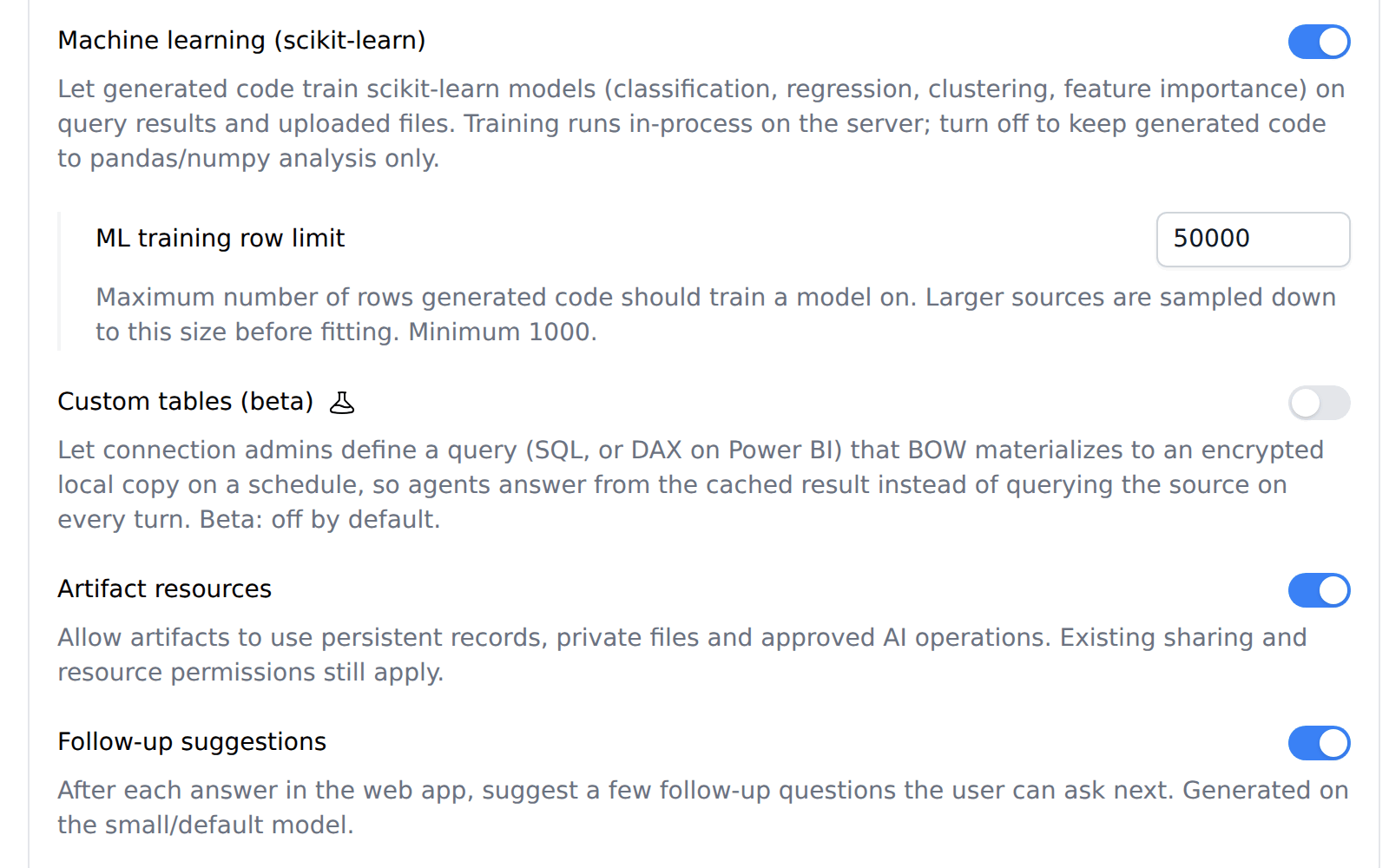
Start a new report with the Music Store agent and ask:Build an album explorer for the Music Store: search albums by artist and genre, show each album’s tracks and total sales, and let any signed-in teammate leave a 1–5 rating and a comment that everyone can see. Save the reviews.You don’t need to design a database. The agent writes the queries for albums and tracks, builds the page, and creates a reviews collection with fields for the album, rating, comment and author. It sets who can do what: any signed-in teammate can read and add reviews. The Dashboard tab opens next to the chat. Search and the genre menu filter the album list in the page.
Step 2: Load tracks for the open album only
The agent may tell you that a query has too many rows for the page. In our run, it warned that the tracks query had 3,289 rows but the page only receives the first 1,000, so some albums would show incomplete track lists. It offered a fix:Yes, load each album’s tracks when I open it.The agent rebuilds the tracks query with an album parameter. When you open an album, the page sends its ID to the query, which runs again and returns only that album’s tracks. The parameter appears in the page URL, for example
?qp_album_id=23.
This is the first kind of state from the table: a query parameter. It belongs to the viewer and is not saved with the dashboard.
Step 3: Let people change only their own reviews
Only let people edit or delete their own reviews.Permissions belong to the collection, not to the page. Each action (read, create, update, delete) can be allowed for the owner, any signed-in user, or selected groups. An “own” rule limits it to records the person created. The server checks every request. In our run, the agent had already limited edits and deletes to each review’s author when it created the collection. It added Edit and Delete to your own reviews and hid them on other people’s.
Who can open the dashboard is a separate setting. Use Share Dashboard for that. Sharing decides who can open the page; the collection’s permissions decide what those people can add, change or delete.
Step 4: Add an AI summary button
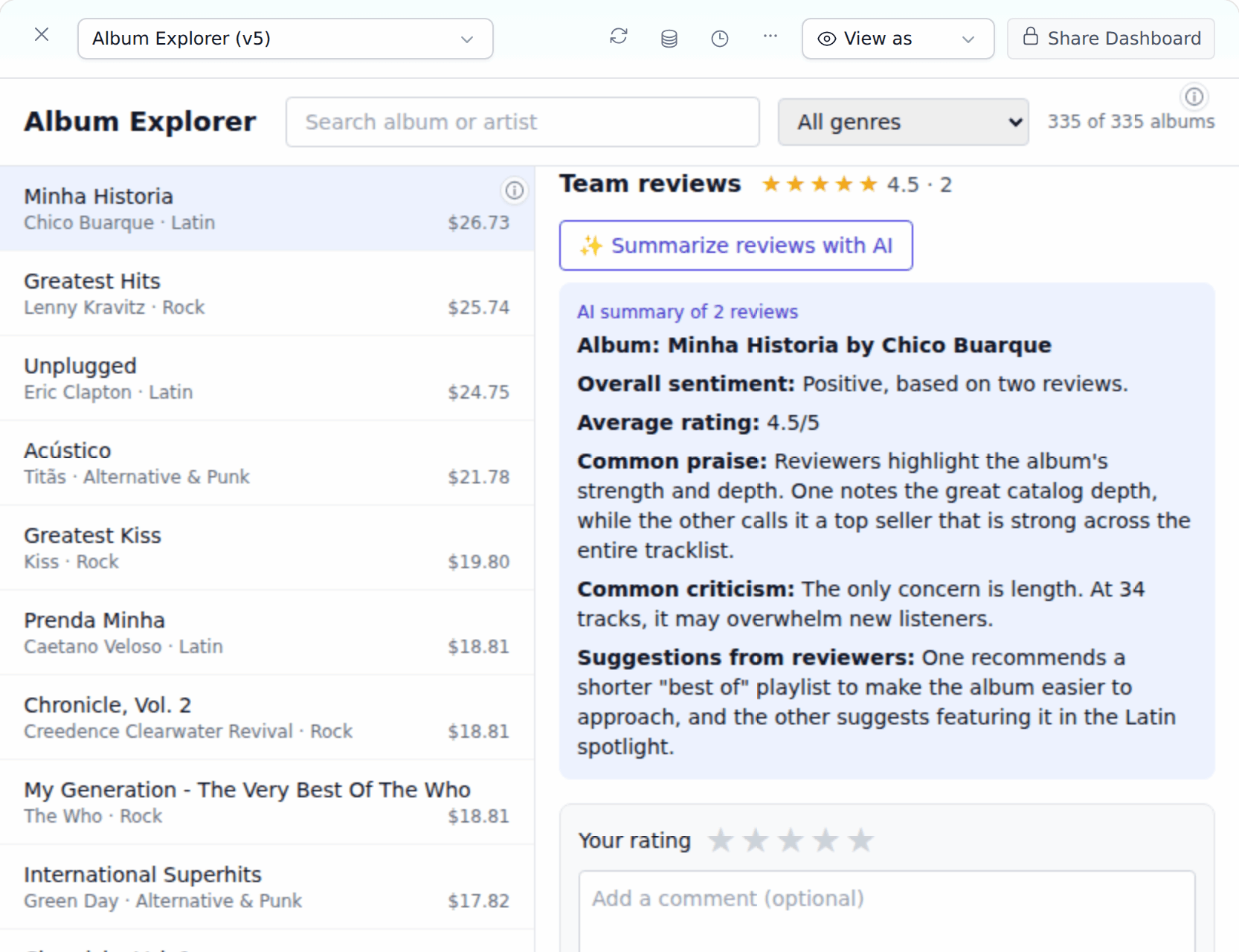
Add a button that summarizes all reviews for the selected album with AI.The agent adds an AI operation to the dashboard. A Created resource card in the chat shows its name. Click the card to see what changed, and Data explorer to open the saved records.
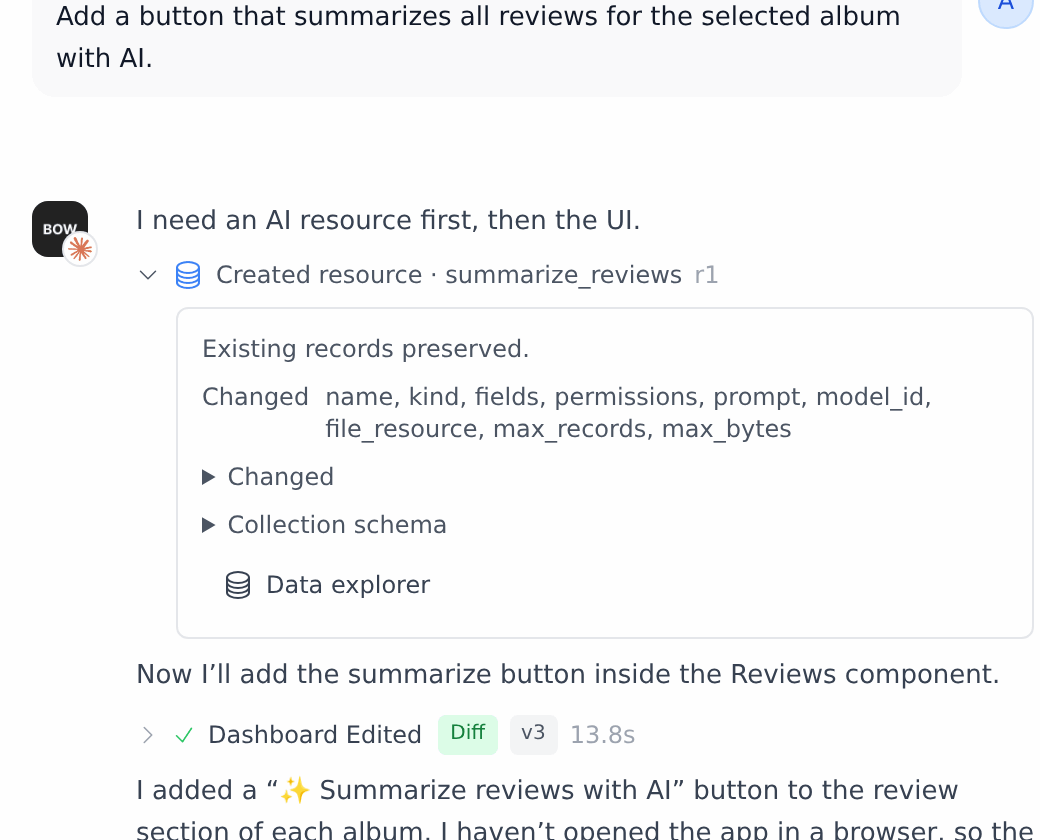
** marks. One more message fixed it:
The AI summary shows raw ** marks. Show it as clean text with bold section labels.
Step 5: Add reviews and check they are saved
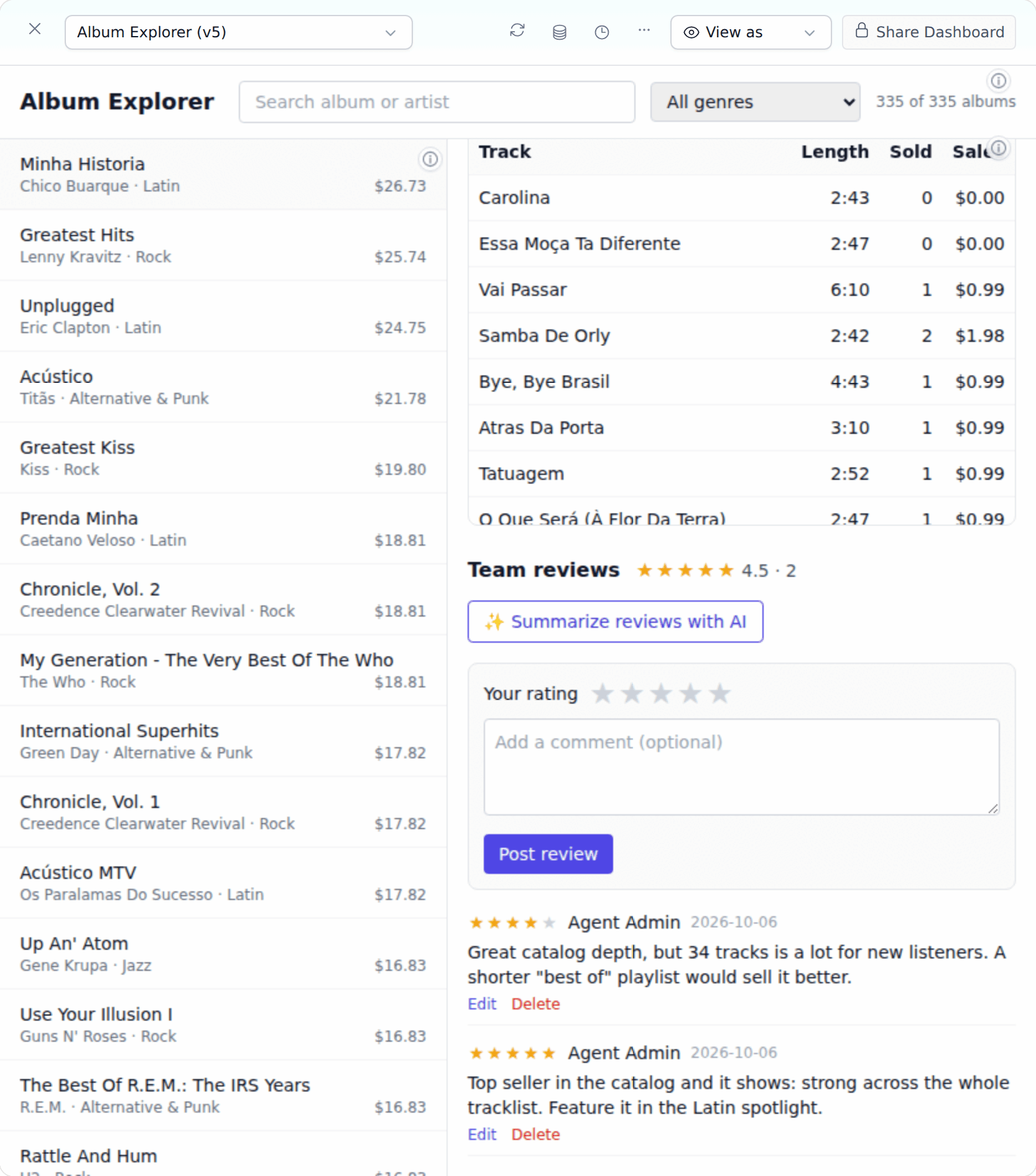
Use the dashboard as your teammates will:- Click an album, for example Minha Historia.
- Pick a star rating under Team reviews, add a comment, and click Post review.
- Reload the page and open the album again. The review is still there, with the average rating next to Team reviews.
- Click Edit on your review, change it, and click Save.
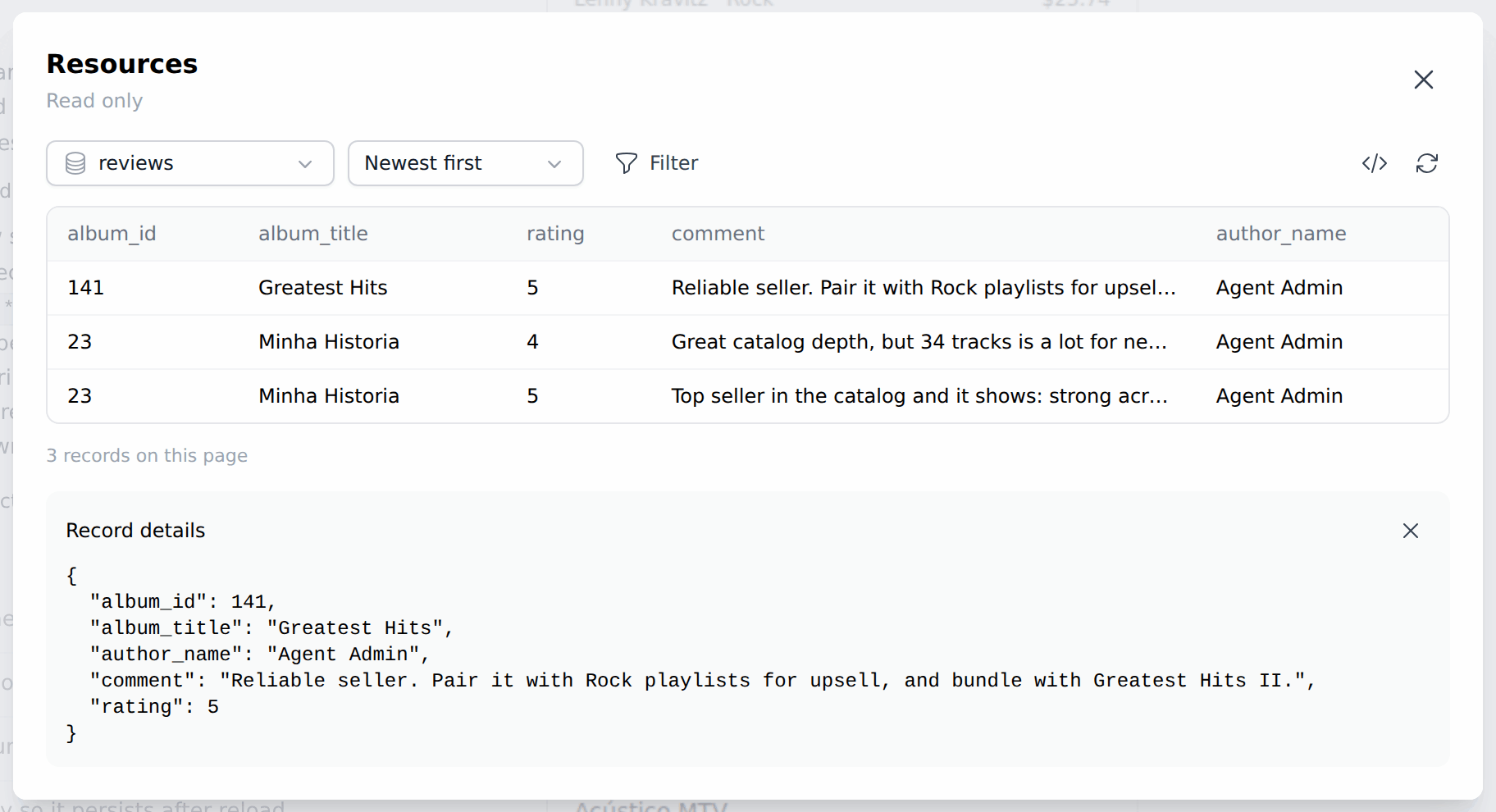
Step 6: Inspect the saved reviews
In the dashboard toolbar, click ⋯ and choose Resources.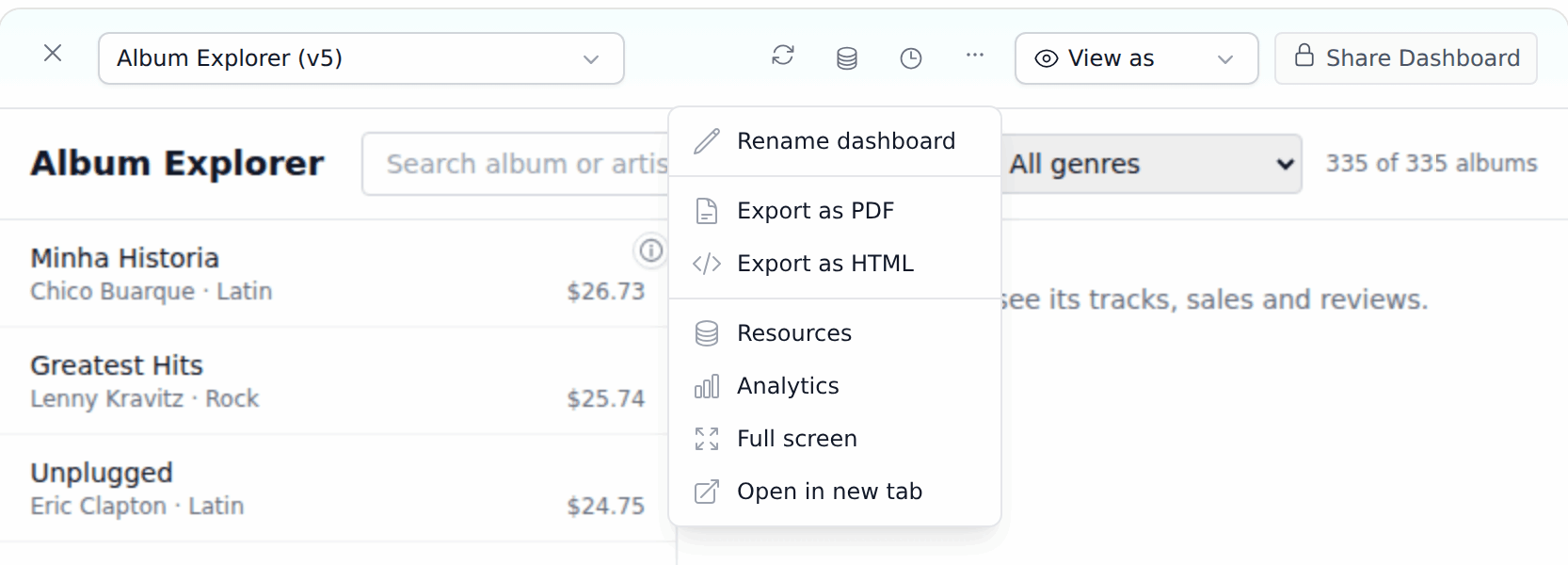
More prompts to try
Tips
- Decide the fields before people add reviews. Once a collection has records, you can only add optional fields. In our run, the agent could not add an indexed author field to a collection that already had reviews: the change was refused with “Existing records require an explicit migration.”
- Test as a real user. The agent checks the page in a preview with sample permissions. Post, reload, edit and delete in the dashboard yourself, and ask a teammate to try it with their account.
- Hidden buttons are not security. The page decides which buttons to show, but the collection’s permissions decide what the server allows. Ask for permissions in plain words, as in Step 3.
- Saved reviews stay in BOW. Records belong to the dashboard. They are not written back to your connected database.