
Before you start
- You can use an agent. This guide uses the Music Store demo agent. Its invoice data ends in December 2025, so the prompts ask for “the latest month in the data” instead of “last month”.
- Your organization’s timezone is set (optional). Scheduled times use the organization timezone. If no timezone is set, they use UTC. Only an admin can change it (Step 1).
Step 1: Set the organization timezone
Open Admin → General. Under Organization timezone, pick your timezone, for example America/New_York, and click Save changes.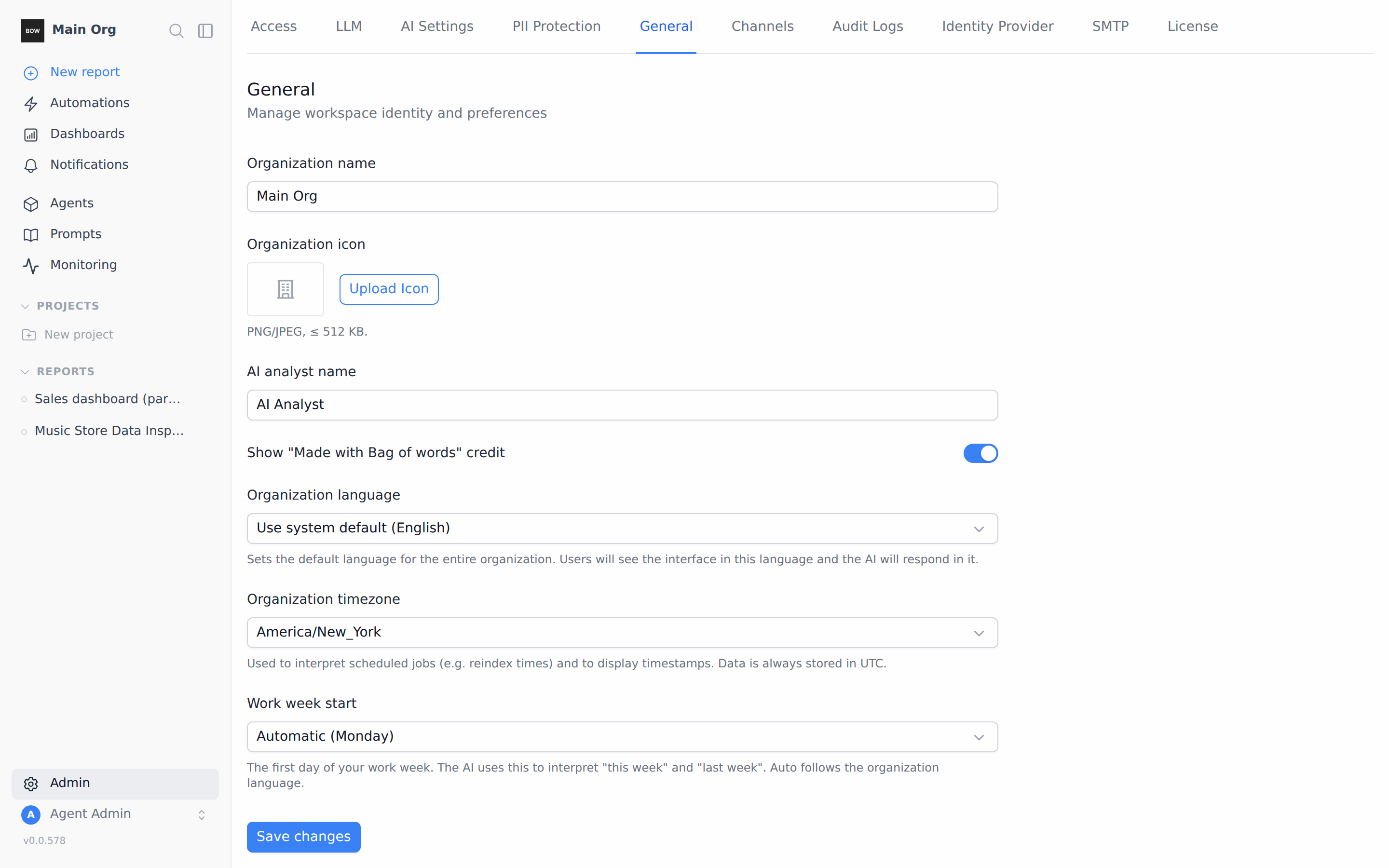
Step 2: Create the task
Open Automations in the sidebar and stay on the Scheduled tab. Click New task. The Schedule a task window opens.- Title: type a short name, such as Monthly sales digest. The title appears in the task list and on the notification.
-
Prompt: click Auto at the bottom of the prompt box and choose Music Store. Then type the prompt:
For the latest full month in the data, show total revenue, invoice count and average invoice value vs the prior month, plus the top 5 countries by revenue as a bar chart. Keep it to 5 bullets.
- Schedule: choose Recurring. Set Every to month, at to 08:00 and on day to 1.
- Results: keep This report.
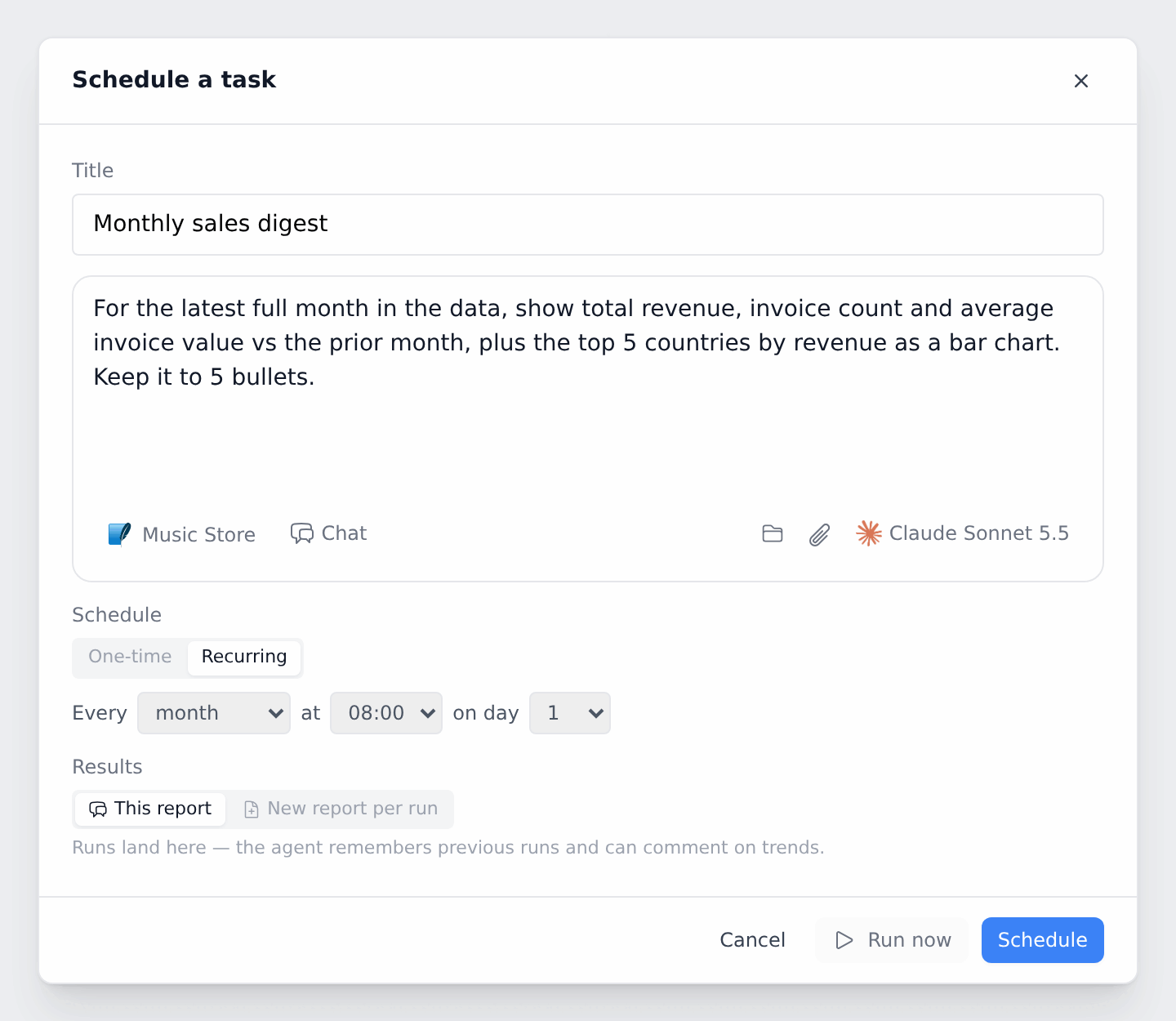
- This report adds every run to the same report. The agent can see earlier runs and comment on trends.
- New report per run creates a new, dated report for each run, so every run starts from a clean report.
Use Recurring schedules. The One-time option doesn’t work reliably yet.
Step 3: Run it now to check the result
You don’t have to wait for the first run. Click the task to open it, then click Run now. The run starts right away and the report opens. Each run appears in the report under a Scheduled run heading, with the date and time and the number of steps and queries. Under it you see the prompt, the queries the agent ran, the chart, and the answer.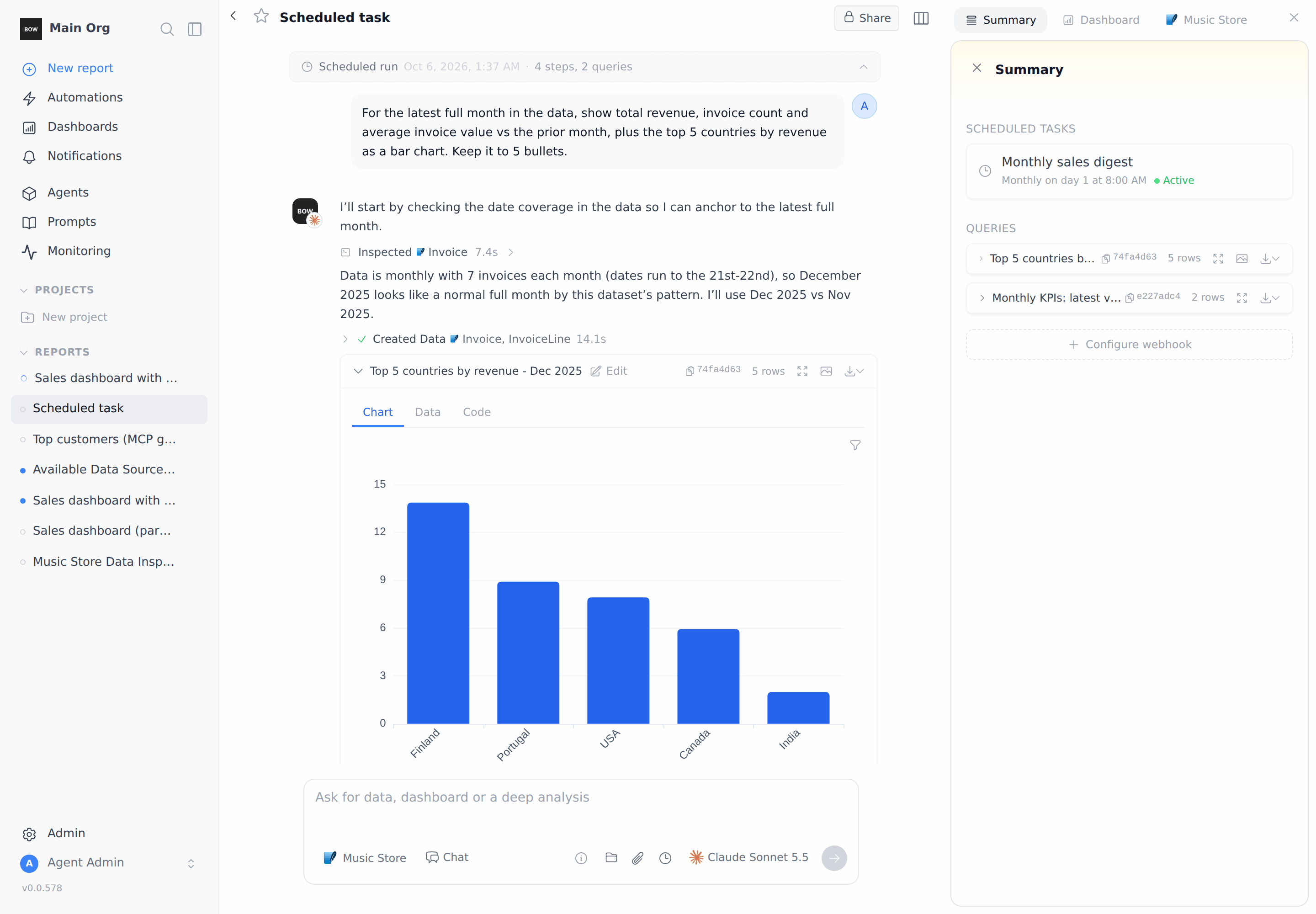
Step 4: Check the task
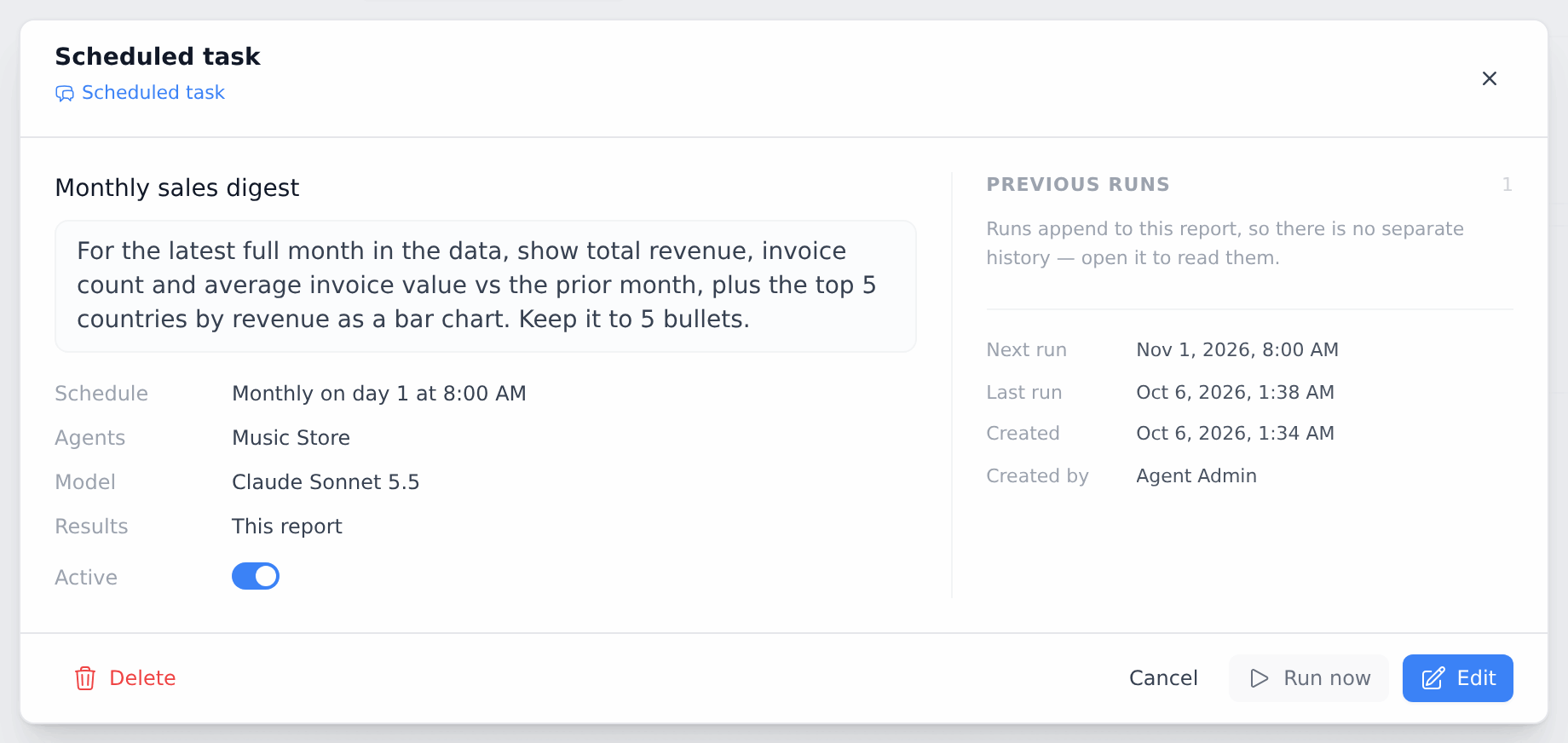
On Automations, click the task. The Scheduled task window shows:- The prompt, Schedule, Agents, Model and Results.
- Next run and Last run, shown in the organization timezone.
- Previous runs. With This report, runs are added to one report, so you read them there. With New report per run, each run is listed here with a link to its report.
Step 5: Create a task from chat
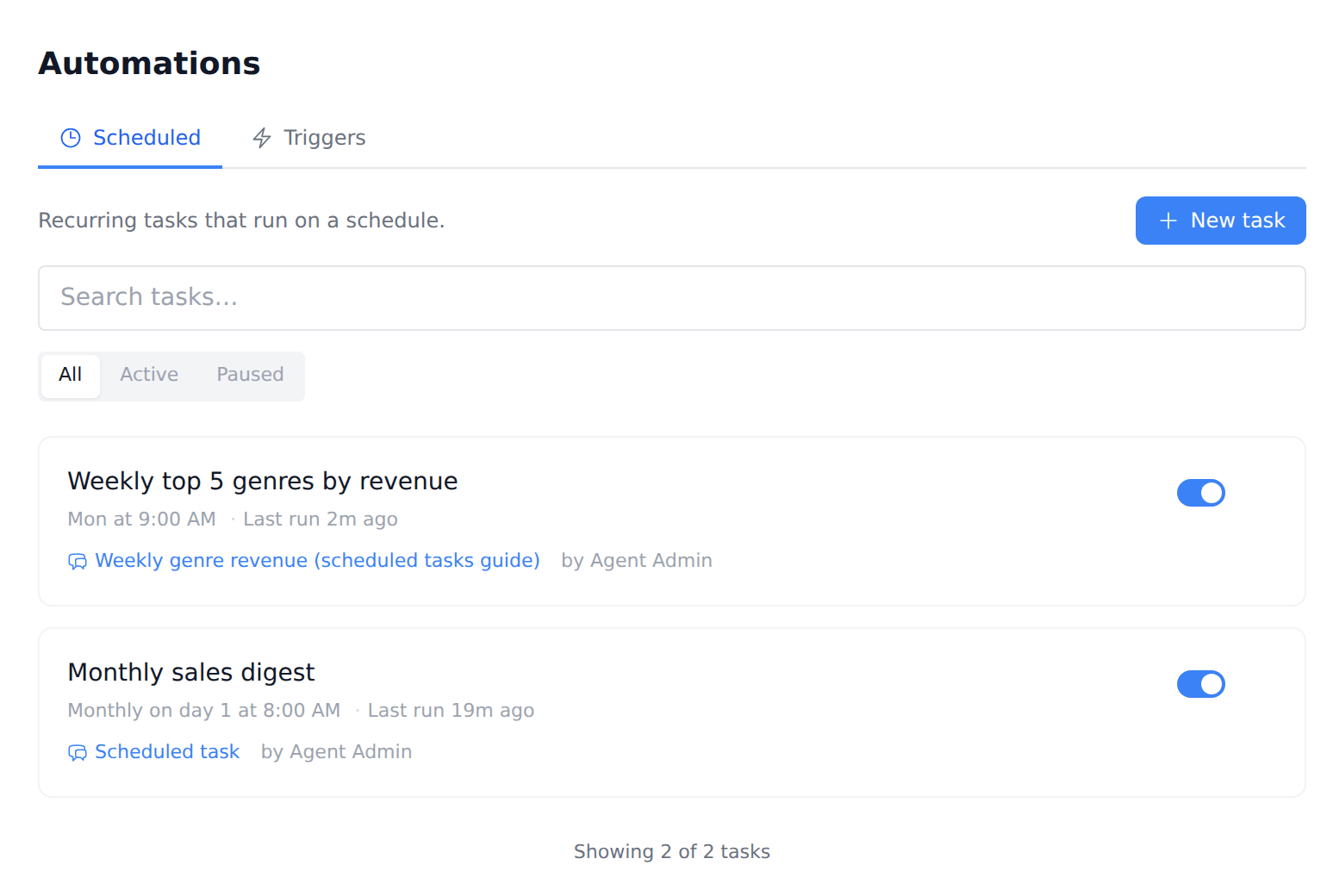
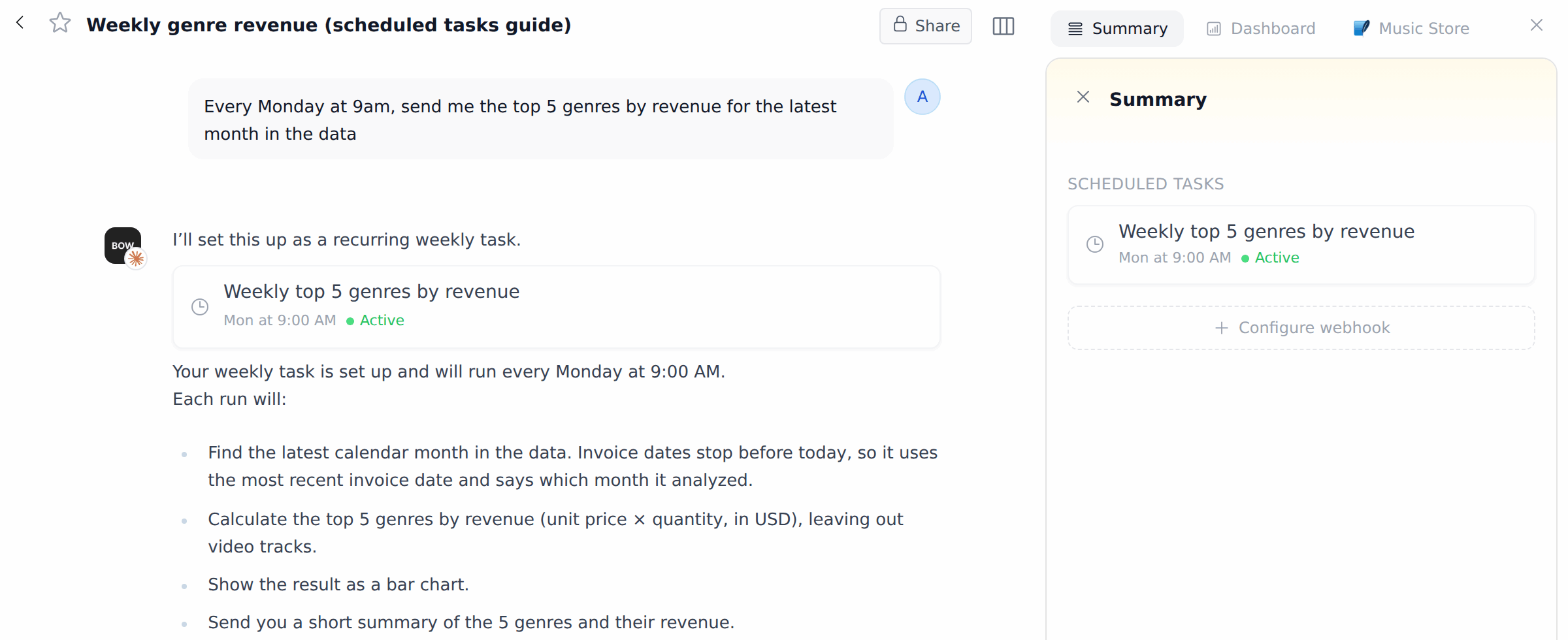
You can also ask the agent for a schedule in a report. In a report that uses Music Store, send:Every Monday at 9am, send me the top 5 genres by revenue for the latest month in the dataThe agent creates the task and shows it as a card in the chat, with its schedule (Mon at 9:00 AM) and status (Active). The task also appears in the report’s Summary panel and on Automations.
Step 6: Get the results
When the prompt asks to be told the result (“send me”, “notify me”), the agent sends a notification at the end of each run. It appears under Notifications in the sidebar. The title and summary are written by the agent.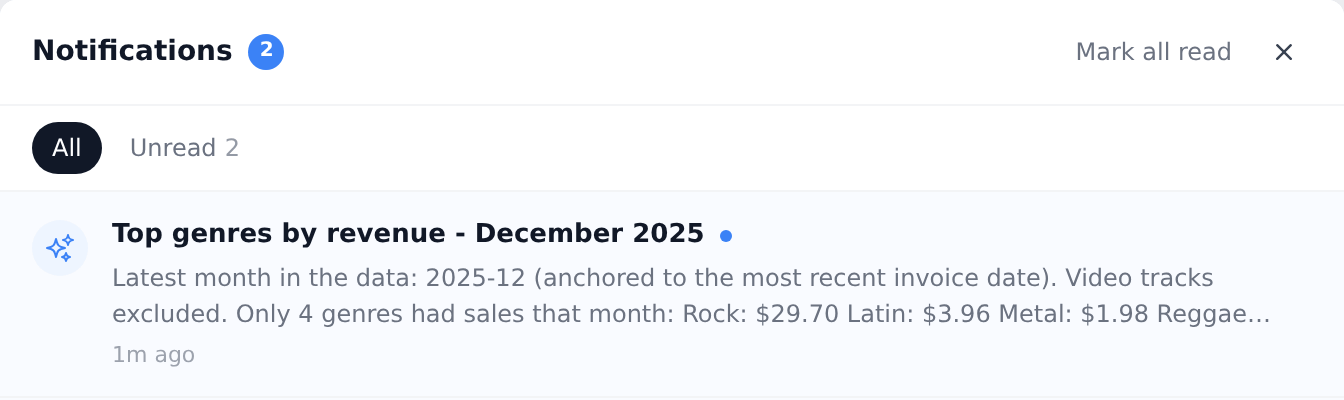
Step 7: Pause, resume or delete a task
On Automations, use the switch on the right of a task to pause it or turn it back on. You can also turn Active on or off in the Scheduled task window. A paused task keeps its prompt and schedule but doesn’t run. Use Active and Paused above the list to filter tasks.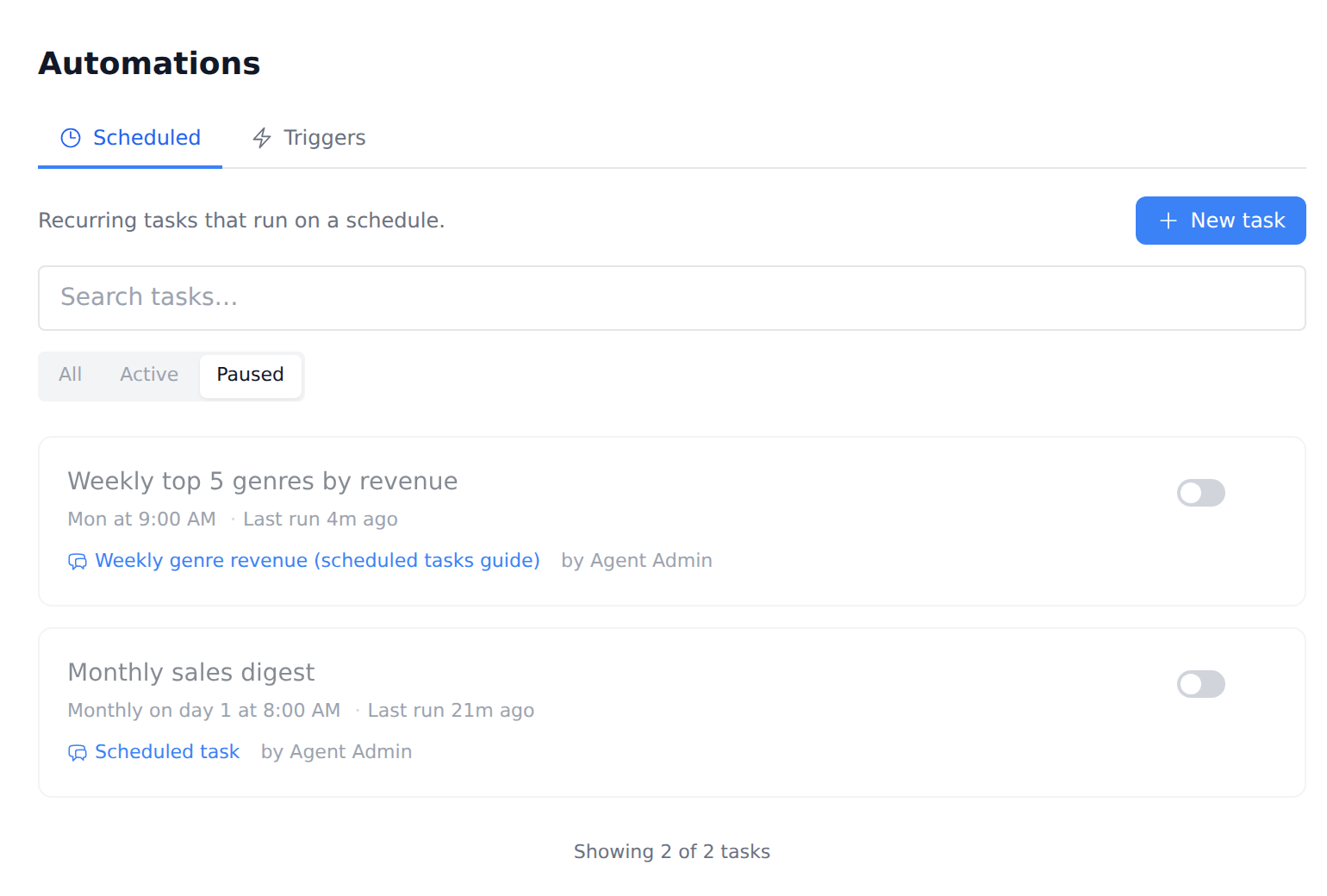
More prompts to try
Tips
- Write the prompt for a run with nobody there. Nobody can answer a follow-up question during a scheduled run. Name the period, the numbers and the format you want.
- Say “the latest month in the data” when your data isn’t up to date. “Last month” means the calendar month, which may have no data.
- Use This report for trends. The agent sees earlier runs in the same report and can say what changed. Use New report per run when each run should start from scratch.
- A task re-runs the whole prompt. The agent writes new queries and a new answer each time. This is different from refreshing the data in a dashboard.
- Rename the report. A task created from New task gets a report named Scheduled task. Rename it so it’s easy to find in the sidebar.
Troubleshooting
- The task runs at the wrong hour. Check Organization timezone in Admin → General. If it’s not set, schedules use UTC.
- There is no Next run. The task is paused. Turn it back on.
- Nobody was notified after a run. Ask for it in the prompt (“notify me with …”), or turn on Email a summary after each run if your organization has email set up.