
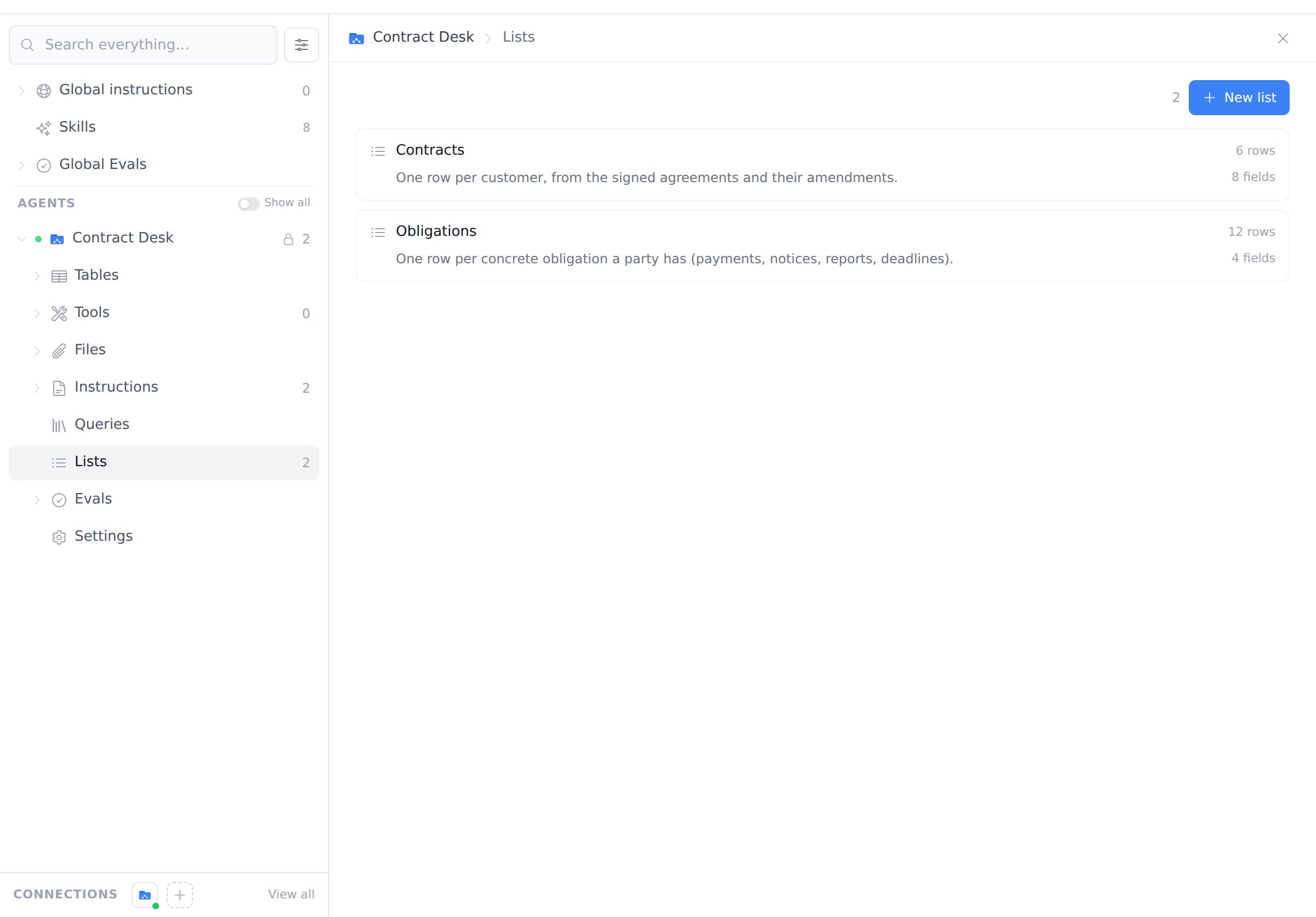
How lists work
- Define the fields. Give the list a name and the fields each row should have. Each field has a type and a short description that tells the agent what to look for.
- Ask the agent. In a report with that agent, say what to extract, for example “Read every contract and save each customer to the Contracts list.” The agent reads the sources and saves the rows.
- Review. Every value shows its status and the quote it came from. Fix anything you disagree with; your edits are kept.
- Use the data. Query the list in a report like any other table, or export it as CSV.
Create a list
Open Agents, select an agent, choose Lists in its tree, and click New list.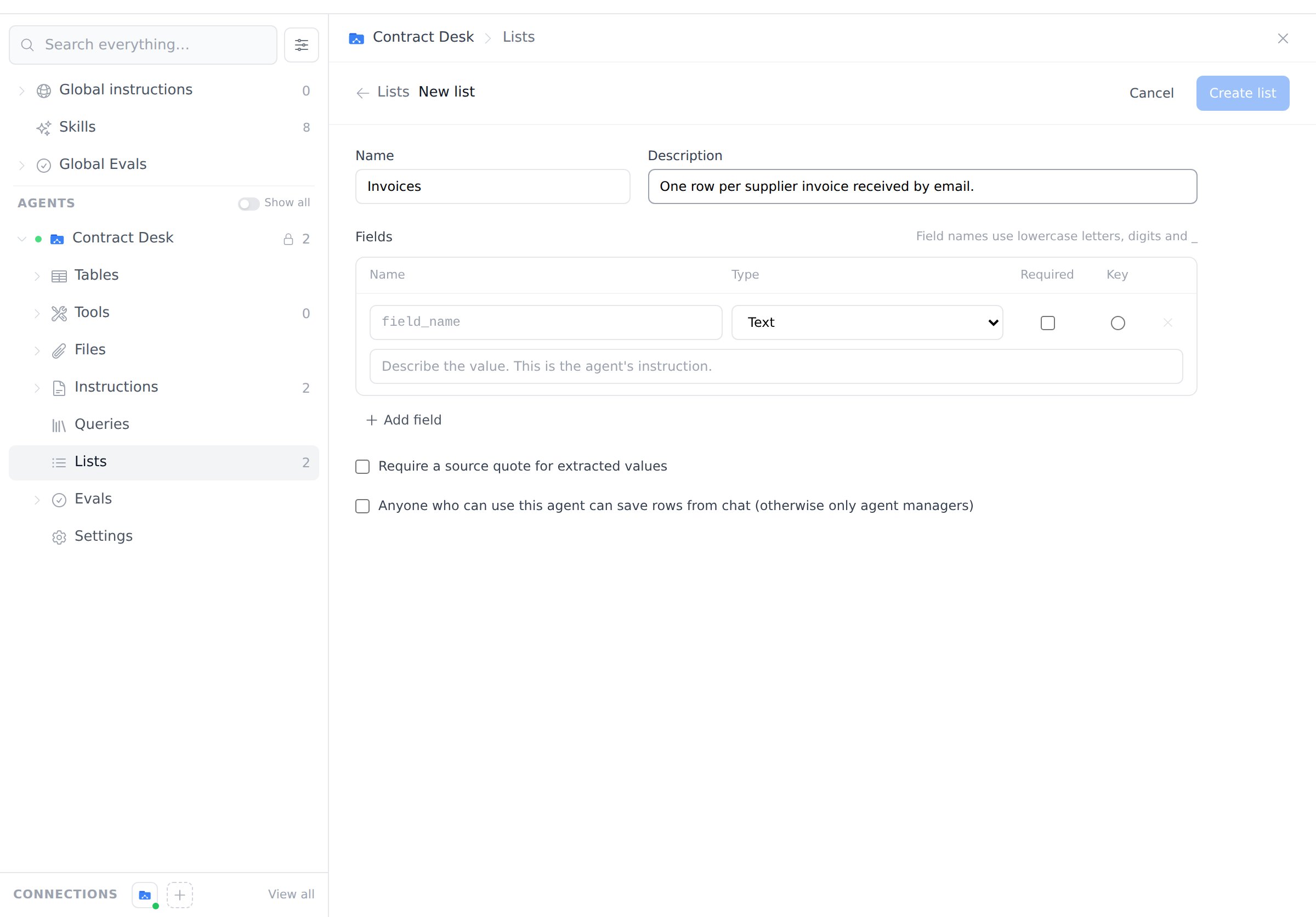
- Name and description. The description tells the agent what one row represents, for example “One row per customer, from the signed agreements and their amendments.”
- Fields. Add one field per value you want. Field names use lowercase letters, digits and
_. Each field’s description is the agent’s instruction for that value. Be specific, for example “Current annual fee; annualize monthly fees and say so in the note.” - Required. A new row can’t be saved without a value for this field.
- Key. Optional. Choose the field that identifies a row, such as
counterparty. When the agent sees the same key again, it updates that row instead of adding a duplicate. Leave the key empty for lists with many rows per source, such as one row per obligation. - Require a source quote for extracted values. When on, the agent must quote the source for every value it reports as found or inferred.
- Anyone who can use this agent can save rows from chat. When off (the default), only people who manage the agent can have it save rows. Everyone with access can still view and export the list.
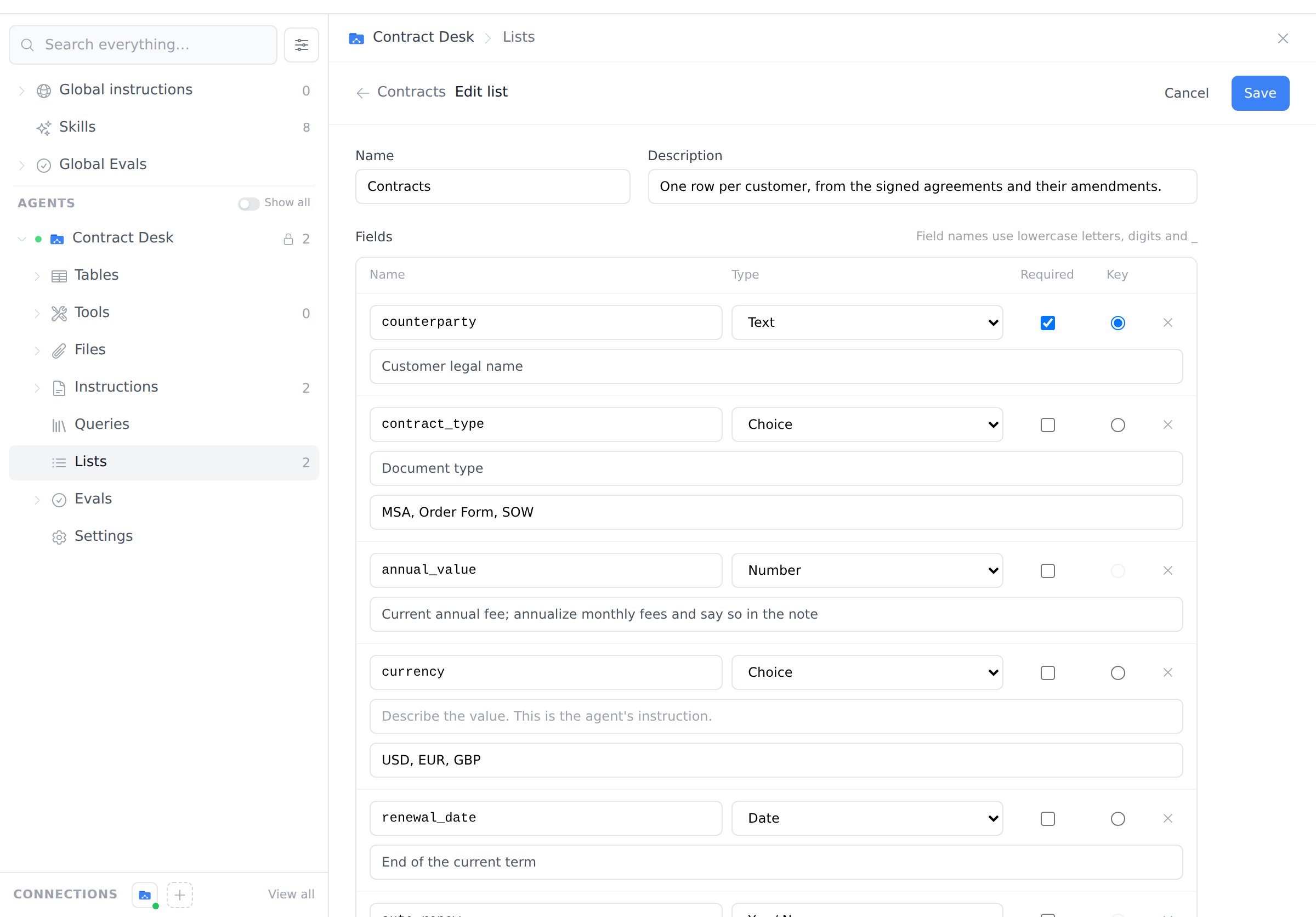
Field types
An agent can have up to 10 lists, and a list up to 40 fields.
Change a list later
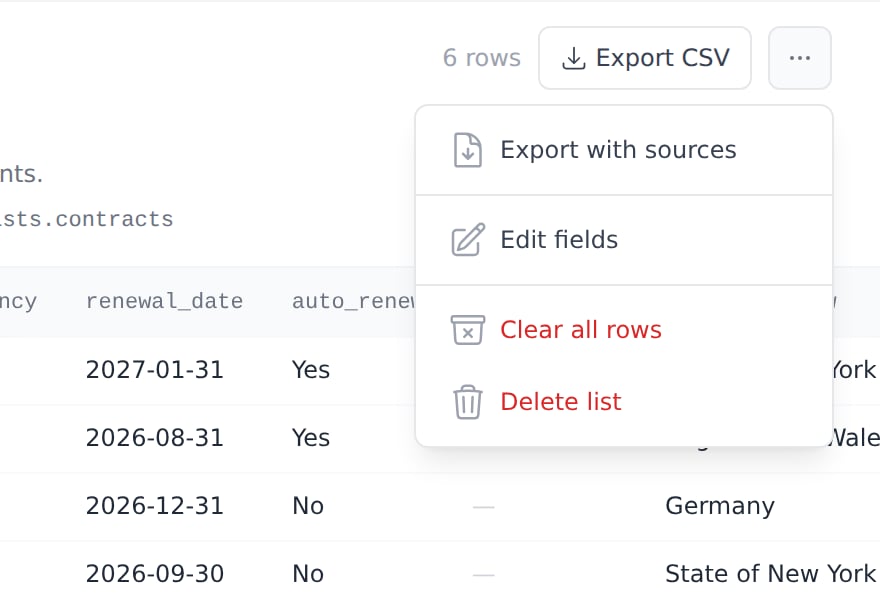
Open the list, click ⋯ and choose Edit fields. Renaming a field, editing descriptions, adding optional fields or adding options is always safe. Changing a field’s type, removing a field or an option, making a field required, or changing the key marks existing rows as out of date (a warning icon in the table), so you know to re-run the extraction.Fill a list from chat
Start a report with the agent and ask in plain language. The agent reads the sources it has access to, such as files, directories, emails, web pages or query results, and saves the rows to the list you name. Example requests:- “Read every contract in the folder and save each customer to the Contracts list, with the quote for each value.”
- “Go through every contract and save each concrete obligation to the Obligations list.”
- “A new amendment for Acme Logistics was added. Re-check all contracts and update the Contracts list.”
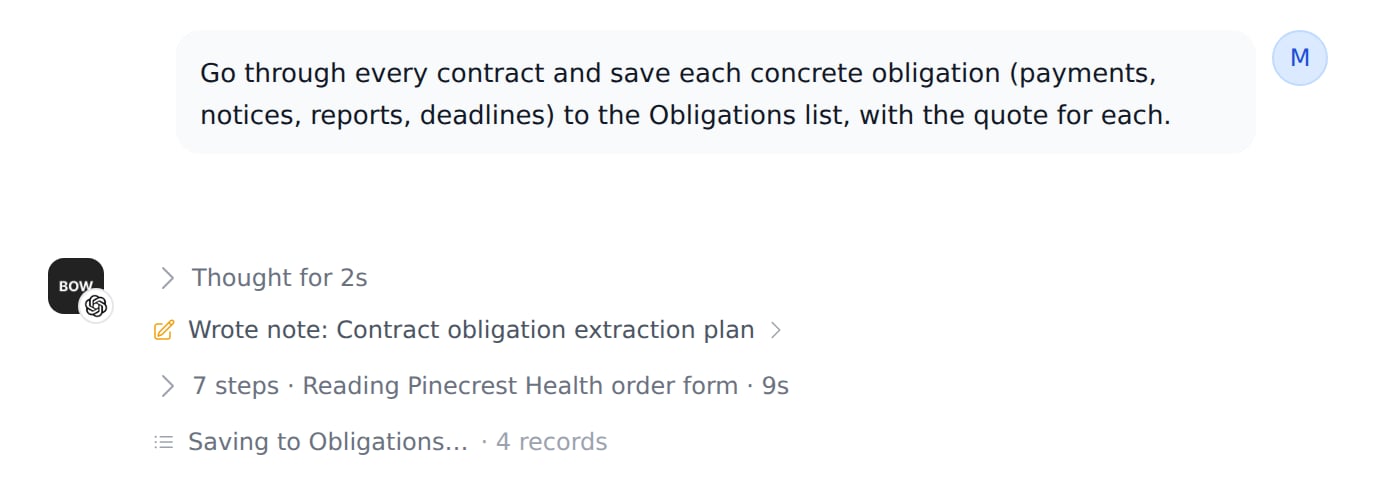
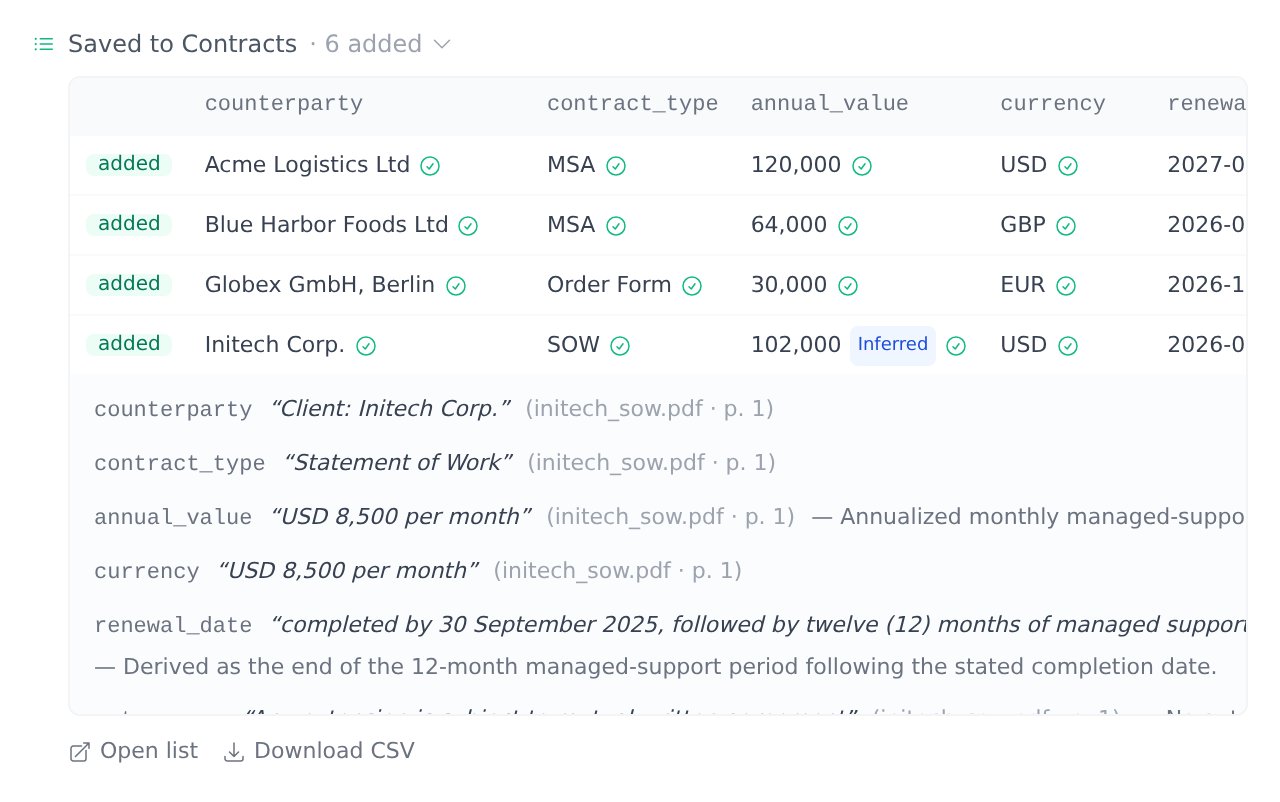
Value statuses
Every value carries a status, so a blank is never ambiguous:Checked sources
A ✓ next to a value means its quote was found in text the agent actually read in that report, such as a file, an email, a web page or your own message. A ? means the quote could not be matched, so check that value first. Matching tolerates line breaks, hyphenation and quotation-mark styles, but never a changed number or word.Updating rows
With a key field, running the extraction again updates the existing rows. Values that didn’t change are left alone. Only a change in a value or its status is recorded in the row’s history.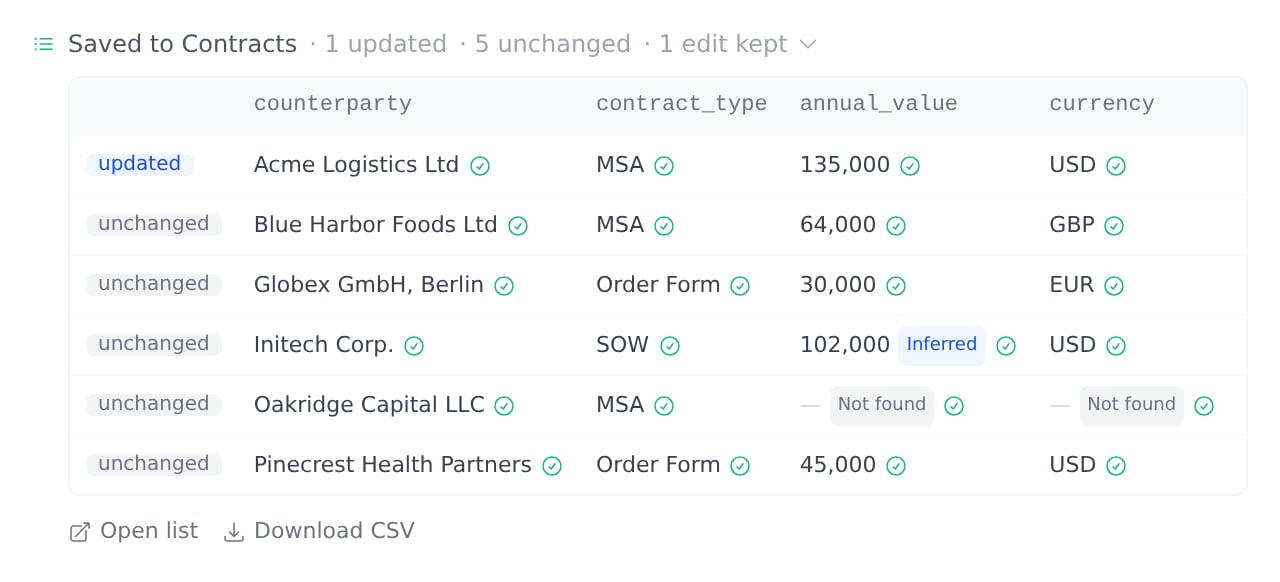
Review and edit rows
Open the list to see its rows. The key field is marked with a key icon.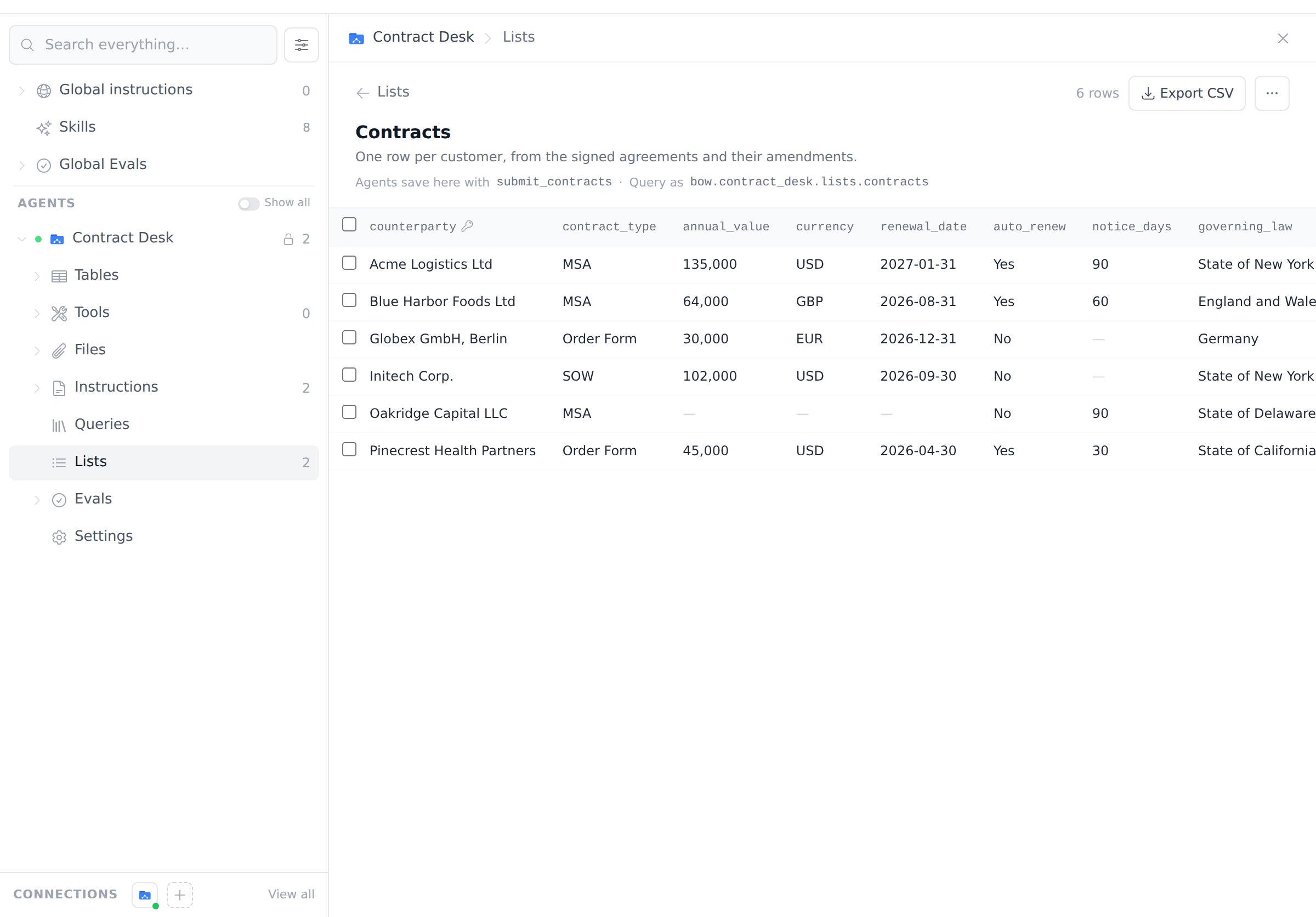
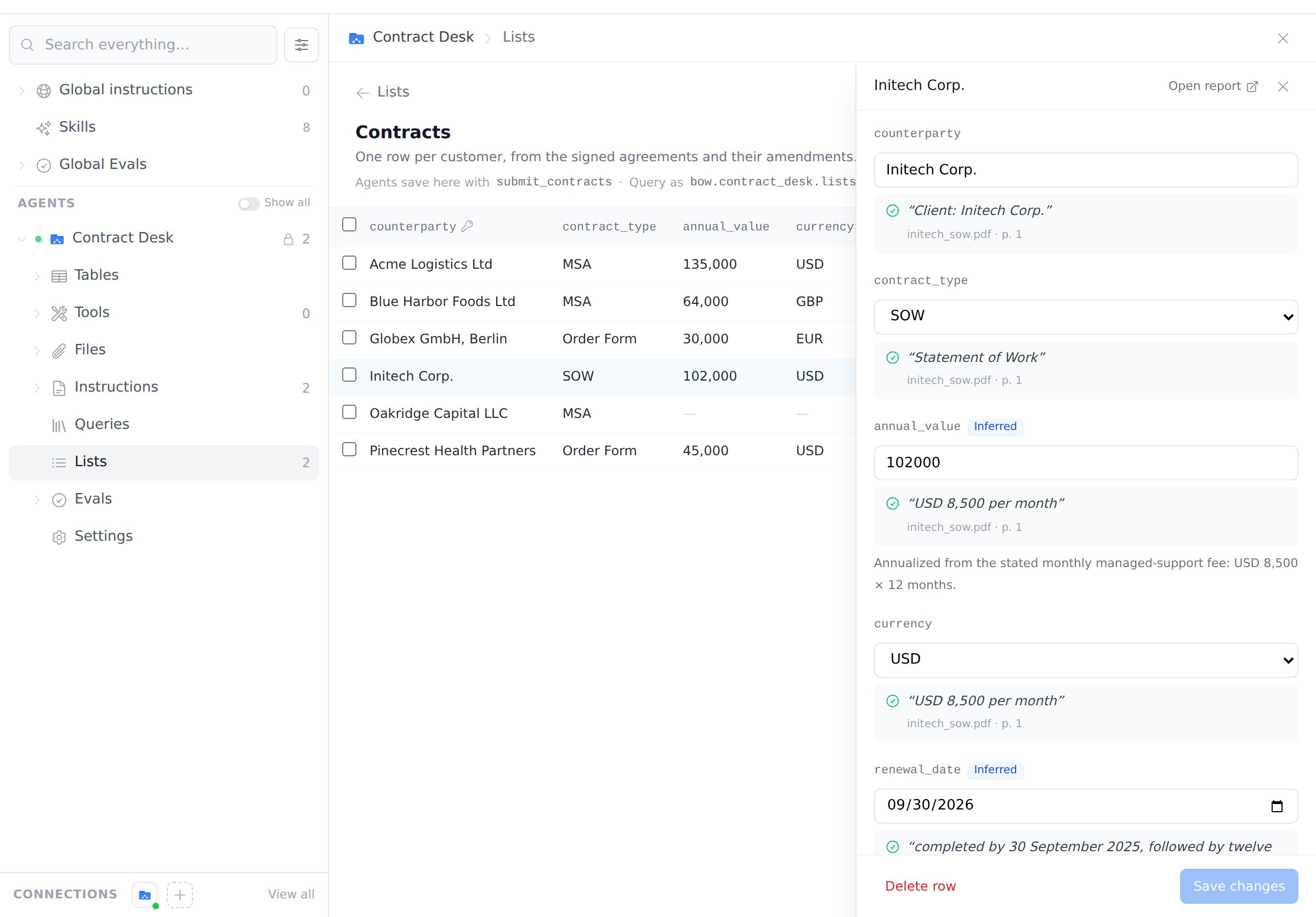
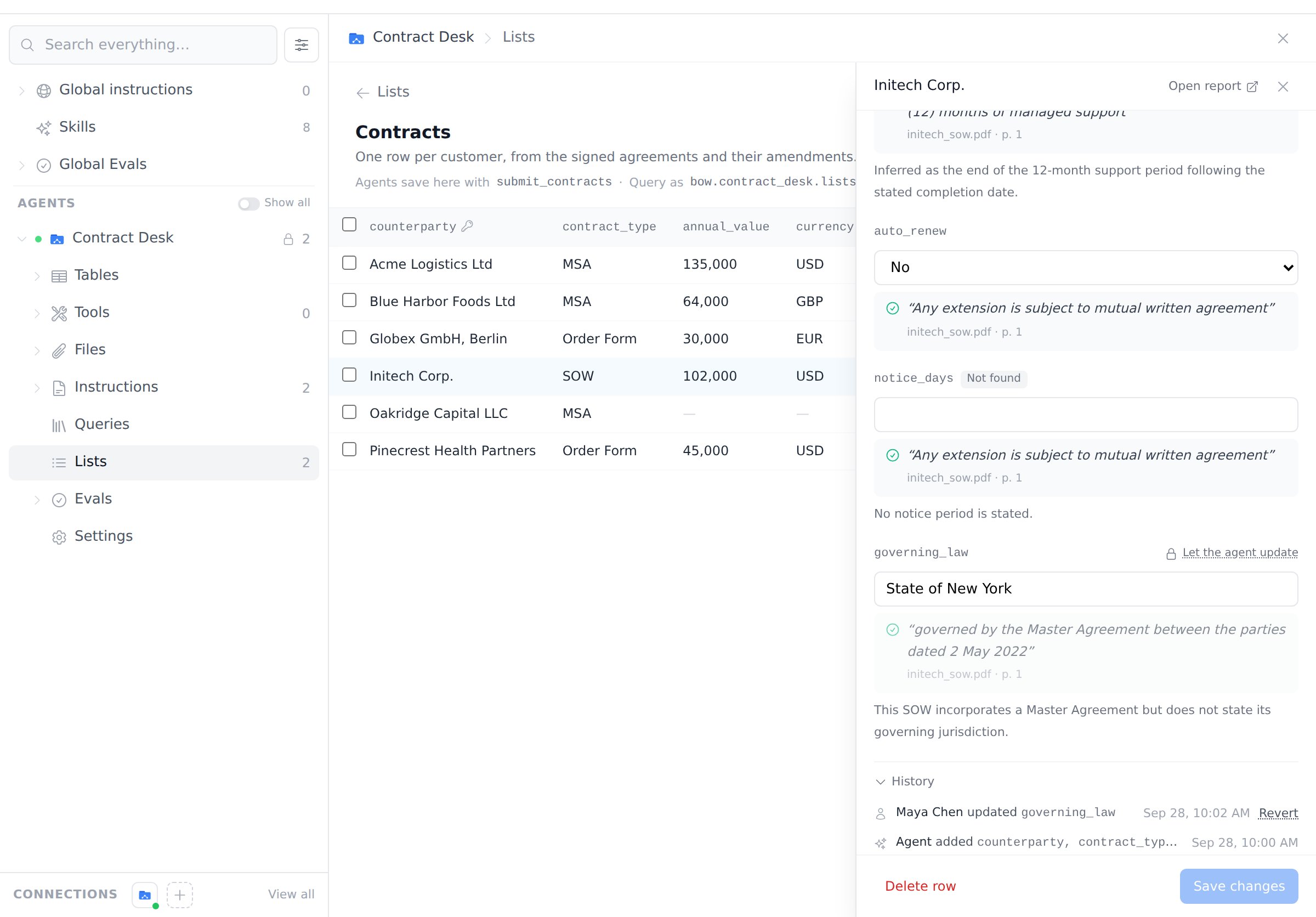
Delete rows
- One row: open it and click Delete row.
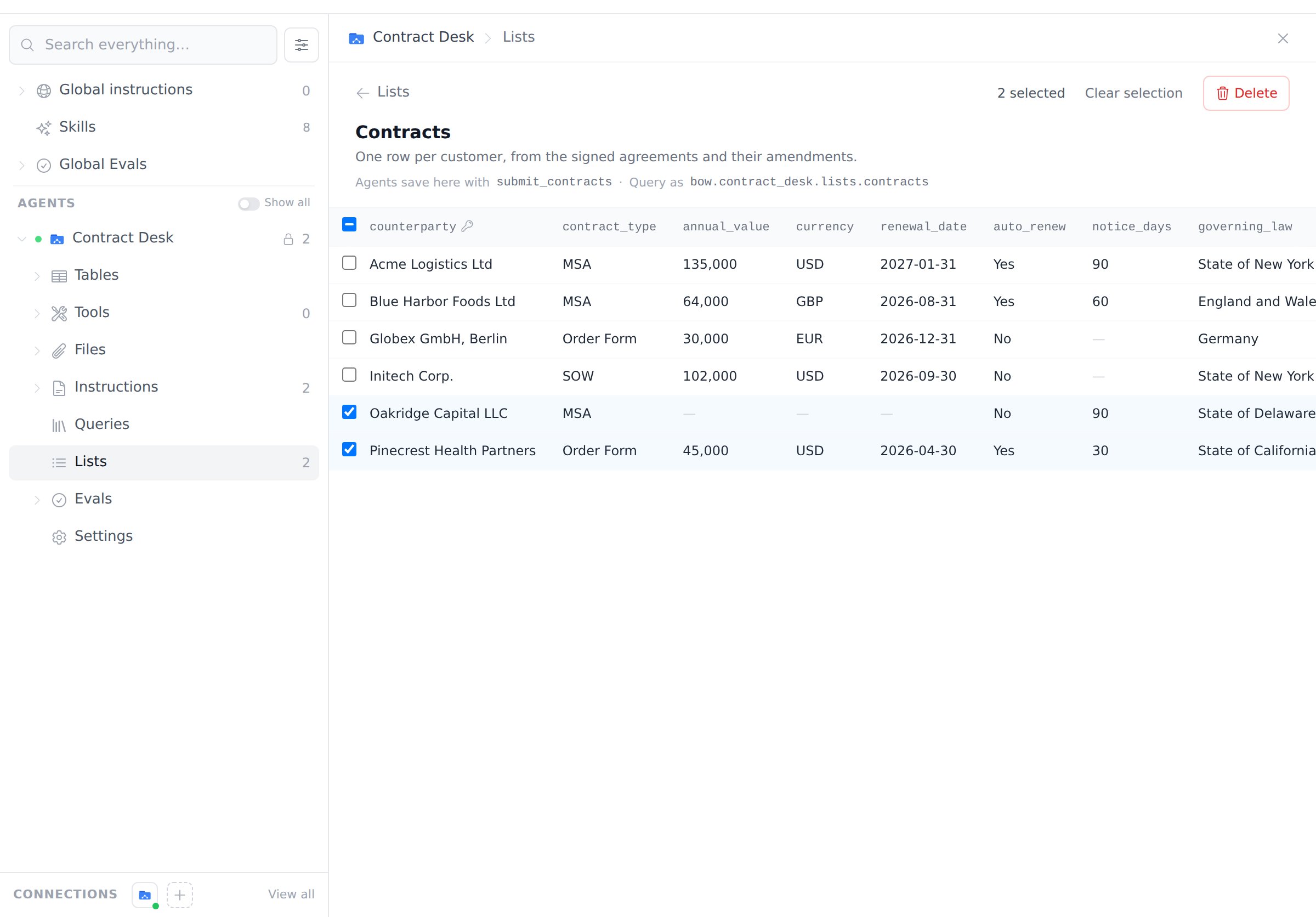
- Several rows: tick them in the table, then click Delete.
- All rows: click ⋯ and choose Clear all rows. The list stays, with its fields and its name, so the agent can fill it again.
Analyze a list
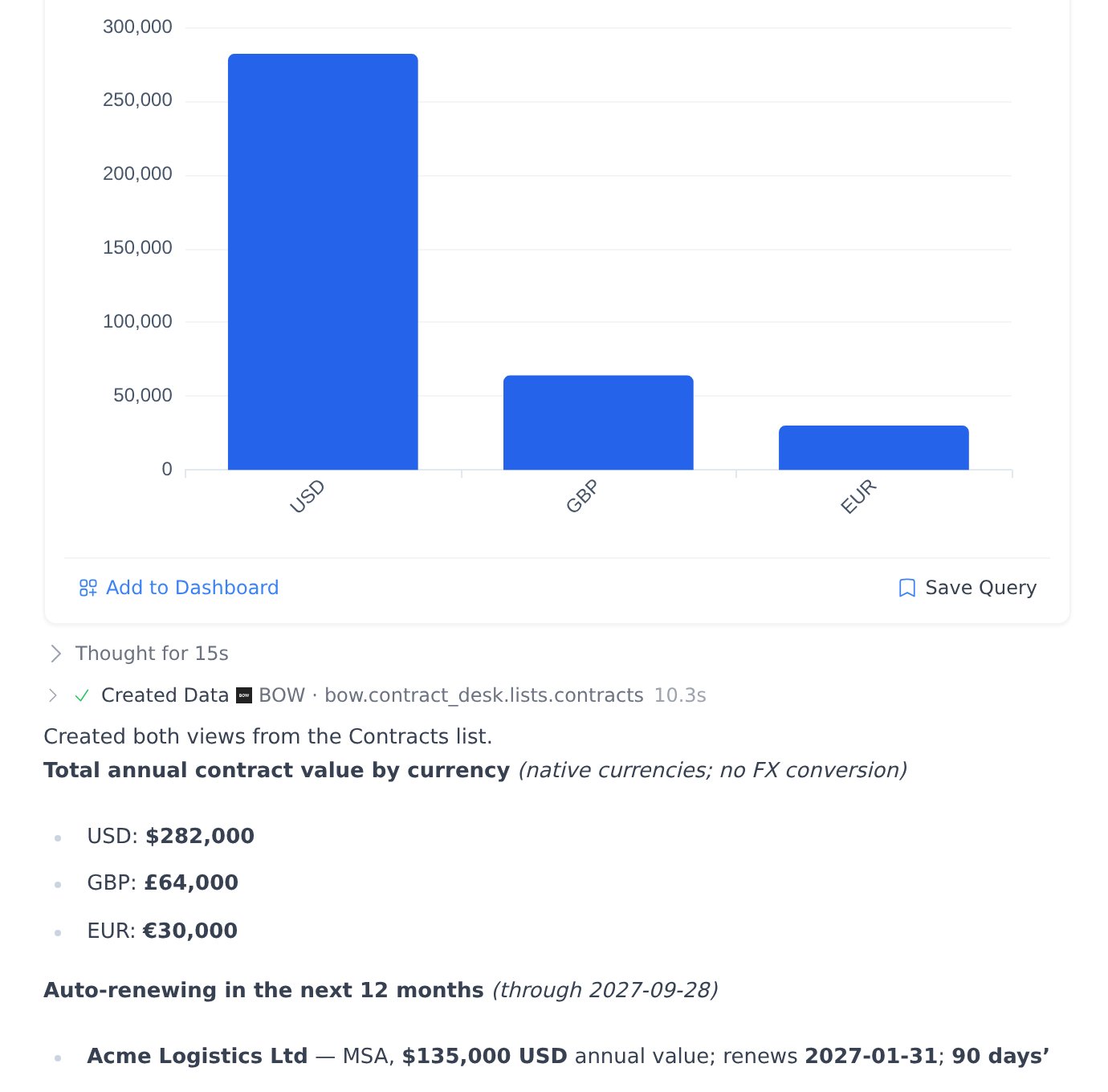
Every list is also a table the agent can query, namedbow.<agent>.lists.<list>. For example, the Contracts list above is bow.contract_desk.lists.contracts. Ask for totals, filters or charts the same way you would over any other data:
- “From the Contracts list, show total annual contract value by currency as a bar chart.”
- “Which contracts renew automatically in the next 12 months, and what notice do they need?”
_row_id, _key, _report_id, _created_at, _updated_at and _edited_by_human columns. The agent can include the source quote of a field as <field>__quote when you ask for it.
Export as CSV
- Export CSV on a list downloads every row.
- ⋯ → Export with sources adds each value’s status, quote, page and whether the quote was checked, plus the row’s report, last update and whether a person edited it.
- Download CSV in the chat downloads only the rows saved in that report.
Who can do what
Conversations on a shared artifact never write to lists.
Limits
- Up to 10 lists per agent and 40 fields per list.
- Fields hold single values. Repeating groups, such as invoice line items, are not supported yet; use a separate keyless list with one row per item instead.
- Up to 1,000 rows per delete.