
Before you start
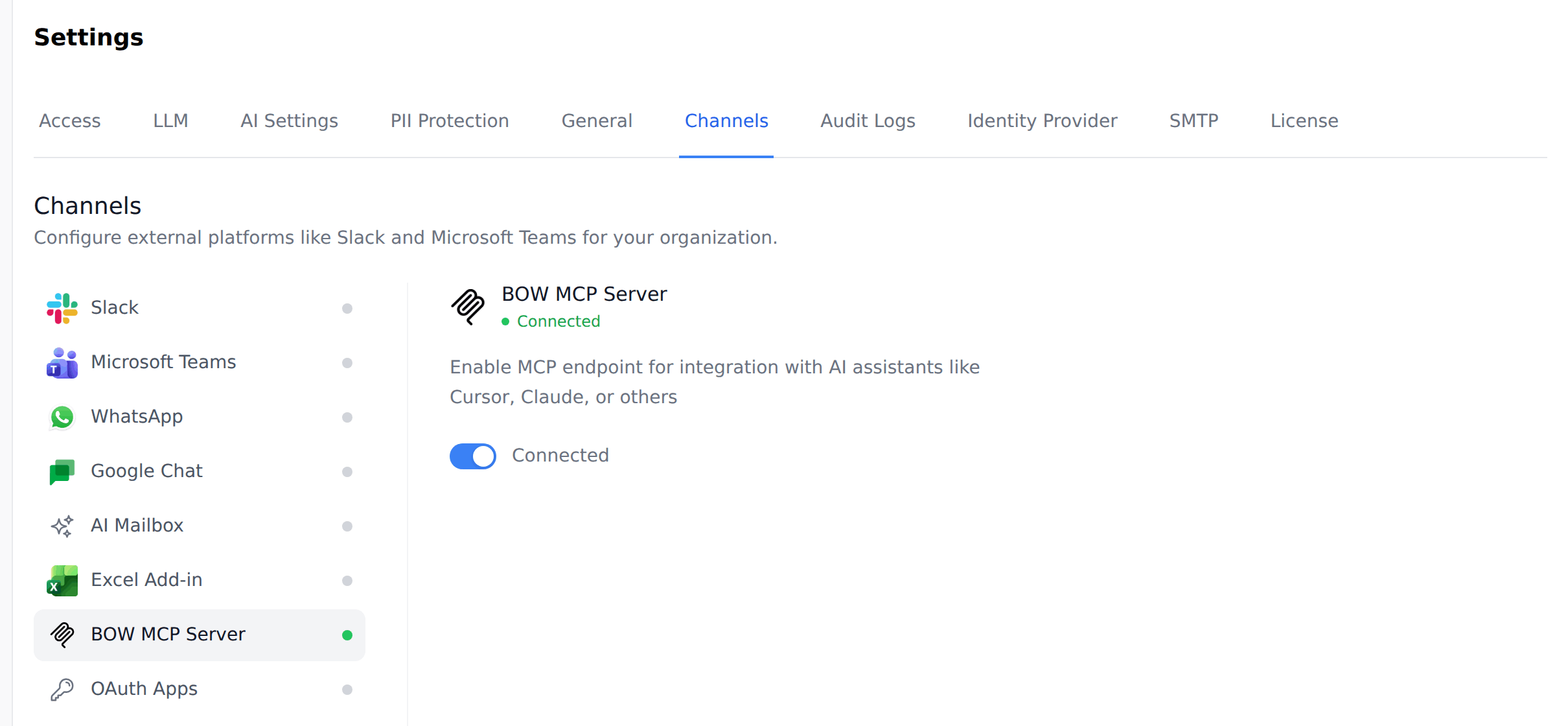
- The BOW MCP server is on. An admin can check this in Settings → Channels → BOW MCP Server. It is on by default.
- You can query at least one agent. Your assistant sees only the agents and data you can see in BOW.
- You have an MCP client. This guide uses Claude Code, Claude Desktop, Cursor, and Claude on the web as examples.
Step 1: Open the MCP Server settings
Click your name at the bottom left and choose Account Settings, then open the MCP Server tab. The tab shows your organization’s MCP server URL and a Configuration snippet. The snippet stays a template until you generate a token.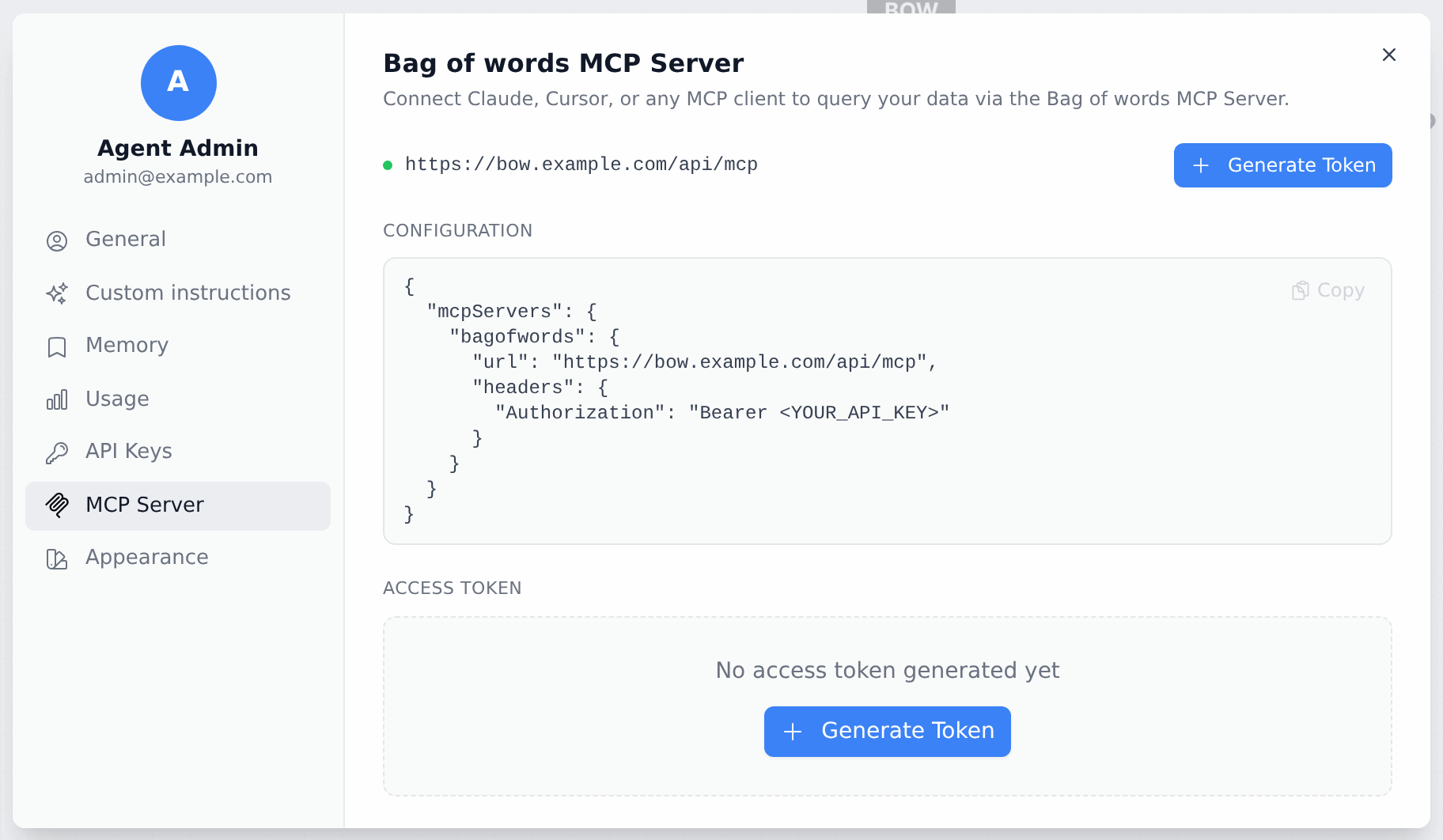
Admins have a shortcut: click your name at the bottom left and choose MCP Server.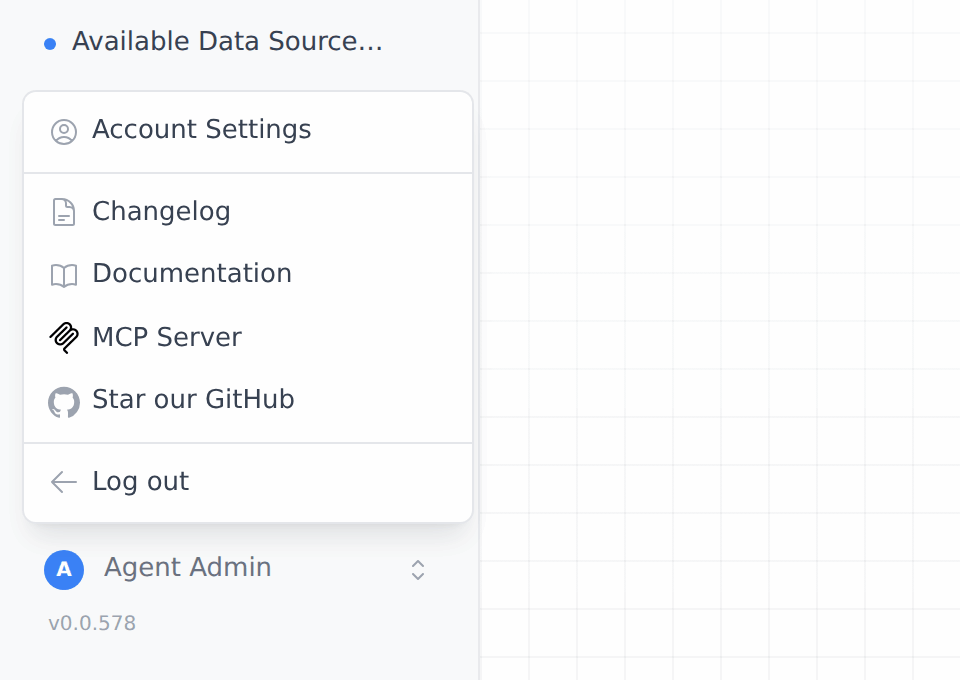
Step 2: Generate a token
Click Generate Token. BOW fills in the Configuration snippet with your token and shows the token under Access Token. Click Copy next to Configuration now. BOW shows the full token only once. After you close the window, the token shows only as dots and Copy no longer works.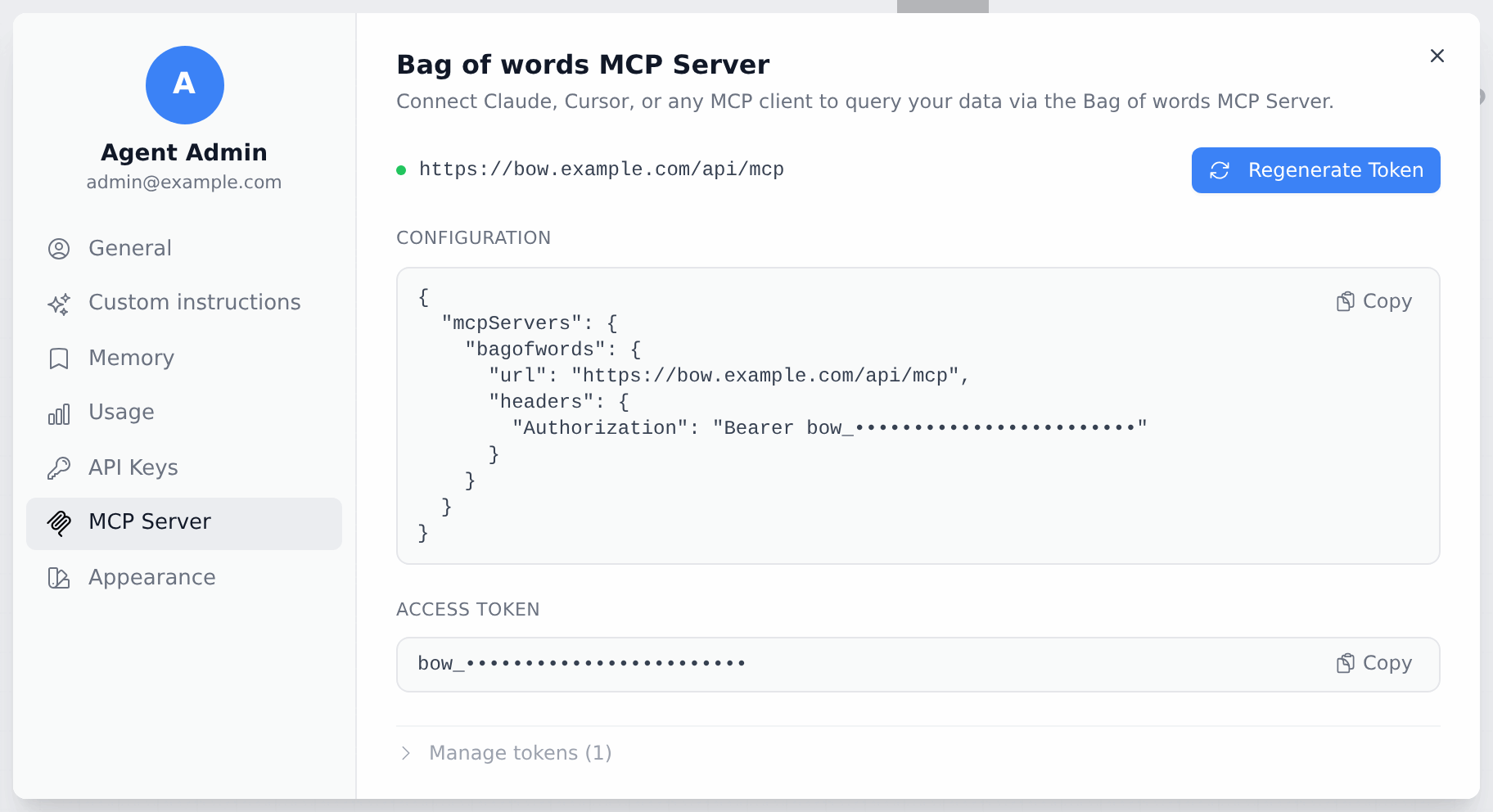
Step 3: Add BOW to your client
Use the URL and token from the snippet.Claude Code
Run this in a terminal:--scope user makes BOW available in all your projects. Leave it out to add BOW to the current project only.
Check the connection:
claude and ask a question. The first time Claude calls a BOW tool, it asks for permission. In non-interactive mode (claude -p), allow the BOW tools up front:
Cursor
Paste the Configuration snippet into~/.cursor/mcp.json, or into .cursor/mcp.json in a project. If the file already has an mcpServers object, add only the bagofwords entry to it.
Claude Desktop
Claude Desktop keeps its config file here:- macOS:
~/Library/Application Support/Claude/claude_desktop_config.json - Windows:
%APPDATA%\Claude\claude_desktop_config.json
Claude on the web and other hosted clients
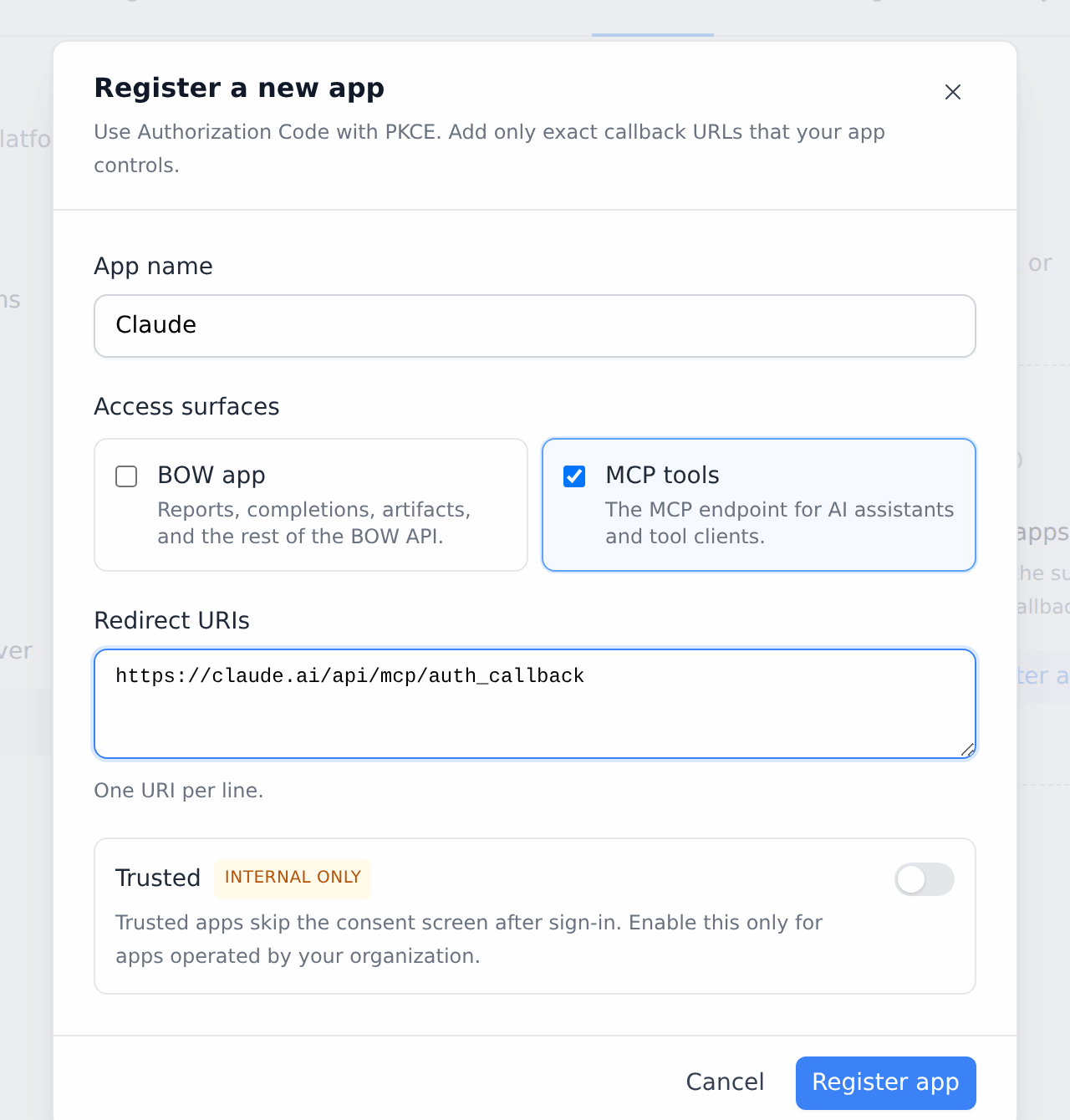
Hosted clients sign you in with OAuth instead of a token. An admin registers the client once:- Open Settings → Channels → OAuth Apps and click Register app.
- Enter an App name your users will recognize, such as “Claude”.
- Under Access surfaces, select MCP tools. Clear BOW app unless the client also calls the BOW API.
- Under Redirect URIs, enter the client’s callback URL. For Claude on the web, use
https://claude.ai/api/mcp/auth_callback. - Click Register app, then copy the Client ID and the client secret. The secret is shown only once.
- Go to Settings → Connectors and add a custom connector.
- Enter
https://<YOUR_BOW_DOMAIN>/api/mcpas the URL. - Under Advanced settings, enter the Client ID and client secret.
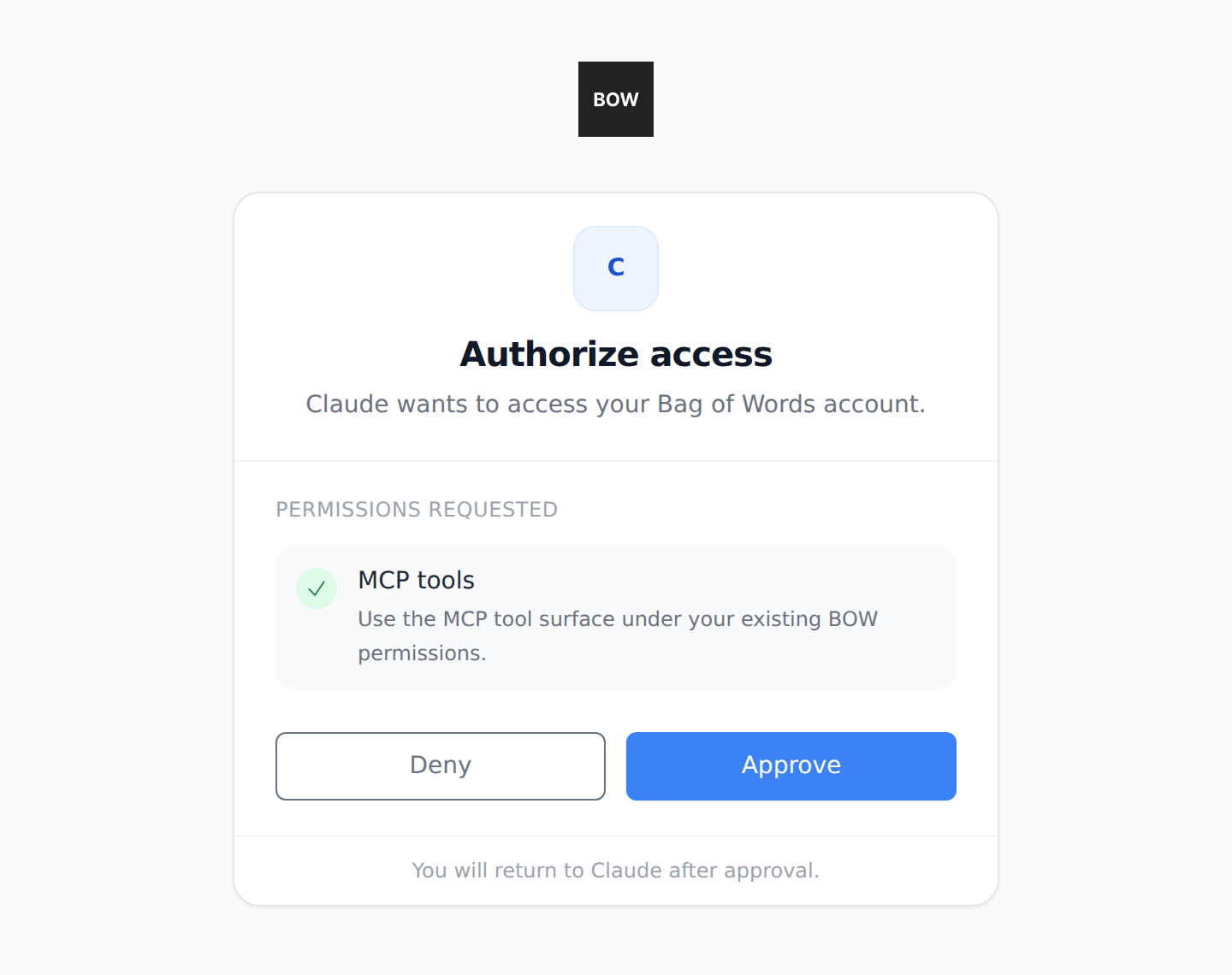
- Click Connect. Sign in to BOW if asked, then click Approve on the Authorize access screen.
BOW doesn’t support dynamic client registration. If a client can’t accept a Client ID and secret, connect it with a personal token instead.
Step 4: Ask your first question
In your client, mention Bag of Words so the assistant uses its tools:Using Bag of Words, what data do I have access to?The assistant starts a report and lists your agents and their tables. Then ask for a chart:
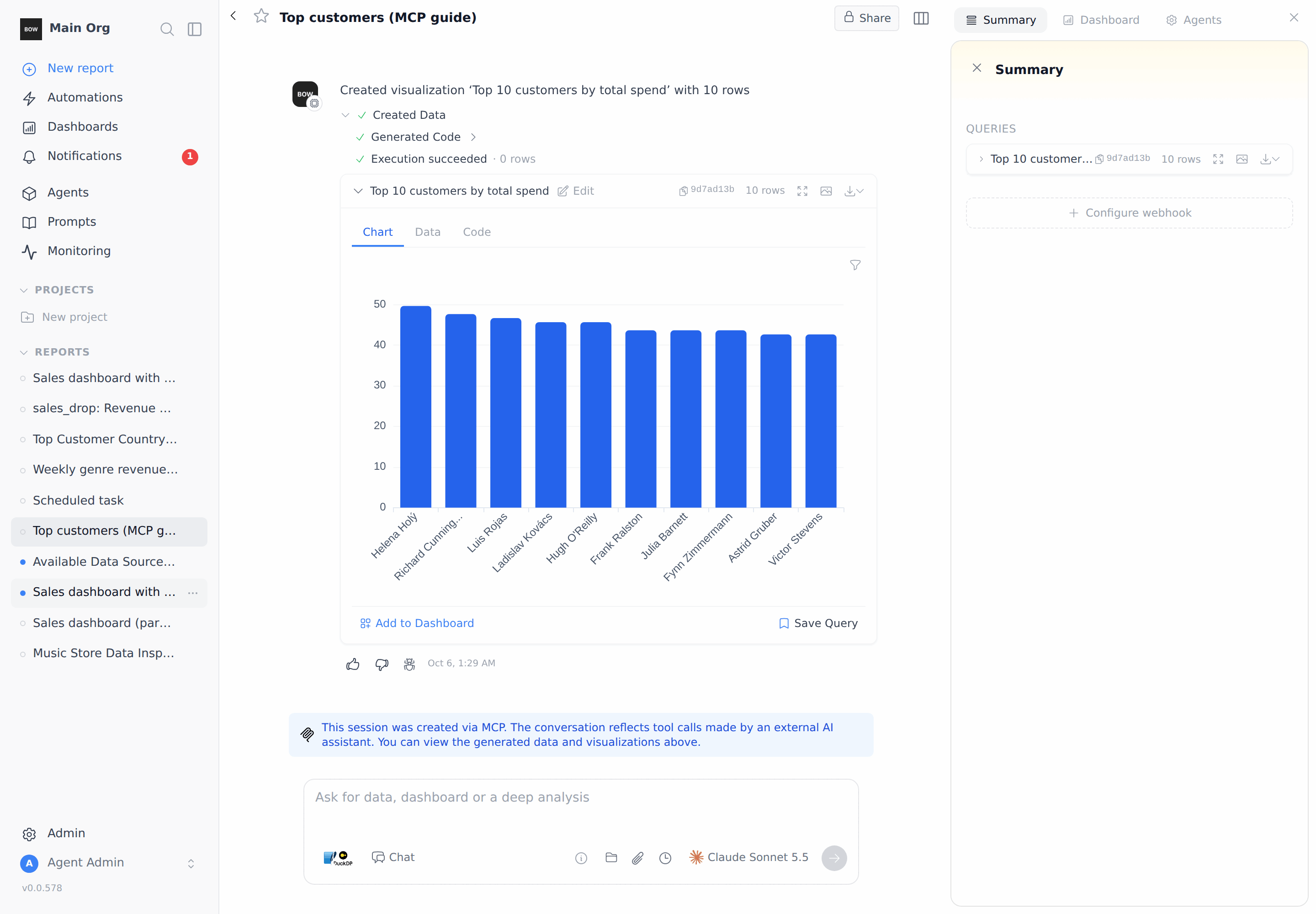
Using Bag of Words, start a report titled “Top customers” on the Music Store data and show the top 10 customers by total spend as a bar chart.The assistant answers with the numbers in your client. In BOW, the same query and chart are saved to a report.
Step 5: Find the report in BOW
Open Reports. Reports created over MCP have the MCP icon next to their title. Hover it to see Created via MCP.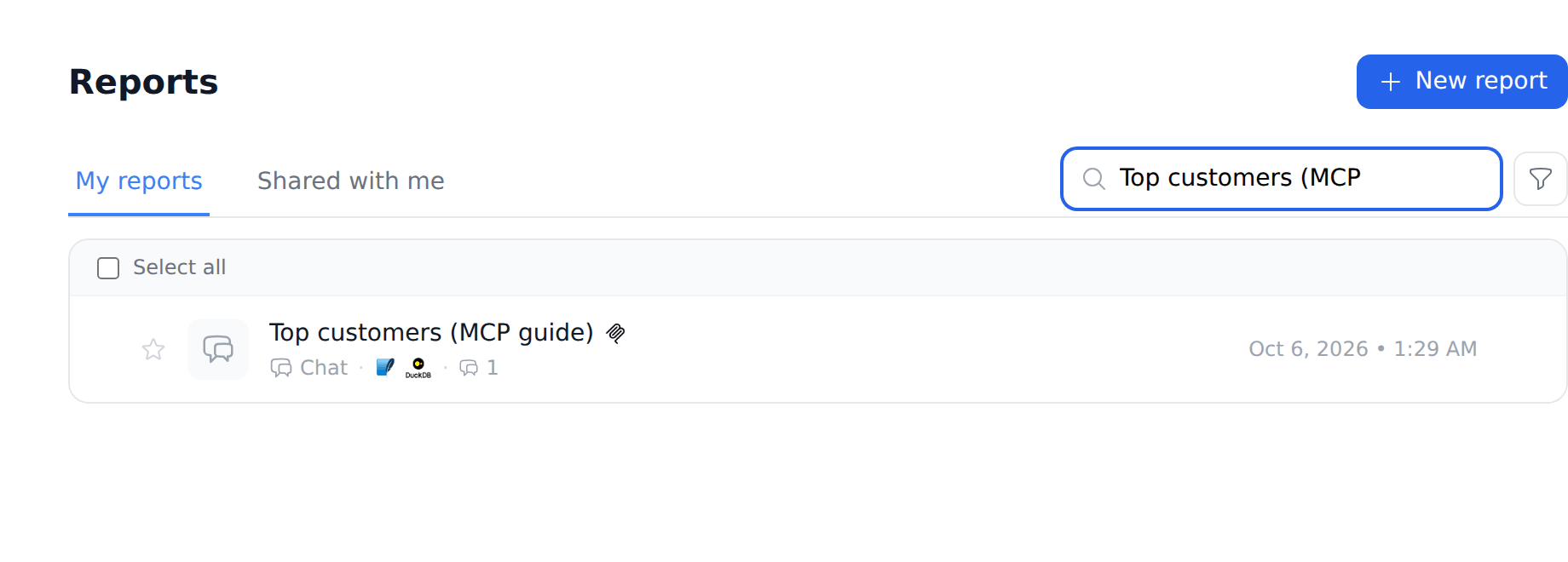
More prompts to try
Tips
- Name the source. Start prompts with “Using Bag of Words” so the assistant calls BOW instead of guessing.
- Give the report a title. Ask for one in your first prompt so you can find the report in BOW later.
- One token per client. Regenerate Token creates an extra token and keeps the old ones. Under Manage tokens, hover a token and click the trash icon to delete one you no longer use.
- Say “the latest month in the data”. If your data isn’t up to date, “last month” can return nothing.