> ## Documentation Index
> Fetch the complete documentation index at: https://docs.bagofwords.com/llms.txt
> Use this file to discover all available pages before exploring further.
# MCP
> Connect Claude, Cursor, or any MCP client to query your data via the Bag of words MCP Server
## Overview
Bag of words exposes an MCP (Model Context Protocol) server that allows you to connect external AI tools like Claude Desktop, Cursor, or any MCP-compatible client directly to your data sources. This enables you to query your data using natural language from your favorite AI tools.
With the MCP Server, you can:
* **Query data from Claude Desktop**: Ask questions about your data directly in Claude
* **Use Cursor for data analysis**: Leverage your IDE's AI capabilities with your connected data sources
* **Integrate with any MCP client**: Build custom workflows using the standardized MCP protocol
## Available Tools
The Bag of words MCP Server exposes the following tools for AI assistants to interact with your data:
| Tool Name | Description |
| -------------------- | ------------------------------------------------------------------------------------------------------------------------------------------------------------------------------------------------------------------------------------------------ |
| `create_report` | Creates a new analysis session (report). Call this at the start of a conversation to get a report\_id for subsequent tool calls. Auto-attaches all active data sources. |
| `get_context` | Retrieves available data sources, tables, and metadata resources. Useful for understanding what data is available before running queries. Supports optional regex pattern filtering. |
| `inspect_data` | Quick, ephemeral data inspection for exploration and debugging. Previews data (head/tail), checks column types, and validates assumptions. Results are logged but not saved as persistent visualizations. Returns a sample of 3 rows. |
| `create_data` | Creates tracked, reproducible data visualizations (chart or table) with Query/Step/Visualization persistence. Results are saved to the report and can be shared/added to dashboards. Tables are auto-discovered from the prompt if not provided. |
| `list_instructions` | Lists instructions from the current live build. Instructions are organizational knowledge that guide AI behavior. Supports filtering by status, category, and text search. |
| `create_instruction` | Creates a new instruction that guides AI code generation and data analysis. Auto-versioned with build integration. Admins get instant approval; non-admins go to pending approval. |
## Enable MCP Server
Administrators can enable or disable the MCP endpoint from **Settings** → **Integrations**.
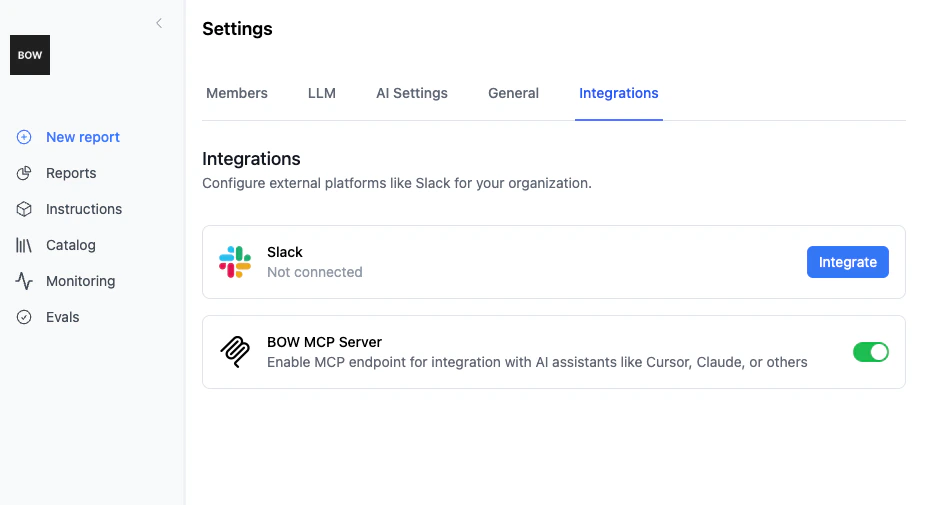 Toggle the **BOW MCP Server** switch to enable MCP endpoint for integration with AI assistants like Cursor, Claude, or others.
## Getting Started
### 1. Access the MCP Configuration
Click **MCP** in the left navigation menu to open the MCP Server configuration popup.
Toggle the **BOW MCP Server** switch to enable MCP endpoint for integration with AI assistants like Cursor, Claude, or others.
## Getting Started
### 1. Access the MCP Configuration
Click **MCP** in the left navigation menu to open the MCP Server configuration popup.
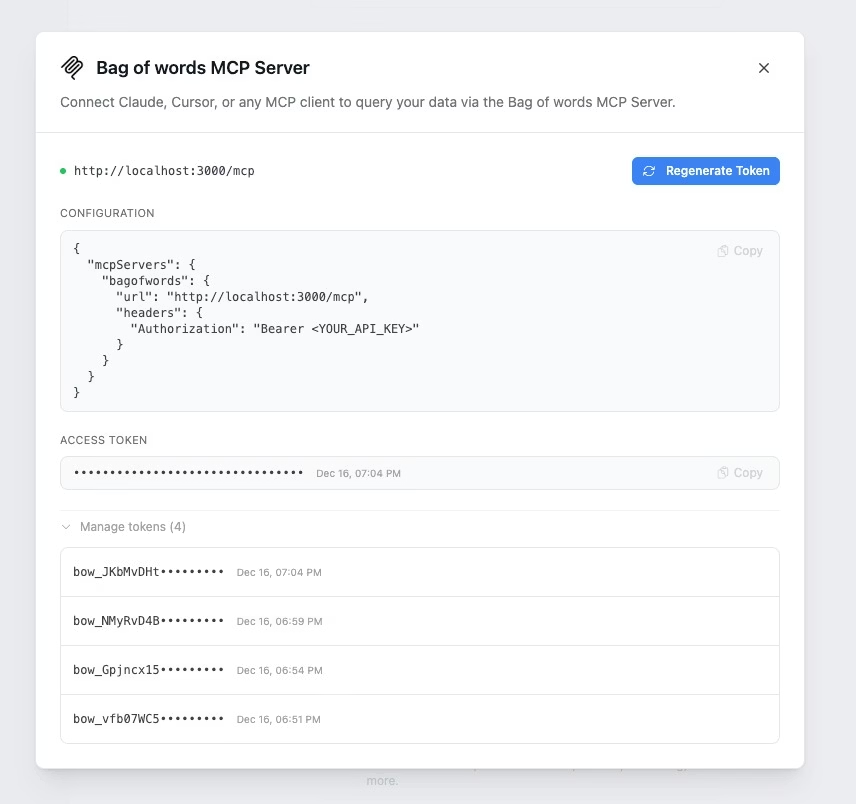 ### 2. Generate an Access Token
Click **Regenerate Token** to create a new access token. This token authenticates your MCP client with Bag of words.
Keep your access token secure. Anyone with this token can query your data sources through the MCP server.
### 3. Configure Your MCP Client
Copy the configuration snippet and add it to your MCP client's configuration file. The configuration looks like this:
```json theme={null}
{
"mcpServers": {
"bagofwords": {
"url": "https:///mcp",
"headers": {
"Authorization": "Bearer "
}
}
}
}
```
Replace `` with your Bag of words instance URL and `` with your actual access token.
## Client Configuration
### Claude Desktop
Add the configuration to your Claude Desktop settings file:
**macOS**: `~/Library/Application Support/Claude/claude_desktop_config.json`
**Windows**: `%APPDATA%\Claude\claude_desktop_config.json`
### Cursor
Add the configuration to your Cursor MCP settings to enable data querying directly from your IDE.
### Custom MCP Clients
Any client that supports the MCP protocol can connect using the URL and authorization header shown in your configuration panel.
## MCP Reports
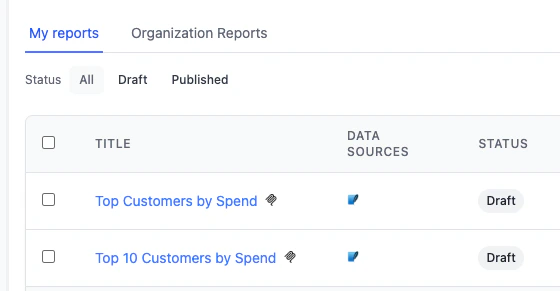
Reports created through MCP connections are automatically tracked in your Reports page and marked with an MCP icon for easy identification.
### 2. Generate an Access Token
Click **Regenerate Token** to create a new access token. This token authenticates your MCP client with Bag of words.
Keep your access token secure. Anyone with this token can query your data sources through the MCP server.
### 3. Configure Your MCP Client
Copy the configuration snippet and add it to your MCP client's configuration file. The configuration looks like this:
```json theme={null}
{
"mcpServers": {
"bagofwords": {
"url": "https:///mcp",
"headers": {
"Authorization": "Bearer "
}
}
}
}
```
Replace `` with your Bag of words instance URL and `` with your actual access token.
## Client Configuration
### Claude Desktop
Add the configuration to your Claude Desktop settings file:
**macOS**: `~/Library/Application Support/Claude/claude_desktop_config.json`
**Windows**: `%APPDATA%\Claude\claude_desktop_config.json`
### Cursor
Add the configuration to your Cursor MCP settings to enable data querying directly from your IDE.
### Custom MCP Clients
Any client that supports the MCP protocol can connect using the URL and authorization header shown in your configuration panel.
## MCP Reports
Reports created through MCP connections are automatically tracked in your Reports page and marked with an MCP icon for easy identification.
 When you open an MCP-generated report, you'll see a banner indicating it was created via MCP. The report displays the generated data and visualizations from the tool calls made by the external AI assistant.
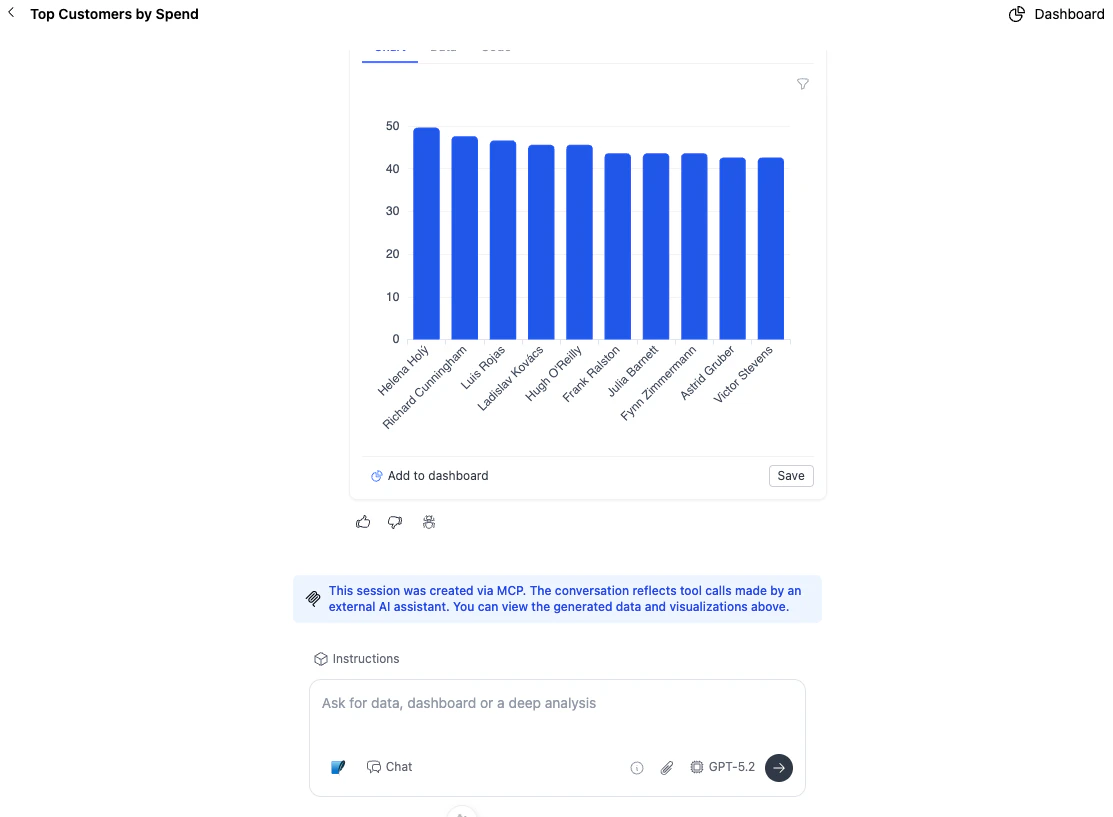 **Important**: For MCP-generated reports, the actual LLM completion/prompt content is **not saved**, but all tool usage is **tracked 100%**.
This means you can see exactly what data was queried and which tools were used, while the conversational context from the external client (Claude, Cursor, etc.) remains private.
## Managing API Tokens
You can manage multiple access tokens from the MCP configuration panel:
* **View active tokens**: See all tokens created for your workspace with their creation dates
* **Regenerate tokens**: Create new tokens when needed
* **Revoke tokens**: Remove tokens that are no longer needed for security
## Use Cases
### Data Analysis in Claude
Once connected, you can ask Claude questions about your data:
* "What were our top 10 customers by revenue last month?"
* "Show me the trend of user signups over the past year"
* "Which products have the highest return rate?"
### Development Workflows in Cursor
Use the MCP integration while coding to:
* Validate data assumptions while building features
* Generate test data based on production patterns
* Debug data-related issues with real-time queries
* Build data models with full context of the data warehouse
**Important**: For MCP-generated reports, the actual LLM completion/prompt content is **not saved**, but all tool usage is **tracked 100%**.
This means you can see exactly what data was queried and which tools were used, while the conversational context from the external client (Claude, Cursor, etc.) remains private.
## Managing API Tokens
You can manage multiple access tokens from the MCP configuration panel:
* **View active tokens**: See all tokens created for your workspace with their creation dates
* **Regenerate tokens**: Create new tokens when needed
* **Revoke tokens**: Remove tokens that are no longer needed for security
## Use Cases
### Data Analysis in Claude
Once connected, you can ask Claude questions about your data:
* "What were our top 10 customers by revenue last month?"
* "Show me the trend of user signups over the past year"
* "Which products have the highest return rate?"
### Development Workflows in Cursor
Use the MCP integration while coding to:
* Validate data assumptions while building features
* Generate test data based on production patterns
* Debug data-related issues with real-time queries
* Build data models with full context of the data warehouse