> ## Documentation Index
> Fetch the complete documentation index at: https://docs.bagofwords.com/llms.txt
> Use this file to discover all available pages before exploring further.
# LLMs
> Generate, save and publish reports with Bag of words
## Overview
Bag of words allows you to effortlessly bring your own LLM (via provider and API Key), providing seamless integration with any of the main LLM providers, with additional support to any OpenAI-compatible API providers.
*  **Google**
*
**Google**
*  **Azure**
*
**Azure**
*  **OpenAI**
*
**OpenAI**
*  **Anthropic**
* Custom LLM endpoints like Ollama or other proxy services
This flexibility ensures you can utilize your preferred LLM while benefiting from Bag of words' features.
## Natively Supported Models
| | | |
| :------------------------------------------------------------------------------------------------------------------------------------------------------------------------------------------------------------------------------------------------------------------------------------------------------------------------------------------------------------------------------------------------------------------------------------------------------------------------------------------------------------------------------------------------------------------------------------------------------------------------------------------------------------------------------------------------------------------------------------------------------------------------------------------------------------------------------------------------------------------------------------------------------------------------------------------------------------------------------------------------------------------------------------------------------------------------------------------------------------------------------------------------------------------------------------------------------------------------------------------------------------------------------------------------------------------------------------------------------------------------------------------------------------------------------------------------------------------------------------------------------------------ | :------------------------------------------------------- | :------------------------------------------------- |
| | GPT-5.1 | Recommended |
| | GPT-5 | Recommended |
| | GPT-4.1 | Recommended |
| | GPT-4.1 Mini | |
| | Claude 4.5 Opus | Recommended |
| | Claude 4.5 Sonnet | Recommended |
| | Claude 4 Sonnet | |
| | Claude 4 Opus | |
| | Claude 3.7 Sonnet | |
| | Gemini 2.5 Pro | Recommended |
| | Gemini 2.5 Flash | |
You can integrate any custom LLM as long as it supports OpenAI requests and streaming
To use a custom LLM (Ollama, proxy services, etc) - choose the Custom provider and set the base URL (e.g `http://localhost:11434/v1` and an API key (put any character if no API is required))
## Add an LLM Provider
To add a new LLM provider, follow these steps:
1. **Select from existing models**: Choose from a list of pre-configured models that Bag of words natively supports.
2. **Add custom model**: If your desired LLM is not listed, you can integrate it by providing the necessary API details.
**Anthropic**
* Custom LLM endpoints like Ollama or other proxy services
This flexibility ensures you can utilize your preferred LLM while benefiting from Bag of words' features.
## Natively Supported Models
| | | |
| :------------------------------------------------------------------------------------------------------------------------------------------------------------------------------------------------------------------------------------------------------------------------------------------------------------------------------------------------------------------------------------------------------------------------------------------------------------------------------------------------------------------------------------------------------------------------------------------------------------------------------------------------------------------------------------------------------------------------------------------------------------------------------------------------------------------------------------------------------------------------------------------------------------------------------------------------------------------------------------------------------------------------------------------------------------------------------------------------------------------------------------------------------------------------------------------------------------------------------------------------------------------------------------------------------------------------------------------------------------------------------------------------------------------------------------------------------------------------------------------------------------------ | :------------------------------------------------------- | :------------------------------------------------- |
| | GPT-5.1 | Recommended |
| | GPT-5 | Recommended |
| | GPT-4.1 | Recommended |
| | GPT-4.1 Mini | |
| | Claude 4.5 Opus | Recommended |
| | Claude 4.5 Sonnet | Recommended |
| | Claude 4 Sonnet | |
| | Claude 4 Opus | |
| | Claude 3.7 Sonnet | |
| | Gemini 2.5 Pro | Recommended |
| | Gemini 2.5 Flash | |
You can integrate any custom LLM as long as it supports OpenAI requests and streaming
To use a custom LLM (Ollama, proxy services, etc) - choose the Custom provider and set the base URL (e.g `http://localhost:11434/v1` and an API key (put any character if no API is required))
## Add an LLM Provider
To add a new LLM provider, follow these steps:
1. **Select from existing models**: Choose from a list of pre-configured models that Bag of words natively supports.
2. **Add custom model**: If your desired LLM is not listed, you can integrate it by providing the necessary API details.
 ## Set LLM as default
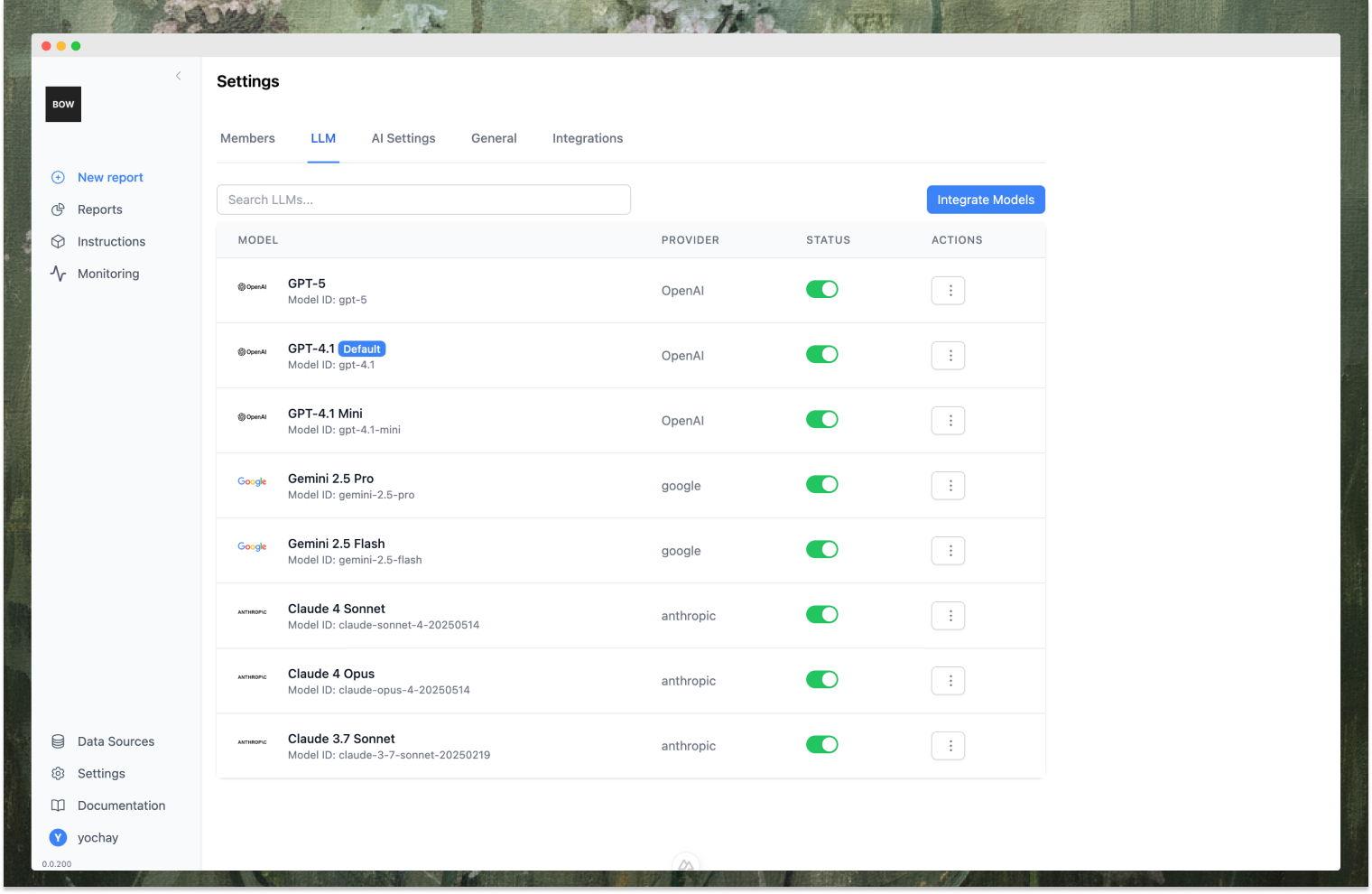
To set a specific LLM as your default:
1. Navigate to the LLM settings.
2. Go to the desired LLM row, and click the elipsis icon on the right
3. Click "Make Default"
#### Small Default LLM
You can also set small default LLM for back-office tasks like LLM judge, tests, evals, etc. The agent will use the small model to save costs.
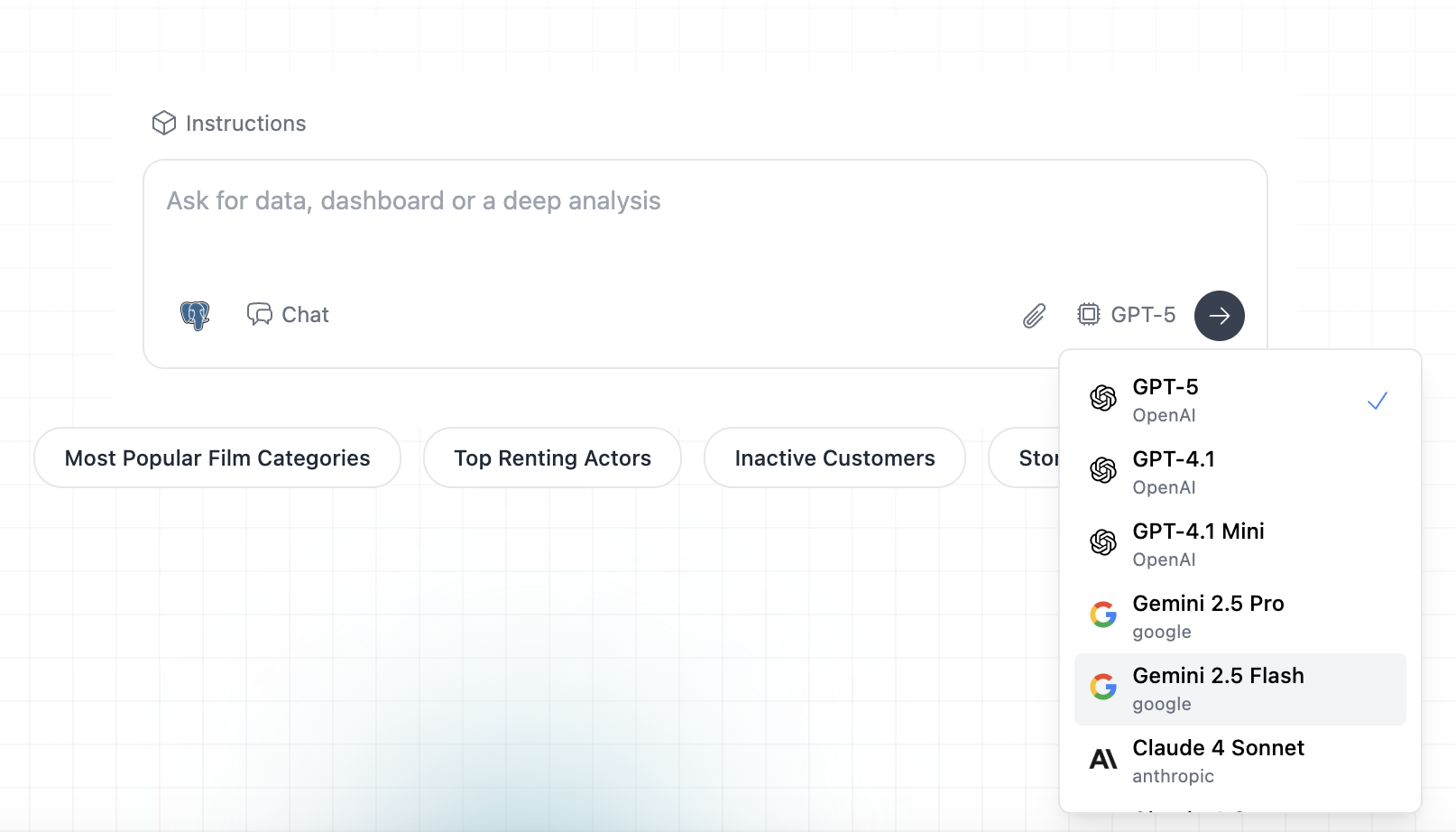
## Select LLM in the prompt box
While default LLM can be configured only by users with the right permissions (admin), each individual can
choose their own LLM when creating reports.
When using the prompt box:
1. Click on the LLM selection dropdown.
2. Choose the LLM you wish to use for that specific prompt.
## Set LLM as default
To set a specific LLM as your default:
1. Navigate to the LLM settings.
2. Go to the desired LLM row, and click the elipsis icon on the right
3. Click "Make Default"
#### Small Default LLM
You can also set small default LLM for back-office tasks like LLM judge, tests, evals, etc. The agent will use the small model to save costs.
## Select LLM in the prompt box
While default LLM can be configured only by users with the right permissions (admin), each individual can
choose their own LLM when creating reports.
When using the prompt box:
1. Click on the LLM selection dropdown.
2. Choose the LLM you wish to use for that specific prompt.