> ## Documentation Index
> Fetch the complete documentation index at: https://docs.bagofwords.com/llms.txt
> Use this file to discover all available pages before exploring further.
# Build a dashboard with state and saved data
> Build a Music Store album explorer where teammates leave ratings and comments that are saved, shared and summarized with AI.
**Beta.** Saved data in dashboards is new and off by default. An admin turns it on with **Artifact resources**. Behavior may change.
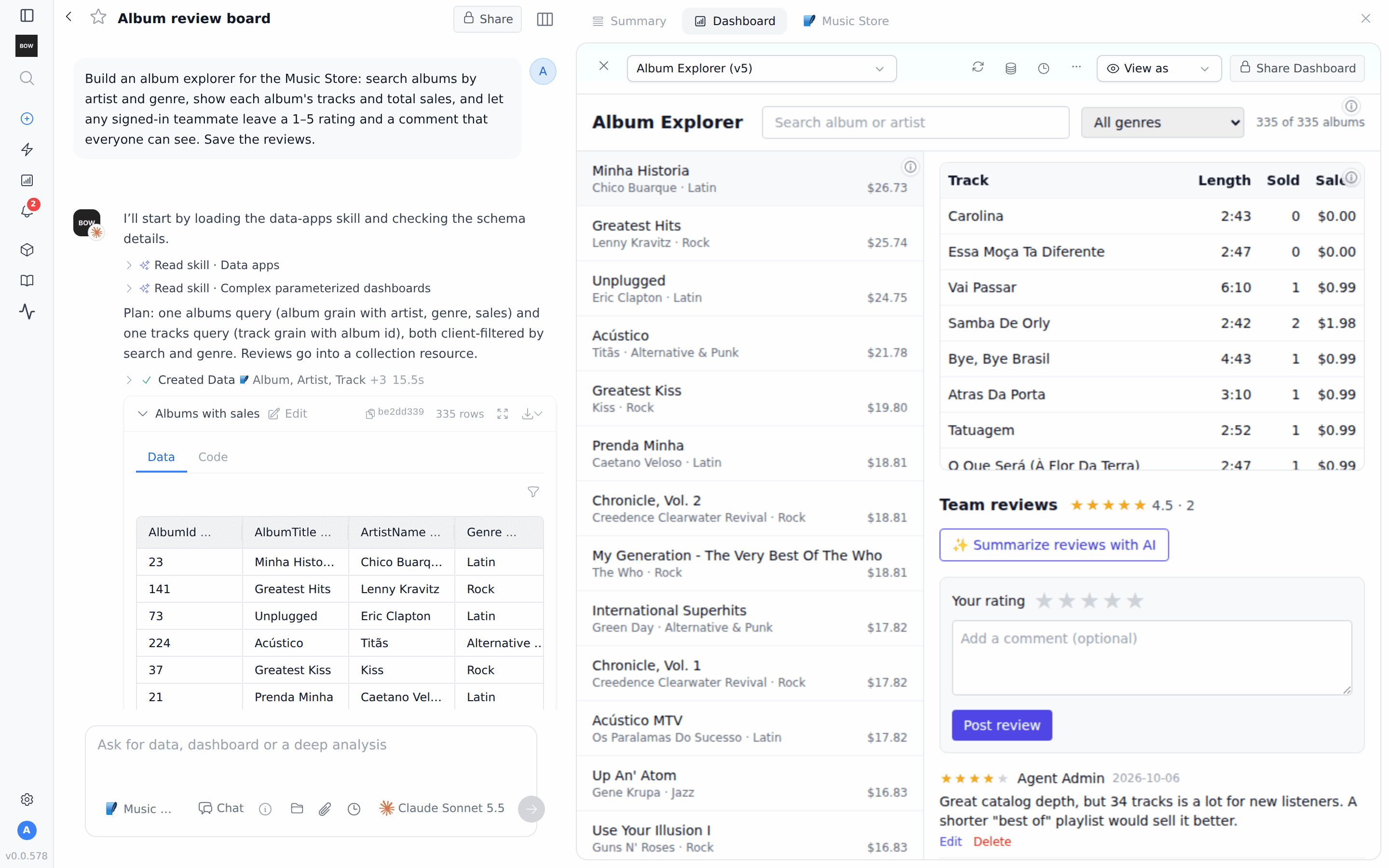
A dashboard can do more than show query results. It can also save what people add to it. In this guide you build an album explorer on the Music Store agent. It shows each album's tracks and sales, and lets any signed-in teammate leave a 1–5 rating and a comment that everyone can see.
 ## What a dashboard remembers
A dashboard keeps track of different kinds of information. Some of it is saved and some is not:
| Kind | Example in this guide | Saved? |
| - | - | - |
| **Query parameters** | The selected album, sent to the tracks query so the query runs again on the server | No. Each viewer picks their own. The value shows in the page URL. |
| **Filters on loaded rows** | Search by album or artist, the genre menu | No. The page filters rows it already loaded. |
| **On-screen state** | Which album is open, an AI summary on screen | No. It resets when you reload. |
| **Records** | Ratings and comments | Yes. Saved on the server and shared with everyone the permissions allow. |
Records, files and AI operations are **artifact resources**. This guide uses records and an AI operation. Files, for uploads such as PDFs or images, are the third kind.
## Before you start
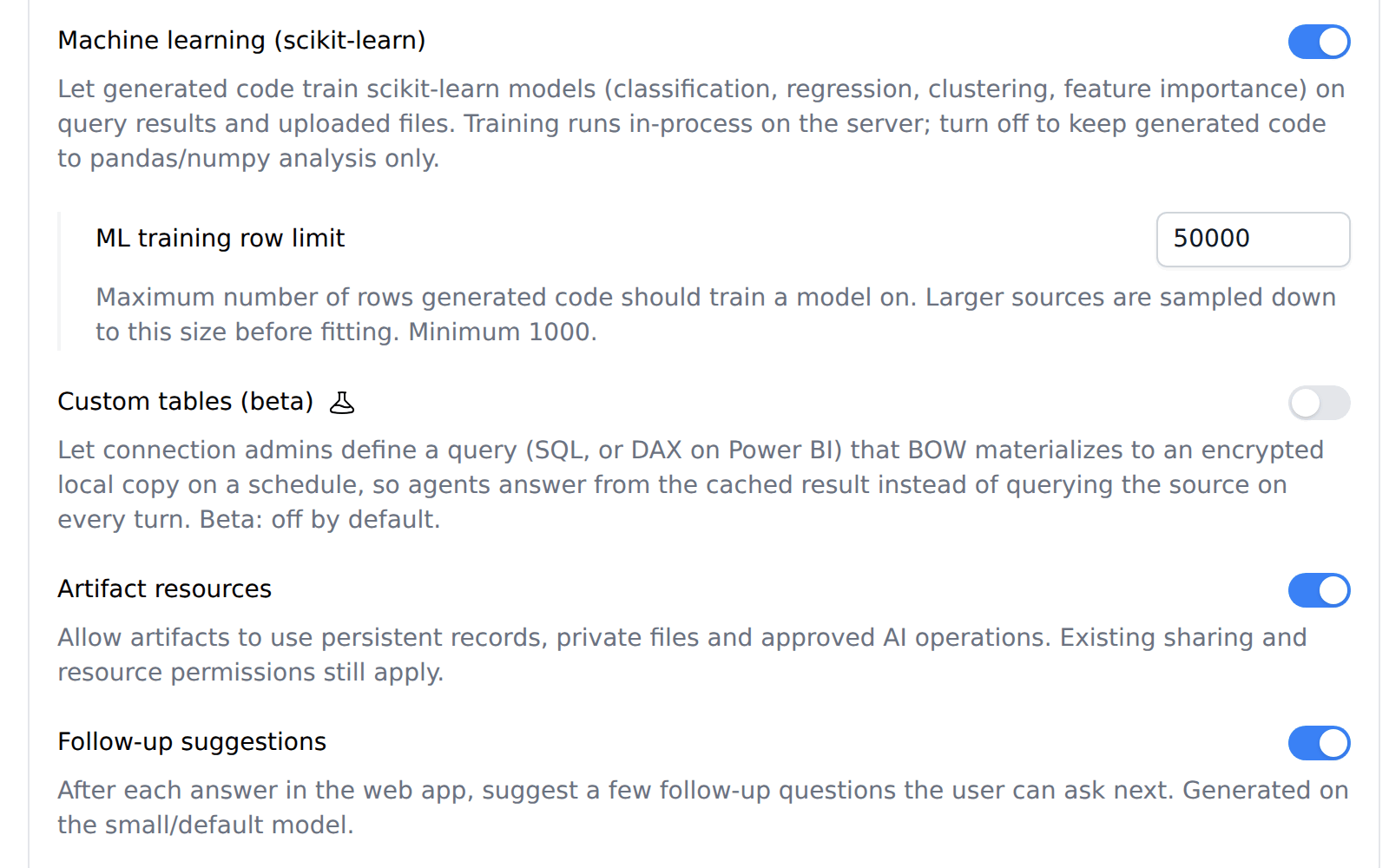
* **Artifact resources is on.** An admin turns it on in **Settings → AI Settings → Agent capabilities → Artifact resources**. It is off by default.
* **The Data apps skill is enabled.** Open **Agents → Skills**. **Data apps** should appear on the **Enabled** tab. If the **Catalog** tab shows **Update available** for it, click **Update**.
* **You can use an agent with data.** This guide uses the Music Store demo agent.
## What a dashboard remembers
A dashboard keeps track of different kinds of information. Some of it is saved and some is not:
| Kind | Example in this guide | Saved? |
| - | - | - |
| **Query parameters** | The selected album, sent to the tracks query so the query runs again on the server | No. Each viewer picks their own. The value shows in the page URL. |
| **Filters on loaded rows** | Search by album or artist, the genre menu | No. The page filters rows it already loaded. |
| **On-screen state** | Which album is open, an AI summary on screen | No. It resets when you reload. |
| **Records** | Ratings and comments | Yes. Saved on the server and shared with everyone the permissions allow. |
Records, files and AI operations are **artifact resources**. This guide uses records and an AI operation. Files, for uploads such as PDFs or images, are the third kind.
## Before you start
* **Artifact resources is on.** An admin turns it on in **Settings → AI Settings → Agent capabilities → Artifact resources**. It is off by default.
* **The Data apps skill is enabled.** Open **Agents → Skills**. **Data apps** should appear on the **Enabled** tab. If the **Catalog** tab shows **Update available** for it, click **Update**.
* **You can use an agent with data.** This guide uses the Music Store demo agent.
 ## Step 1: Ask for the explorer
Start a new report with the Music Store agent and ask:
> *Build an album explorer for the Music Store: search albums by artist and genre, show each album's tracks and total sales, and let any signed-in teammate leave a 1–5 rating and a comment that everyone can see. Save the reviews.*
You don't need to design a database. The agent writes the queries for albums and tracks, builds the page, and creates a **reviews** collection with fields for the album, rating, comment and author. It sets who can do what: any signed-in teammate can read and add reviews.
The **Dashboard** tab opens next to the chat. Search and the genre menu filter the album list in the page.
Read the end of the agent's reply. It says what it tested and what it could not. The preview it checks in can't save real records, so test the saving steps yourself in [Step 5](#step-5-add-reviews-and-check-they-are-saved).
## Step 2: Load tracks for the open album only
The agent may tell you that a query has too many rows for the page. In our run, it warned that the tracks query had 3,289 rows but the page only receives the first 1,000, so some albums would show incomplete track lists. It offered a fix:
> *Yes, load each album's tracks when I open it.*
The agent rebuilds the tracks query with an album parameter. When you open an album, the page sends its ID to the query, which runs again and returns only that album's tracks. The parameter appears in the page URL, for example `?qp_album_id=23`.
This is the first kind of state from the table: a query parameter. It belongs to the viewer and is not saved with the dashboard.
## Step 3: Let people change only their own reviews
> *Only let people edit or delete their own reviews.*
Permissions belong to the collection, not to the page. Each action (read, create, update, delete) can be allowed for the owner, any signed-in user, or selected groups. An "own" rule limits it to records the person created. The server checks every request.
In our run, the agent had already limited edits and deletes to each review's author when it created the collection. It added **Edit** and **Delete** to your own reviews and hid them on other people's.
Who can open the dashboard is a separate setting. Use **Share Dashboard** for that. Sharing decides who can open the page; the collection's permissions decide what those people can add, change or delete.
## Step 4: Add an AI summary button
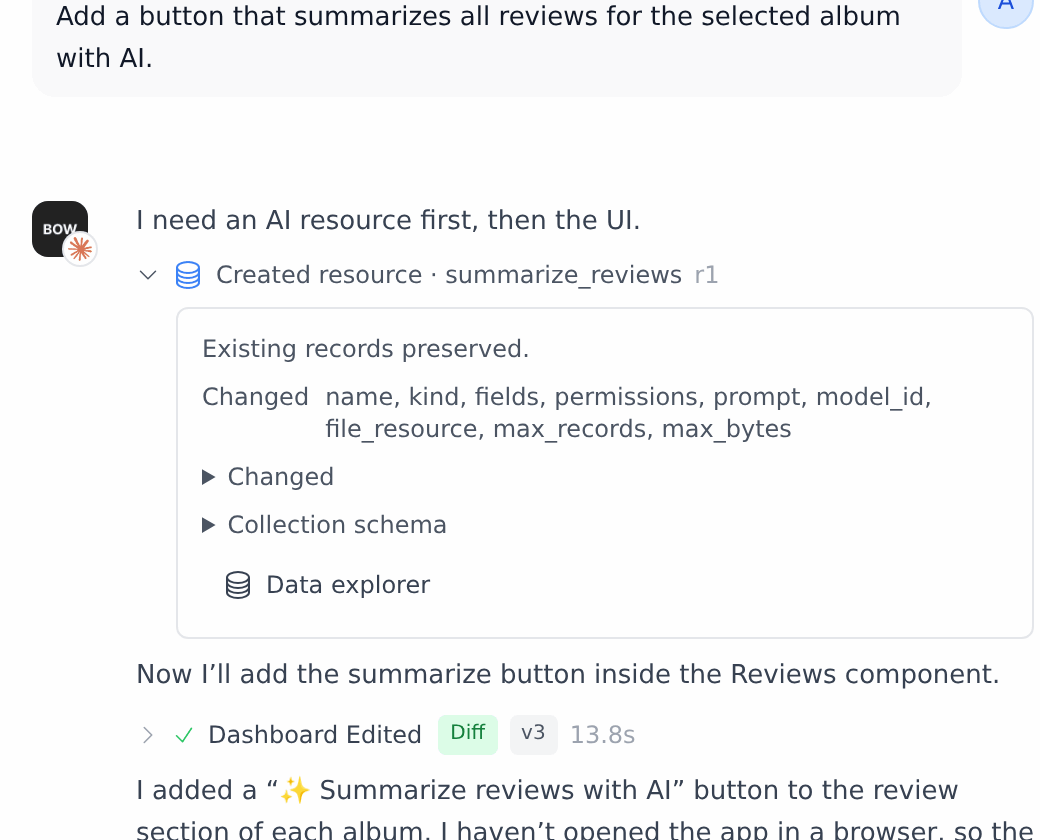
> *Add a button that summarizes all reviews for the selected album with AI.*
The agent adds an AI operation to the dashboard. A **Created resource** card in the chat shows its name. Click the card to see what changed, and **Data explorer** to open the saved records.
## Step 1: Ask for the explorer
Start a new report with the Music Store agent and ask:
> *Build an album explorer for the Music Store: search albums by artist and genre, show each album's tracks and total sales, and let any signed-in teammate leave a 1–5 rating and a comment that everyone can see. Save the reviews.*
You don't need to design a database. The agent writes the queries for albums and tracks, builds the page, and creates a **reviews** collection with fields for the album, rating, comment and author. It sets who can do what: any signed-in teammate can read and add reviews.
The **Dashboard** tab opens next to the chat. Search and the genre menu filter the album list in the page.
Read the end of the agent's reply. It says what it tested and what it could not. The preview it checks in can't save real records, so test the saving steps yourself in [Step 5](#step-5-add-reviews-and-check-they-are-saved).
## Step 2: Load tracks for the open album only
The agent may tell you that a query has too many rows for the page. In our run, it warned that the tracks query had 3,289 rows but the page only receives the first 1,000, so some albums would show incomplete track lists. It offered a fix:
> *Yes, load each album's tracks when I open it.*
The agent rebuilds the tracks query with an album parameter. When you open an album, the page sends its ID to the query, which runs again and returns only that album's tracks. The parameter appears in the page URL, for example `?qp_album_id=23`.
This is the first kind of state from the table: a query parameter. It belongs to the viewer and is not saved with the dashboard.
## Step 3: Let people change only their own reviews
> *Only let people edit or delete their own reviews.*
Permissions belong to the collection, not to the page. Each action (read, create, update, delete) can be allowed for the owner, any signed-in user, or selected groups. An "own" rule limits it to records the person created. The server checks every request.
In our run, the agent had already limited edits and deletes to each review's author when it created the collection. It added **Edit** and **Delete** to your own reviews and hid them on other people's.
Who can open the dashboard is a separate setting. Use **Share Dashboard** for that. Sharing decides who can open the page; the collection's permissions decide what those people can add, change or delete.
## Step 4: Add an AI summary button
> *Add a button that summarizes all reviews for the selected album with AI.*
The agent adds an AI operation to the dashboard. A **Created resource** card in the chat shows its name. Click the card to see what changed, and **Data explorer** to open the saved records.
 The summary runs only when someone clicks the button, never when the page loads. It streams into the page and uses your organization's configured model. Nobody pastes an API key.
The first version of our summary showed raw `**` marks. One more message fixed it:
> *The AI summary shows raw \*\* marks. Show it as clean text with bold section labels.*
## Step 5: Add reviews and check they are saved
Use the dashboard as your teammates will:
1. Click an album, for example **Minha Historia**.
2. Pick a star rating under **Team reviews**, add a comment, and click **Post review**.
3. Reload the page and open the album again. The review is still there, with the average rating next to **Team reviews**.
4. Click **Edit** on your review, change it, and click **Save**.
The summary runs only when someone clicks the button, never when the page loads. It streams into the page and uses your organization's configured model. Nobody pastes an API key.
The first version of our summary showed raw `**` marks. One more message fixed it:
> *The AI summary shows raw \*\* marks. Show it as clean text with bold section labels.*
## Step 5: Add reviews and check they are saved
Use the dashboard as your teammates will:
1. Click an album, for example **Minha Historia**.
2. Pick a star rating under **Team reviews**, add a comment, and click **Post review**.
3. Reload the page and open the album again. The review is still there, with the average rating next to **Team reviews**.
4. Click **Edit** on your review, change it, and click **Save**.
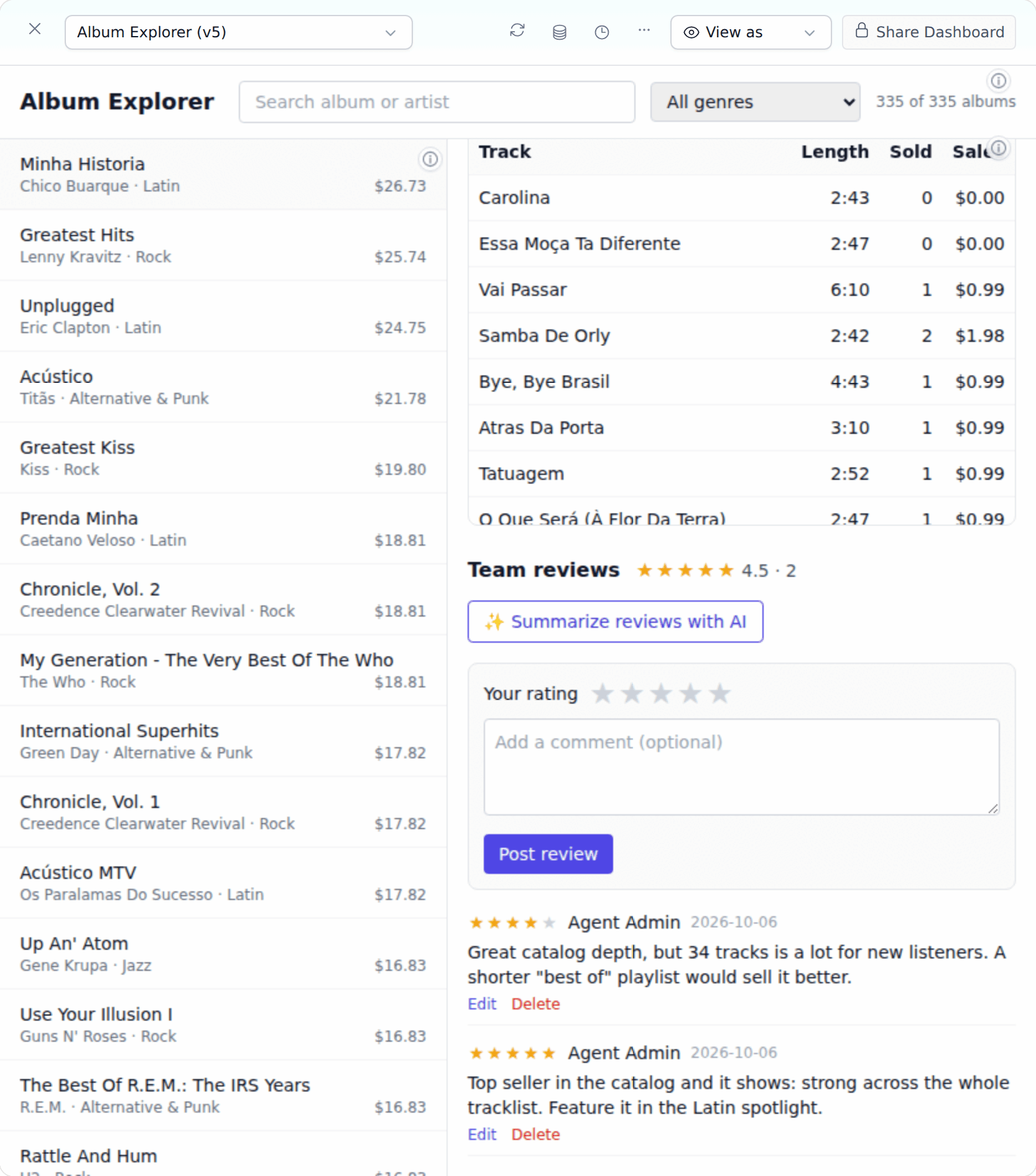 Then click **✨ Summarize reviews with AI**. The summary streams in above the review form.
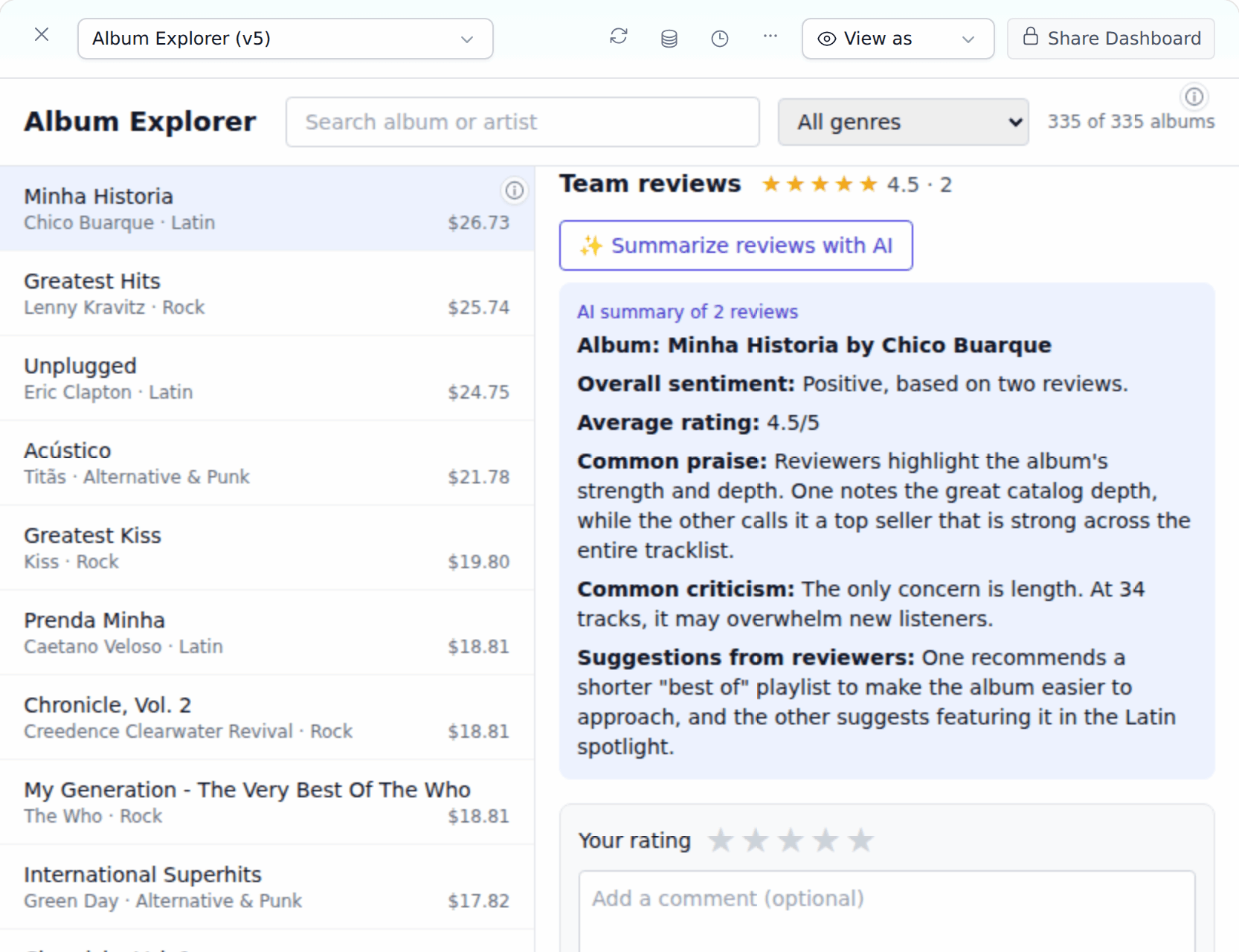 The summary is on-screen state. It disappears when you reload or open another album. To keep it, ask the agent to save it as a record.
## Step 6: Inspect the saved reviews
In the dashboard toolbar, click **⋯** and choose **Resources**.
The summary is on-screen state. It disappears when you reload or open another album. To keep it, ask the agent to save it as a record.
## Step 6: Inspect the saved reviews
In the dashboard toolbar, click **⋯** and choose **Resources**.
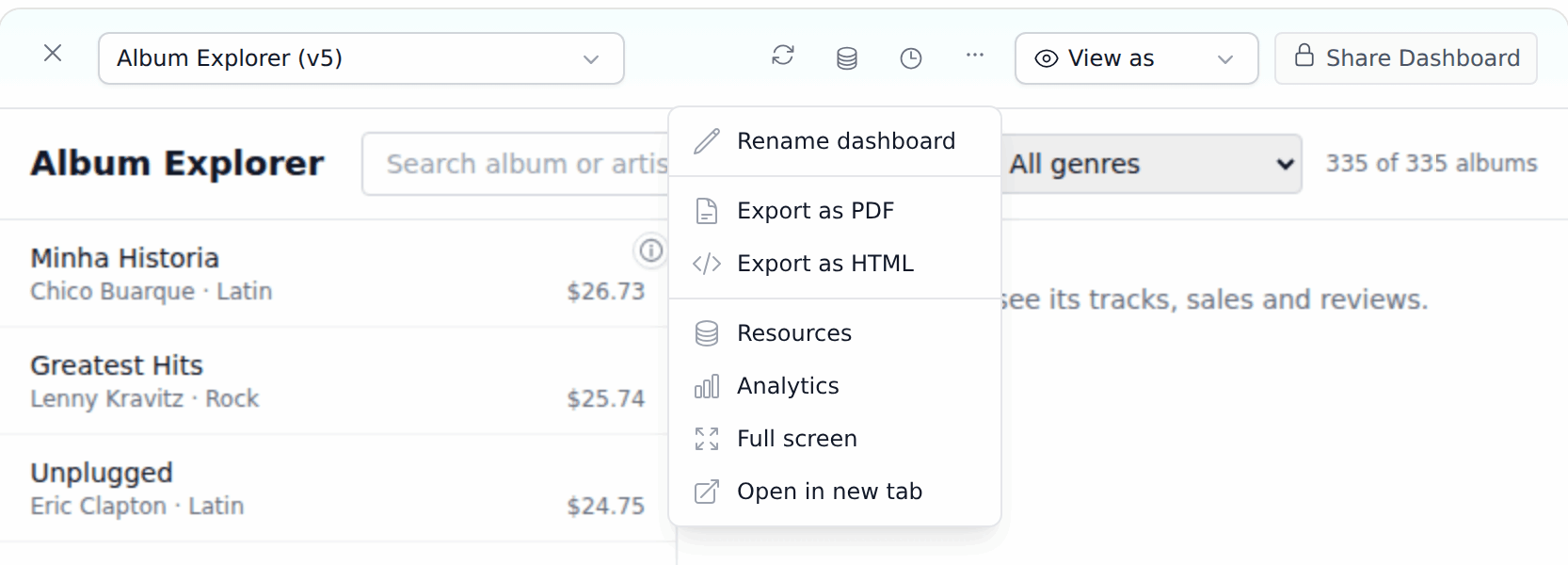 **Resources** is a read-only view of the saved records. Pick the **reviews** collection, sort by **Newest first** or **Oldest first**, and click a row to see its **Record details**. **Filter** lists only indexed fields. The code icon shows the collection schema.
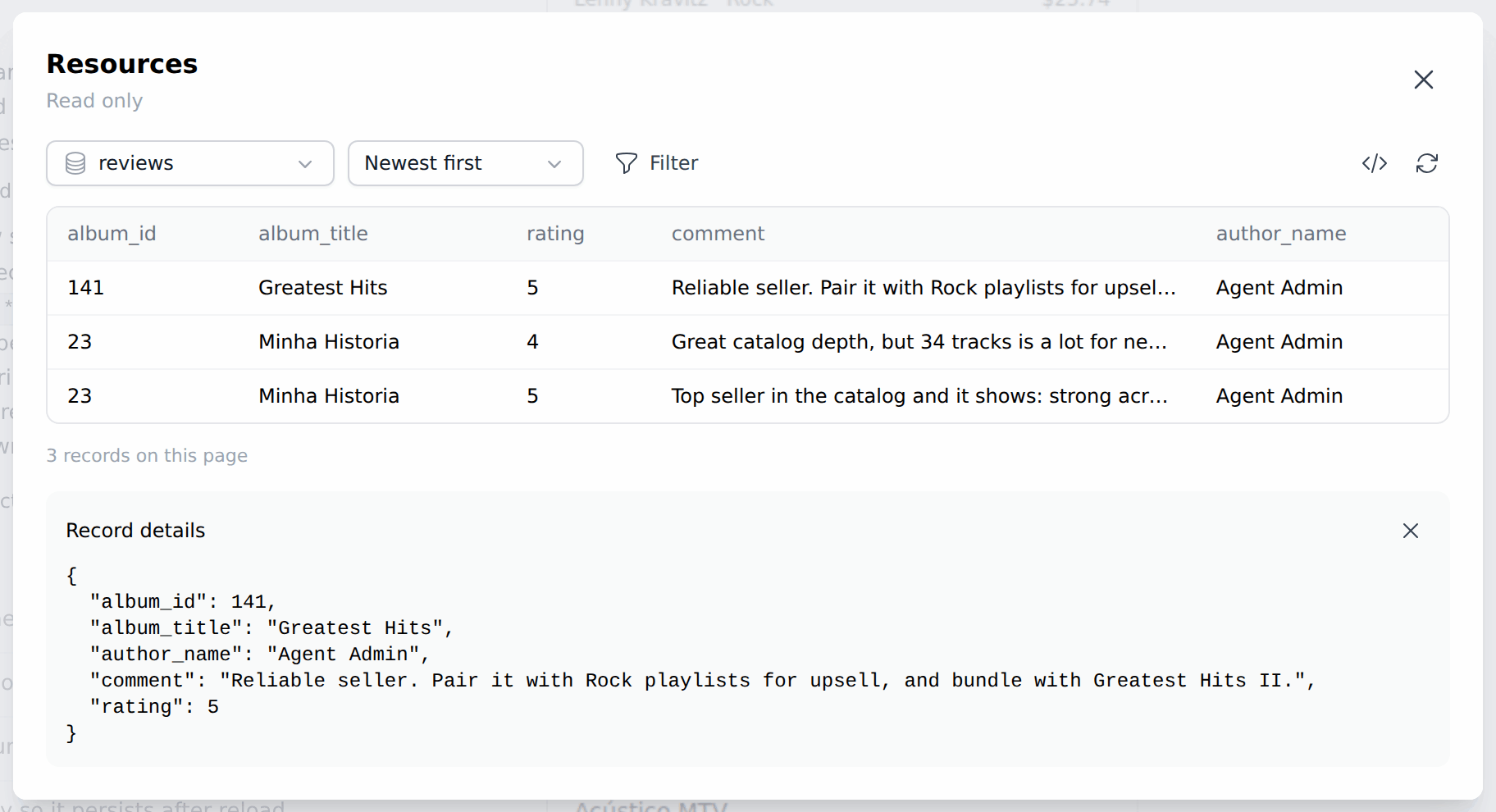 To change a review, use the dashboard. To change fields or permissions, ask in the chat. **⋯ → Analytics** shows how many times the dashboard was viewed and by how many signed-in people.
## More prompts to try
| Goal | Prompt |
| - | - |
| Rank by team opinion | *Show each album's average rating in the list and let me sort by rating or total sales.* |
| Keep AI output | *Save each AI summary with the album so it is still there after a reload.* |
| Latest activity | *Show the newest reviews across all albums when no album is open.* |
## Tips
* **Decide the fields before people add reviews.** Once a collection has records, you can only add optional fields. In our run, the agent could not add an indexed author field to a collection that already had reviews: the change was refused with "Existing records require an explicit migration."
* **Test as a real user.** The agent checks the page in a preview with sample permissions. Post, reload, edit and delete in the dashboard yourself, and ask a teammate to try it with their account.
* **Hidden buttons are not security.** The page decides which buttons to show, but the collection's permissions decide what the server allows. Ask for permissions in plain words, as in Step 3.
* **Saved reviews stay in BOW.** Records belong to the dashboard. They are not written back to your connected database.
## Troubleshooting
| What you see | What to do |
| - | - |
| The agent says Artifact resources are disabled | Ask an admin to turn on **Artifact resources** in **Settings → AI Settings → Agent capabilities**. |
| Some albums show incomplete track lists | Ask the agent to load each album's tracks when it is opened, as in Step 2. |
| **Edit** and **Delete** don't appear on your own review | Tell the agent what you see. It can change how the page matches reviews to the signed-in person. |
| A **Resource change failed** card appears | The agent tried a change the collection doesn't allow, such as a new required or indexed field on a collection that already has records. Read the agent's reply for what it did instead. |
| The AI summary is gone after a reload | Summaries are on-screen only. Click the button again, or ask the agent to save summaries as records. |
## Related
* [Dashboard artifacts](/using-bow/dashboards)
* [Parameterized queries](/using-bow/parameterized-queries)
* [Settings](/using-bow/settings)
* [Instructions and knowledge](/agents/instructions)
This documentation is built and hosted on [Mintlify](https://mintlify.com), a developer documentation platform.
To change a review, use the dashboard. To change fields or permissions, ask in the chat. **⋯ → Analytics** shows how many times the dashboard was viewed and by how many signed-in people.
## More prompts to try
| Goal | Prompt |
| - | - |
| Rank by team opinion | *Show each album's average rating in the list and let me sort by rating or total sales.* |
| Keep AI output | *Save each AI summary with the album so it is still there after a reload.* |
| Latest activity | *Show the newest reviews across all albums when no album is open.* |
## Tips
* **Decide the fields before people add reviews.** Once a collection has records, you can only add optional fields. In our run, the agent could not add an indexed author field to a collection that already had reviews: the change was refused with "Existing records require an explicit migration."
* **Test as a real user.** The agent checks the page in a preview with sample permissions. Post, reload, edit and delete in the dashboard yourself, and ask a teammate to try it with their account.
* **Hidden buttons are not security.** The page decides which buttons to show, but the collection's permissions decide what the server allows. Ask for permissions in plain words, as in Step 3.
* **Saved reviews stay in BOW.** Records belong to the dashboard. They are not written back to your connected database.
## Troubleshooting
| What you see | What to do |
| - | - |
| The agent says Artifact resources are disabled | Ask an admin to turn on **Artifact resources** in **Settings → AI Settings → Agent capabilities**. |
| Some albums show incomplete track lists | Ask the agent to load each album's tracks when it is opened, as in Step 2. |
| **Edit** and **Delete** don't appear on your own review | Tell the agent what you see. It can change how the page matches reviews to the signed-in person. |
| A **Resource change failed** card appears | The agent tried a change the collection doesn't allow, such as a new required or indexed field on a collection that already has records. Read the agent's reply for what it did instead. |
| The AI summary is gone after a reload | Summaries are on-screen only. Click the button again, or ask the agent to save summaries as records. |
## Related
* [Dashboard artifacts](/using-bow/dashboards)
* [Parameterized queries](/using-bow/parameterized-queries)
* [Settings](/using-bow/settings)
* [Instructions and knowledge](/agents/instructions)
This documentation is built and hosted on [Mintlify](https://mintlify.com), a developer documentation platform.