> ## Documentation Index
> Fetch the complete documentation index at: https://docs.bagofwords.com/llms.txt
> Use this file to discover all available pages before exploring further.
# Run an automated analysis from an external trigger
> Give an alerting tool, CI job or script a webhook URL. Each event it sends starts a new session where the agent investigates and reports back.
A trigger gives you a URL that other systems can POST events to. Each accepted event starts a new session. The agent reads the event, runs your task against your data, and notifies you when the findings are ready.
 ## Before you start
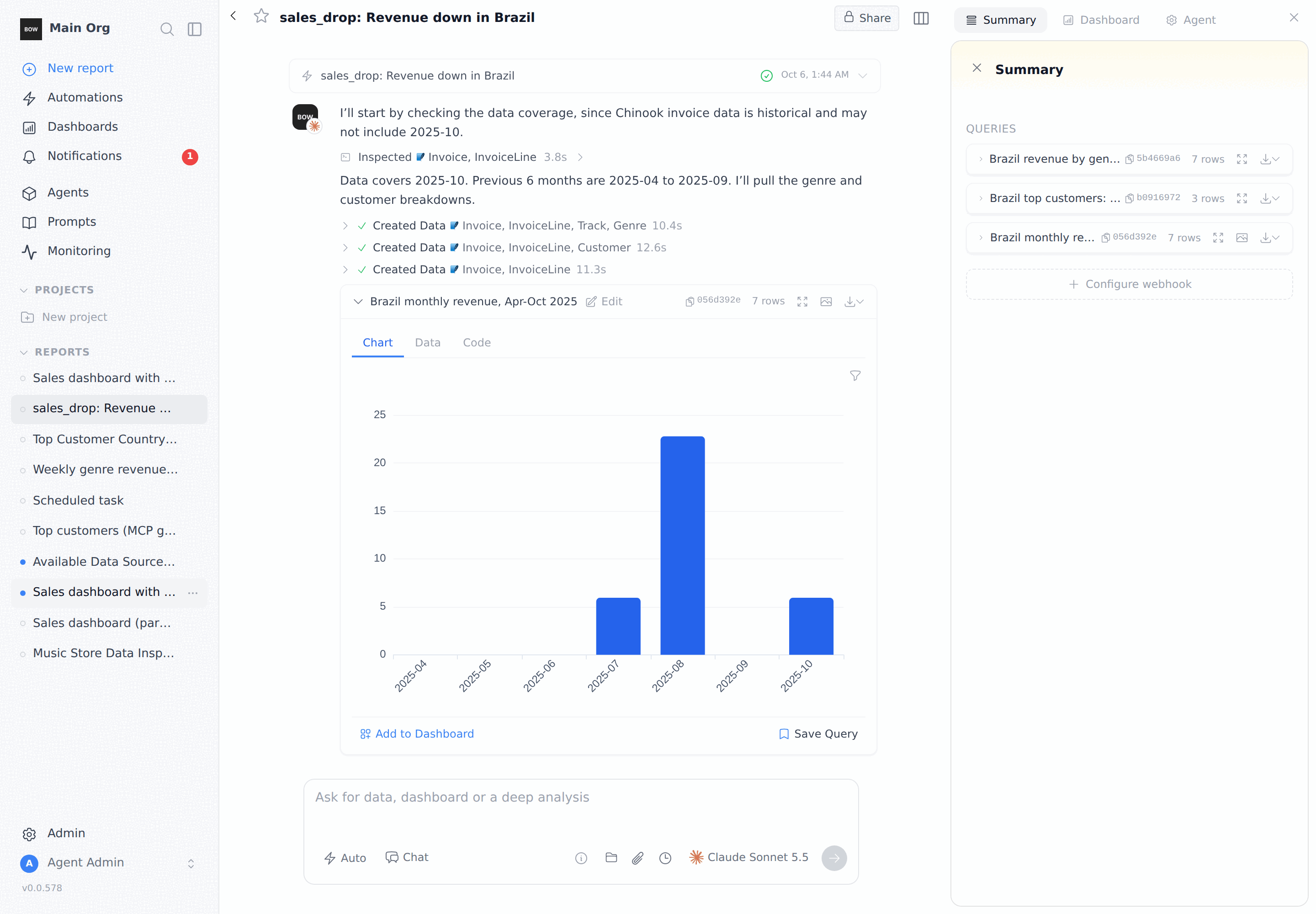
* **Report Webhooks is on.** An admin can check this in **Settings → AI Settings → Workspace → Report Webhooks**. It is on by default. The same section sets **Max webhooks** (20 by default) and **Webhook rate limit (per minute)** (60 by default). Deliveries over the limit get a `429` response.
* **You have a sender.** This is anything that can send an HTTP POST with a JSON body: an alerting tool, Zapier, a CI job, a cron script, or `curl`.
## Before you start
* **Report Webhooks is on.** An admin can check this in **Settings → AI Settings → Workspace → Report Webhooks**. It is on by default. The same section sets **Max webhooks** (20 by default) and **Webhook rate limit (per minute)** (60 by default). Deliveries over the limit get a `429` response.
* **You have a sender.** This is anything that can send an HTTP POST with a JSON body: an alerting tool, Zapier, a CI job, a cron script, or `curl`.
 ## Step 1: Create the trigger
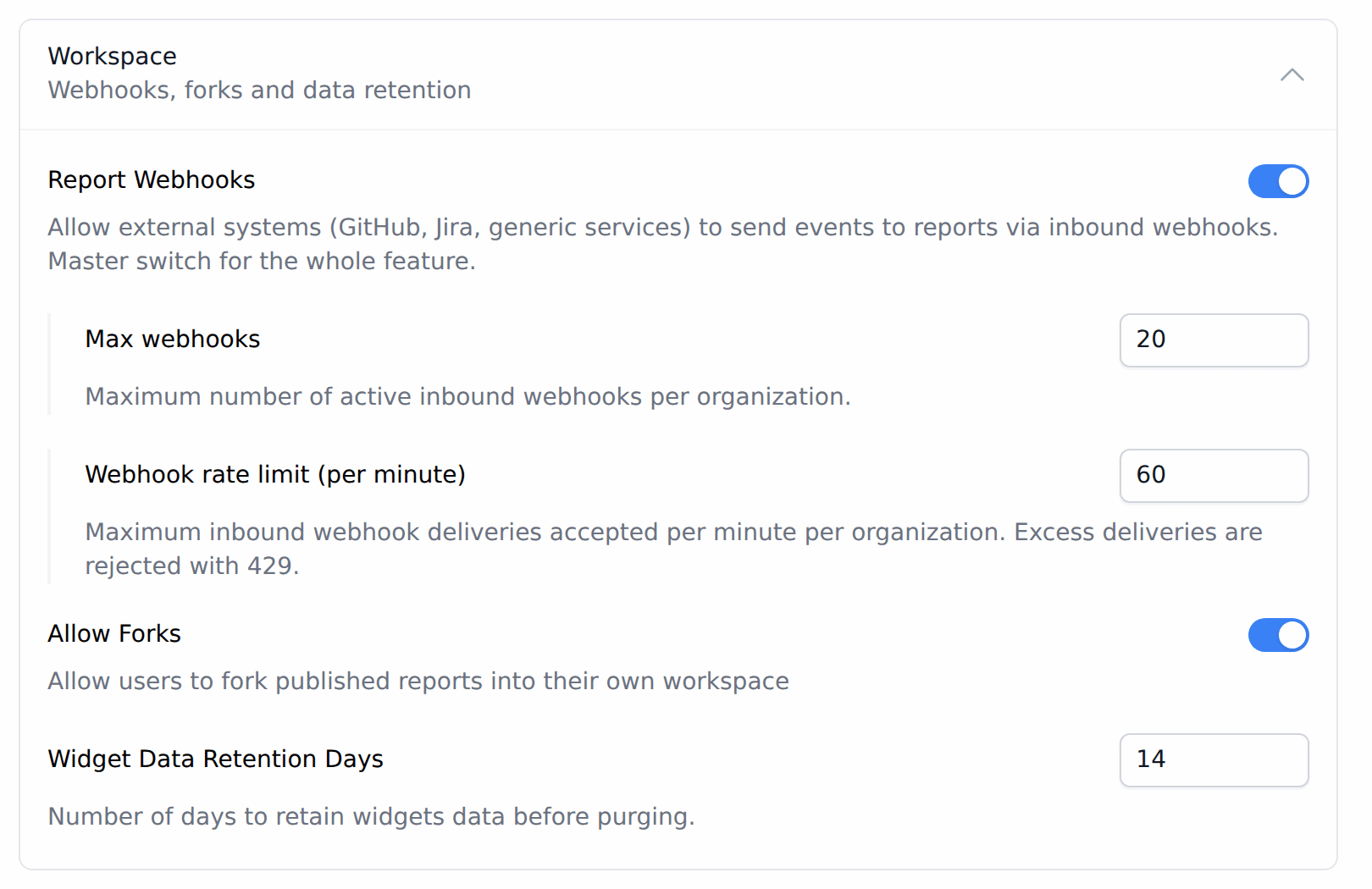
Open **Automations** and select the **Triggers** tab. Click **New trigger**.
## Step 1: Create the trigger
Open **Automations** and select the **Triggers** tab. Click **New trigger**.
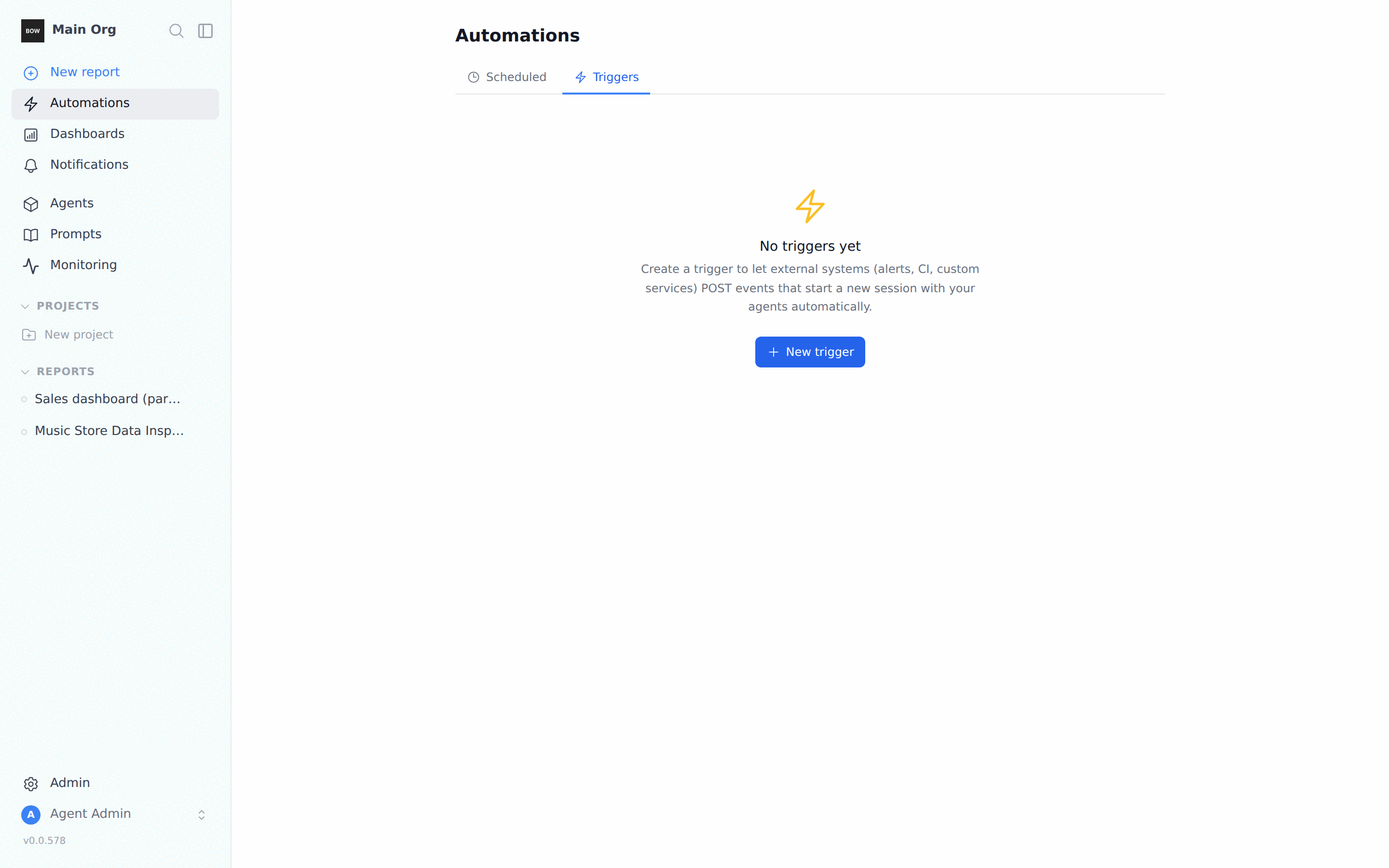 The **Set up trigger** window opens and the trigger's URL is ready right away. Enter a **Name**, such as *Sales alert*.
 ## Step 2: Choose how the sender authenticates
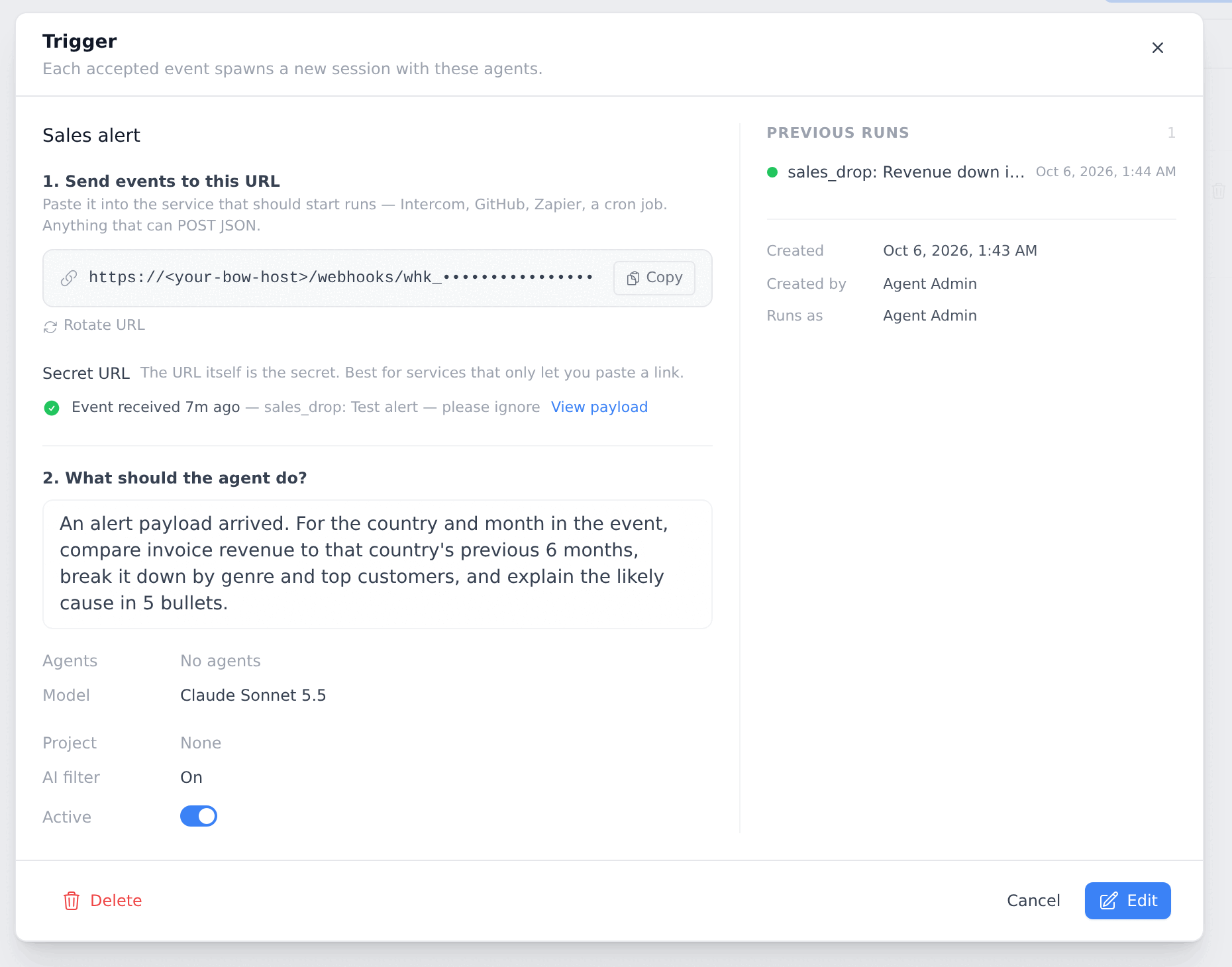
Under **1. Send events to this URL**, click **Copy** to copy the URL. Then choose an auth mode:
| Mode | What the sender does |
| - | - |
| **Secret URL** (default) | Nothing extra. The URL itself is the secret. Best for services that only let you paste a link. Use **Rotate URL** if it leaks. |
| **Token header** | Sends the key in the `Authorization: Bearer ` header. |
| **HMAC (signed)** | Signs each request body with the key (see below). |
For **Token header** and **HMAC (signed)**, the window shows a **Key** once. Copy it before you close the window. If you lose it, click **Rotate signing key** to get a new one. The old key stops working.
## Step 2: Choose how the sender authenticates
Under **1. Send events to this URL**, click **Copy** to copy the URL. Then choose an auth mode:
| Mode | What the sender does |
| - | - |
| **Secret URL** (default) | Nothing extra. The URL itself is the secret. Best for services that only let you paste a link. Use **Rotate URL** if it leaks. |
| **Token header** | Sends the key in the `Authorization: Bearer ` header. |
| **HMAC (signed)** | Signs each request body with the key (see below). |
For **Token header** and **HMAC (signed)**, the window shows a **Key** once. Copy it before you close the window. If you lose it, click **Rotate signing key** to get a new one. The old key stops working.
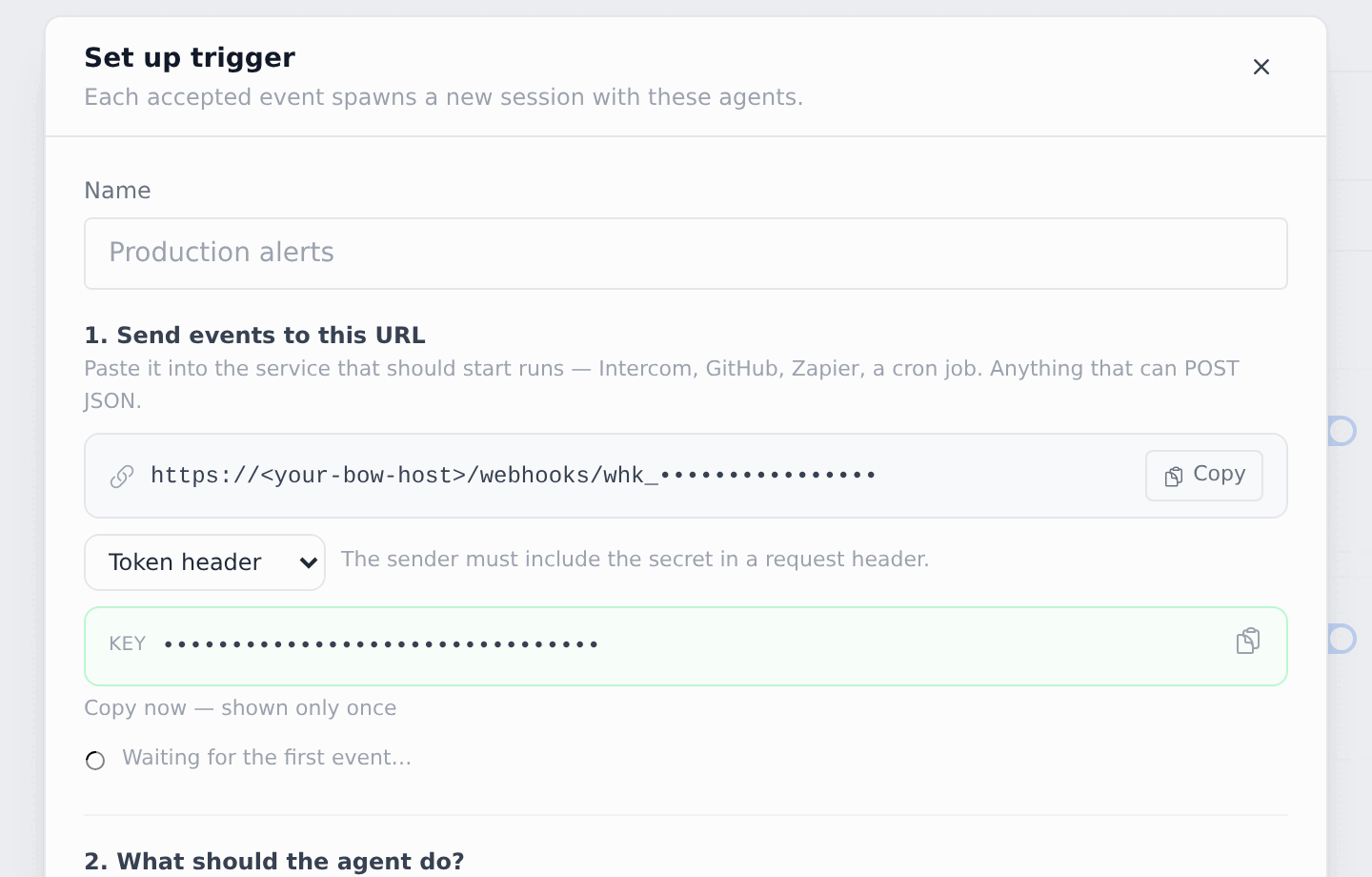 Treat the URL and the key like passwords. With **Secret URL**, anyone who has the URL can start runs that use your agents.
## Step 3: Send a test event
Keep the window open and send a sample event from your sender. With `curl` and **Secret URL**:
```bash theme={null}
curl -X POST "https:///webhooks/" \
-H "Content-Type: application/json" \
-d '{"type":"sales_drop","title":"Revenue down in Brazil","severity":"high","country":"Brazil","month":"2025-10"}'
```
The status under the URL changes from **Waiting for the first event…** to **Event received just now**, followed by a short summary of the event. Click **View payload** to see the headers and body that arrived.
Treat the URL and the key like passwords. With **Secret URL**, anyone who has the URL can start runs that use your agents.
## Step 3: Send a test event
Keep the window open and send a sample event from your sender. With `curl` and **Secret URL**:
```bash theme={null}
curl -X POST "https:///webhooks/" \
-H "Content-Type: application/json" \
-d '{"type":"sales_drop","title":"Revenue down in Brazil","severity":"high","country":"Brazil","month":"2025-10"}'
```
The status under the URL changes from **Waiting for the first event…** to **Event received just now**, followed by a short summary of the event. Click **View payload** to see the headers and body that arrived.
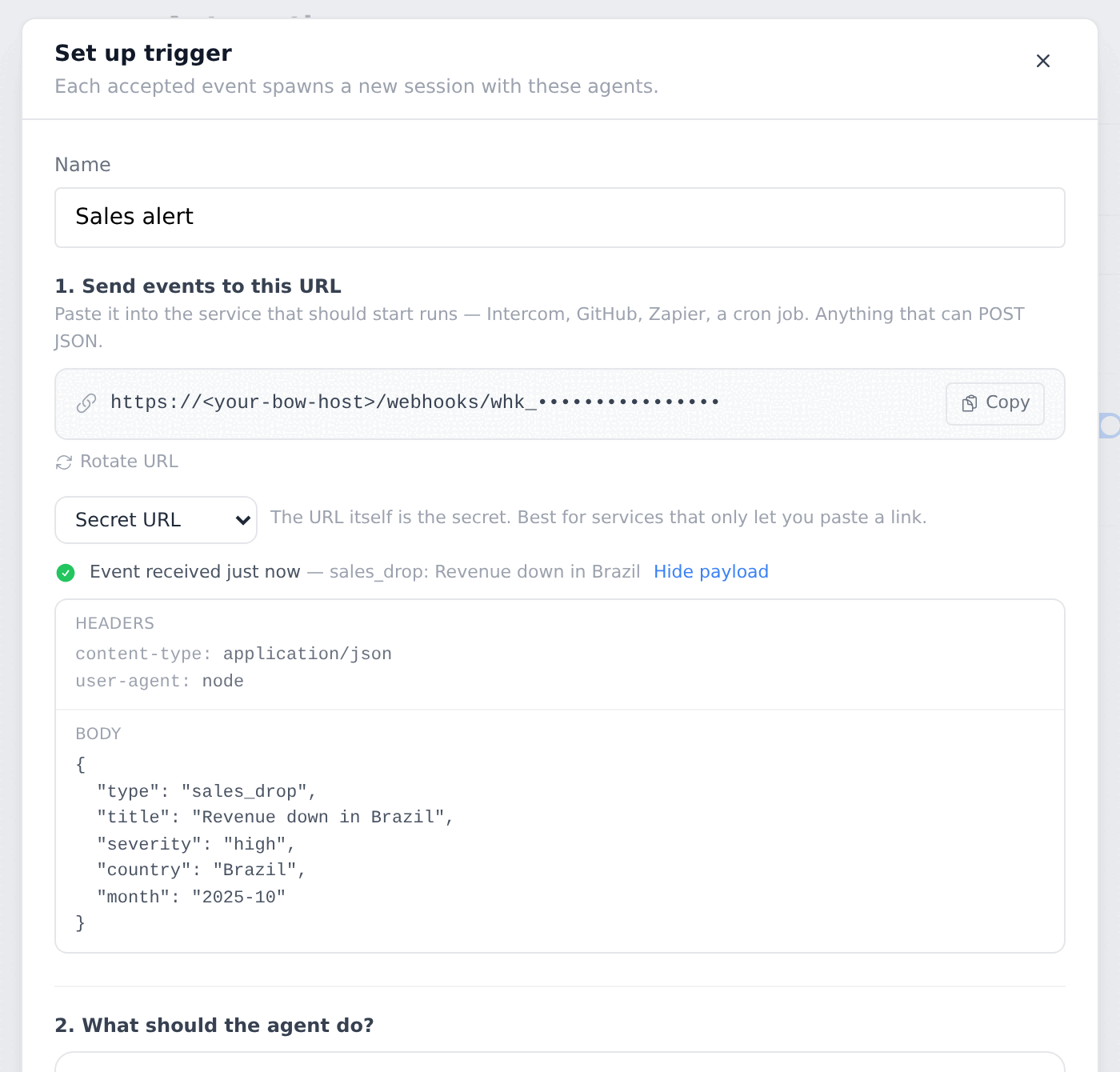 Until the trigger has a task or the AI filter is on, events are only recorded. The response is `{"status":"captured","detail":"Trigger has no task yet"}` and no session starts. This lets you test the connection safely.
## Step 4: Tell the agent what to do
Under **2. What should the agent do?**, write the task. The agent gets this task plus the event, so refer to fields in the event rather than fixed values:
> *An alert payload arrived. For the country and month in the event, compare invoice revenue to that country's previous 6 months, break it down by genre and top customers, and explain the likely cause in 5 bullets.*
The prompt box works like the one in a report. You can choose the model and a project. New sessions are created in that project. Leave the agent picker on **Auto**: the agent then uses whichever of your agents fits the event.
## Step 5: Decide which events are worth a run
Under **3. Which events are worth a run?**, select **Let AI decide whether each event warrants a run**. In **Guidance (optional)**, describe the events you care about:
> *Only act when severity is high or critical; ignore test events.*
Make sure **Active** is on, then click **Save**.
Until the trigger has a task or the AI filter is on, events are only recorded. The response is `{"status":"captured","detail":"Trigger has no task yet"}` and no session starts. This lets you test the connection safely.
## Step 4: Tell the agent what to do
Under **2. What should the agent do?**, write the task. The agent gets this task plus the event, so refer to fields in the event rather than fixed values:
> *An alert payload arrived. For the country and month in the event, compare invoice revenue to that country's previous 6 months, break it down by genre and top customers, and explain the likely cause in 5 bullets.*
The prompt box works like the one in a report. You can choose the model and a project. New sessions are created in that project. Leave the agent picker on **Auto**: the agent then uses whichever of your agents fits the event.
## Step 5: Decide which events are worth a run
Under **3. Which events are worth a run?**, select **Let AI decide whether each event warrants a run**. In **Guidance (optional)**, describe the events you care about:
> *Only act when severity is high or critical; ignore test events.*
Make sure **Active** is on, then click **Save**.
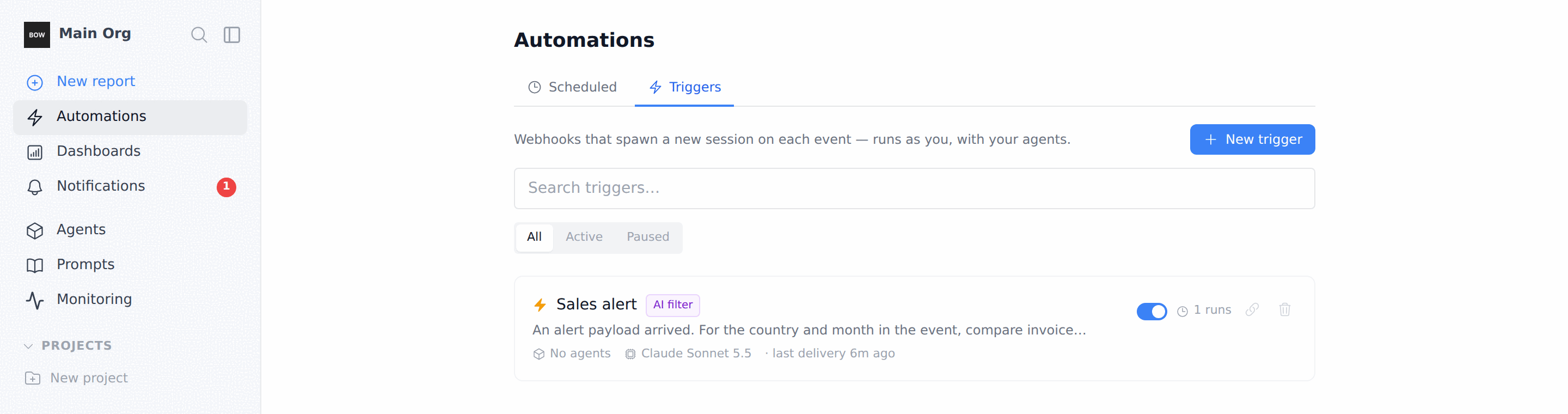
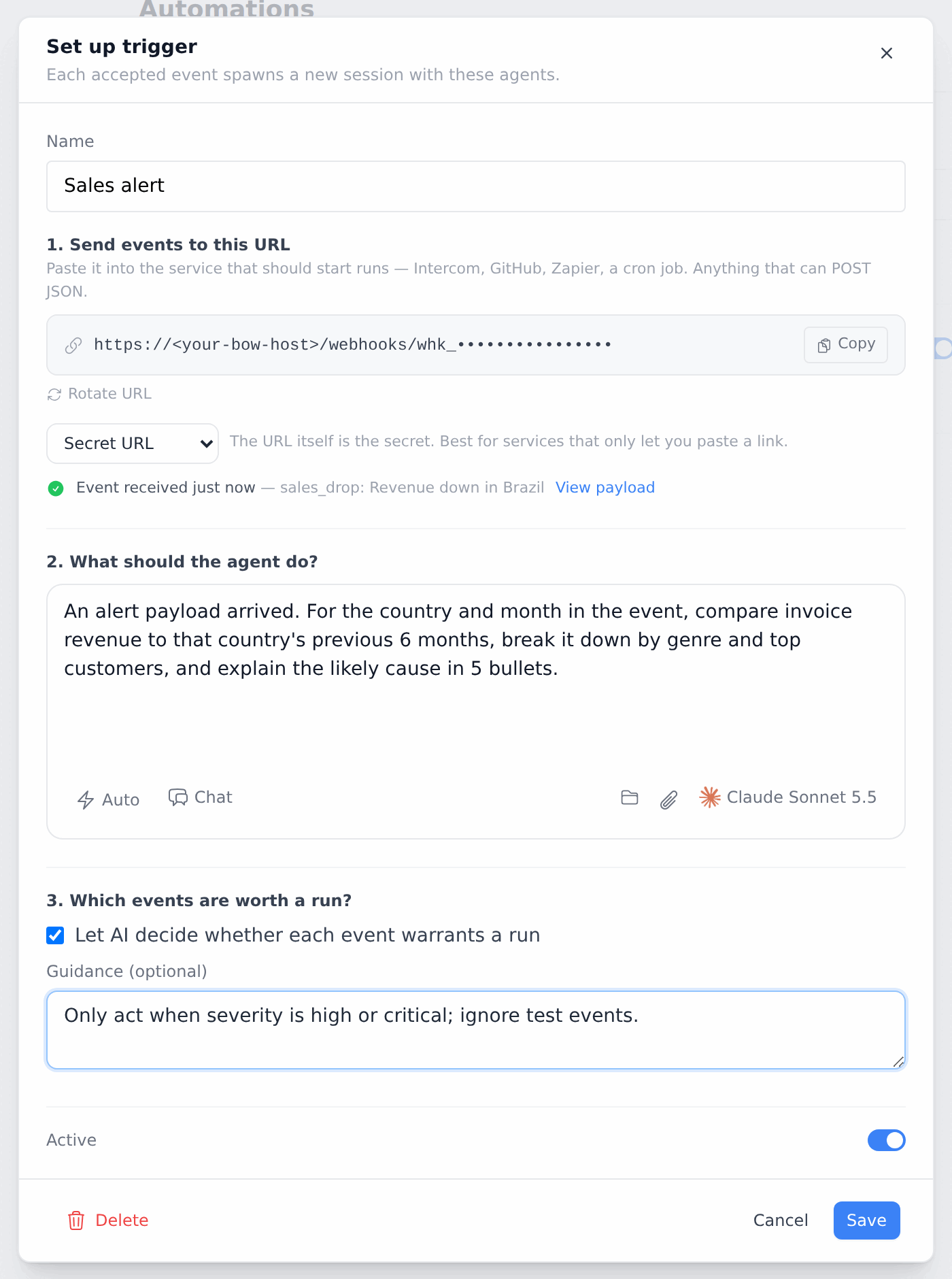 The trigger appears in the list with an **AI filter** badge, its run count, and the time of its last delivery.
 ## Step 6: Fire a real event
Send the high-severity event from Step 3 again. The response is `{"status":"accepted"}`.
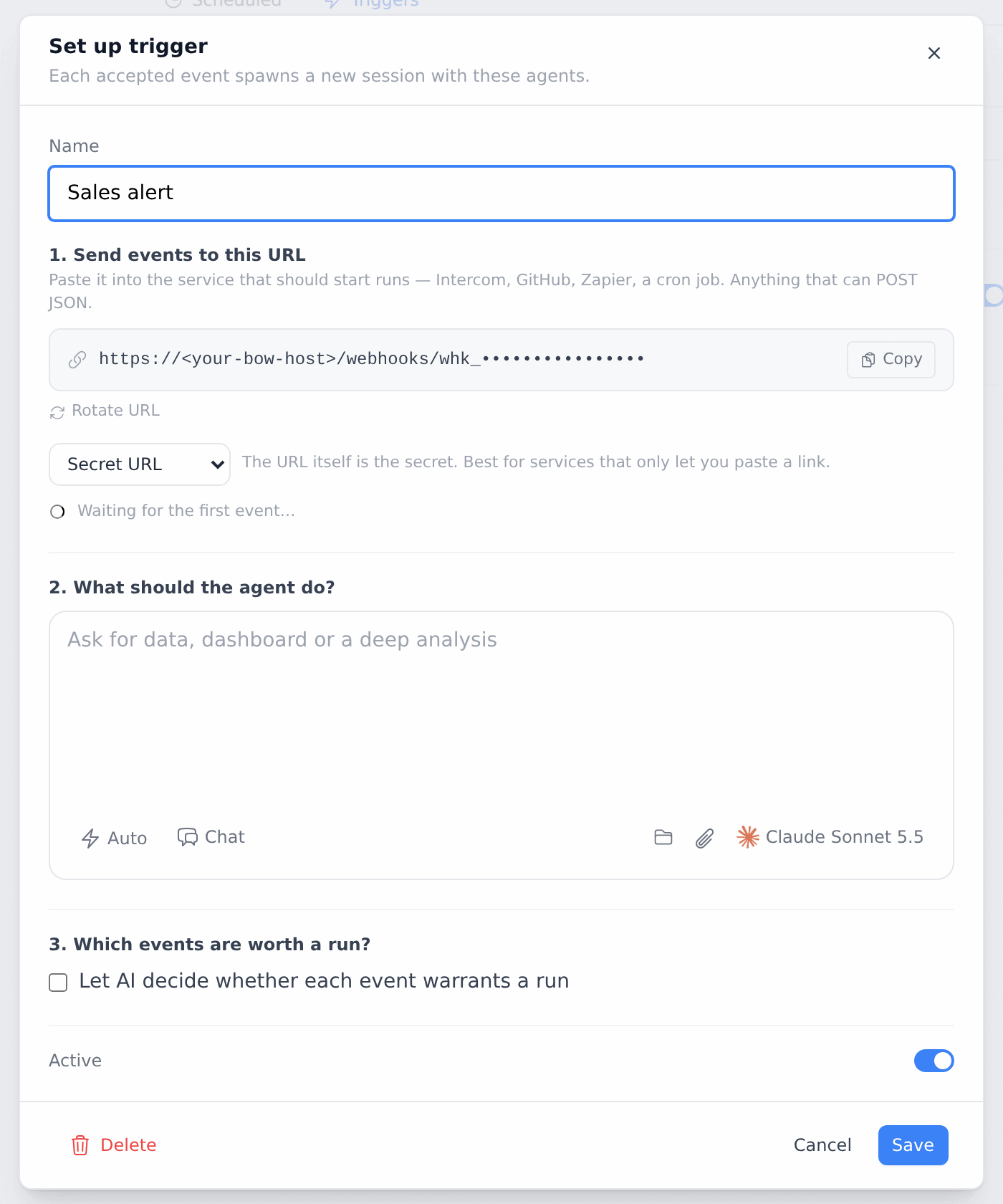
A new session starts in your **Reports** list, titled from the event (here, **sales\_drop: Revenue down in Brazil**). The event shows at the top of the session. Below it, the agent checks the data, builds the charts and tables, and writes its findings. In our run, it found that the "drop" came from a small baseline: Brazil had only a few invoices a month, and one large month (August) skewed the comparison.
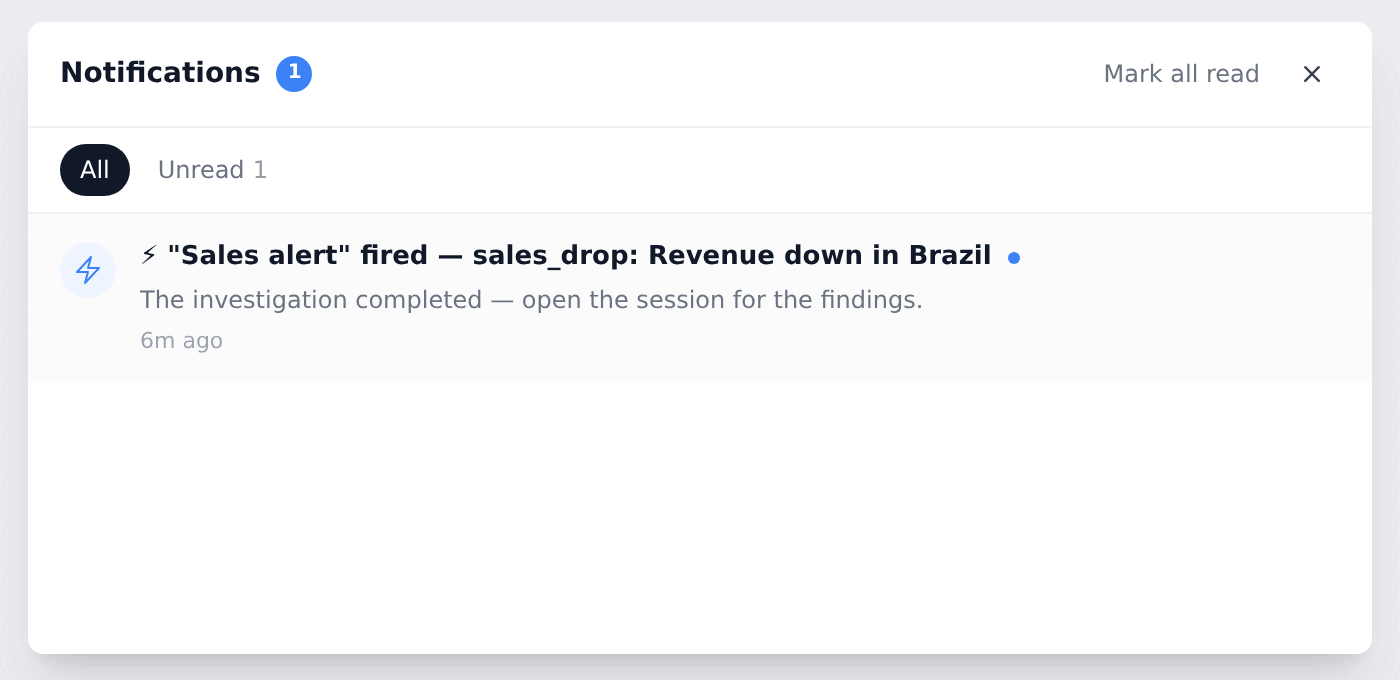
When the run finishes, you get a notification: **⚡ "Sales alert" fired — sales\_drop: Revenue down in Brazil**, with the message "The investigation completed — open the session for the findings." Click it to open the session.
## Step 6: Fire a real event
Send the high-severity event from Step 3 again. The response is `{"status":"accepted"}`.
A new session starts in your **Reports** list, titled from the event (here, **sales\_drop: Revenue down in Brazil**). The event shows at the top of the session. Below it, the agent checks the data, builds the charts and tables, and writes its findings. In our run, it found that the "drop" came from a small baseline: Brazil had only a few invoices a month, and one large month (August) skewed the comparison.
When the run finishes, you get a notification: **⚡ "Sales alert" fired — sales\_drop: Revenue down in Brazil**, with the message "The investigation completed — open the session for the findings." Click it to open the session.
 ## Step 7: Check that noise is skipped
Send an event that your guidance says to ignore:
```bash theme={null}
curl -X POST "https:///webhooks/" \
-H "Content-Type: application/json" \
-d '{"type":"sales_drop","title":"Test alert — please ignore","severity":"low","test":true}'
```
The response is still `{"status":"accepted"}`, but no session starts and you get no notification. To confirm, click the trigger card. **Event received** shows the test event, while **Previous runs** still lists only the one real run.
## Step 7: Check that noise is skipped
Send an event that your guidance says to ignore:
```bash theme={null}
curl -X POST "https:///webhooks/" \
-H "Content-Type: application/json" \
-d '{"type":"sales_drop","title":"Test alert — please ignore","severity":"low","test":true}'
```
The response is still `{"status":"accepted"}`, but no session starts and you get no notification. To confirm, click the trigger card. **Event received** shows the test event, while **Previous runs** still lists only the one real run.
 ## Send events from your own code
**Token header**
```bash theme={null}
curl -X POST "https:///webhooks/" \
-H "Authorization: Bearer $BOW_TRIGGER_KEY" \
-H "Content-Type: application/json" \
-d '{"type":"sales_drop","title":"Revenue down in Brazil","severity":"high"}'
```
**HMAC (signed)**: sign `"."` with HMAC-SHA256 using the key. Send the Unix timestamp in `X-BOW-Timestamp` and `sha256=` in `X-BOW-Signature-256`. Requests with a timestamp more than 5 minutes old are rejected.
```bash theme={null}
BODY='{"type":"sales_drop","title":"Revenue down in Brazil","severity":"high"}'
TS=$(date +%s)
SIG=$(printf '%s.%s' "$TS" "$BODY" | openssl dgst -sha256 -hmac "$BOW_TRIGGER_KEY" | sed 's/^.* //')
curl -X POST "https:///webhooks/" \
-H "Content-Type: application/json" \
-H "X-BOW-Timestamp: $TS" \
-H "X-BOW-Signature-256: sha256=$SIG" \
-H "X-BOW-Delivery: alert-12345" \
-d "$BODY"
```
`X-BOW-Delivery` is optional. If the same delivery ID arrives twice, the second one is ignored, so retries from your sender don't start duplicate runs.
**Responses**
| Status | Meaning |
| - | - |
| `200 {"status":"accepted"}` | The event was accepted and is being processed. |
| `200 {"status":"captured", ...}` | The event was recorded but nothing ran: the trigger is paused or has no task yet. |
| `401 Invalid signature` | The token, signature or timestamp is wrong. |
| `403` | **Report Webhooks** is off for the organization. |
| `404 Webhook not found` | The URL is wrong, rotated, or the trigger was deleted. |
| `429 Rate limit exceeded` | The organization went over **Webhook rate limit (per minute)**. |
A `GET` to the URL returns `{"status":"ready"}`, so senders that check the URL before saving it work.
## Send events into an existing report instead
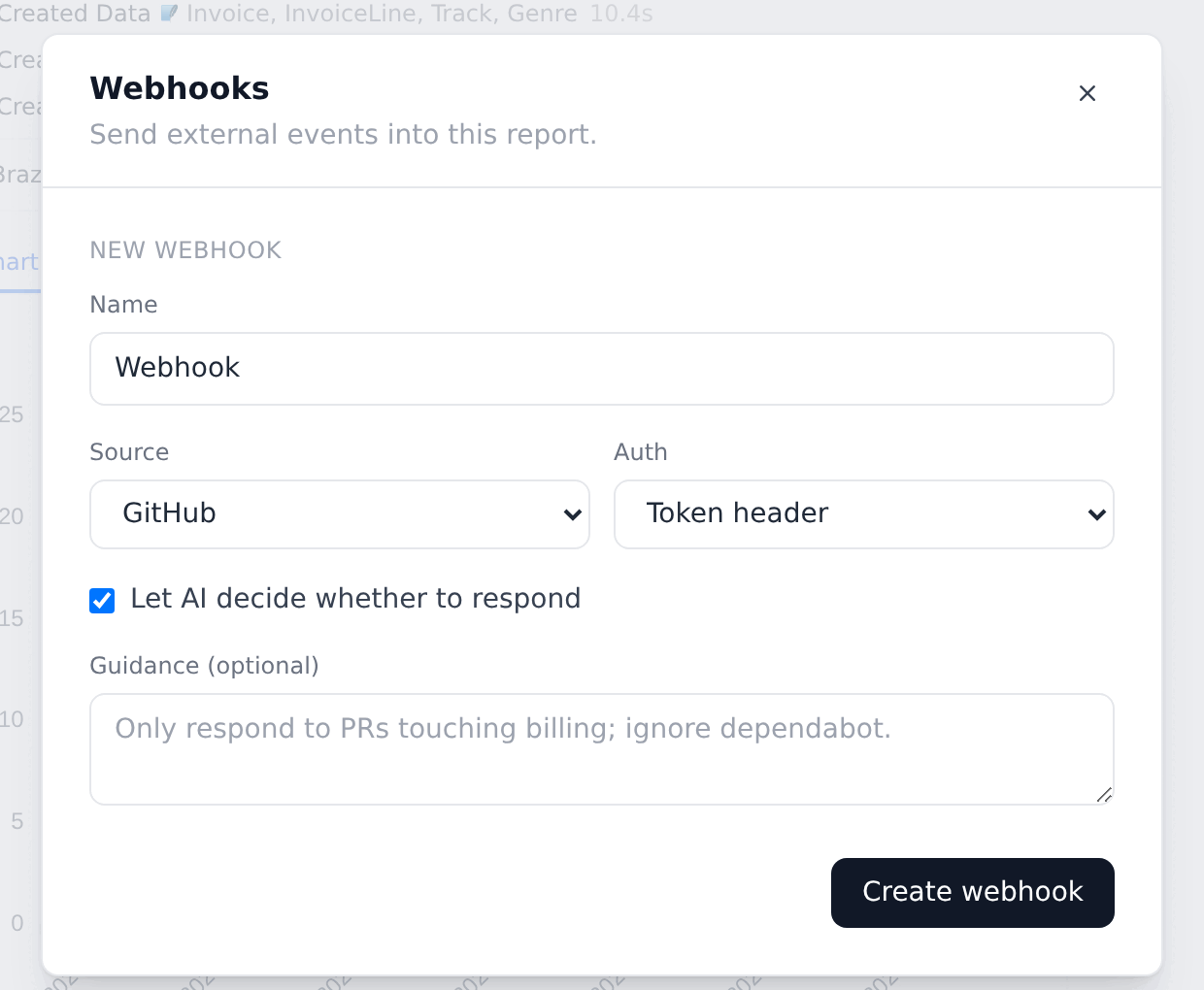
A trigger starts a new session for every event. If you want events to collect in one report, open that report, open the **Summary** panel, and click **Configure webhook**. Choose a **Source** and **Auth**, select **Let AI decide whether to respond** if you want a filter, and click **Create webhook**. Each event is then added to that report.
## Send events from your own code
**Token header**
```bash theme={null}
curl -X POST "https:///webhooks/" \
-H "Authorization: Bearer $BOW_TRIGGER_KEY" \
-H "Content-Type: application/json" \
-d '{"type":"sales_drop","title":"Revenue down in Brazil","severity":"high"}'
```
**HMAC (signed)**: sign `"."` with HMAC-SHA256 using the key. Send the Unix timestamp in `X-BOW-Timestamp` and `sha256=` in `X-BOW-Signature-256`. Requests with a timestamp more than 5 minutes old are rejected.
```bash theme={null}
BODY='{"type":"sales_drop","title":"Revenue down in Brazil","severity":"high"}'
TS=$(date +%s)
SIG=$(printf '%s.%s' "$TS" "$BODY" | openssl dgst -sha256 -hmac "$BOW_TRIGGER_KEY" | sed 's/^.* //')
curl -X POST "https:///webhooks/" \
-H "Content-Type: application/json" \
-H "X-BOW-Timestamp: $TS" \
-H "X-BOW-Signature-256: sha256=$SIG" \
-H "X-BOW-Delivery: alert-12345" \
-d "$BODY"
```
`X-BOW-Delivery` is optional. If the same delivery ID arrives twice, the second one is ignored, so retries from your sender don't start duplicate runs.
**Responses**
| Status | Meaning |
| - | - |
| `200 {"status":"accepted"}` | The event was accepted and is being processed. |
| `200 {"status":"captured", ...}` | The event was recorded but nothing ran: the trigger is paused or has no task yet. |
| `401 Invalid signature` | The token, signature or timestamp is wrong. |
| `403` | **Report Webhooks** is off for the organization. |
| `404 Webhook not found` | The URL is wrong, rotated, or the trigger was deleted. |
| `429 Rate limit exceeded` | The organization went over **Webhook rate limit (per minute)**. |
A `GET` to the URL returns `{"status":"ready"}`, so senders that check the URL before saving it work.
## Send events into an existing report instead
A trigger starts a new session for every event. If you want events to collect in one report, open that report, open the **Summary** panel, and click **Configure webhook**. Choose a **Source** and **Auth**, select **Let AI decide whether to respond** if you want a filter, and click **Create webhook**. Each event is then added to that report.
 ## Tips
* **Write the task against the event.** Say "the country and month in the event", not "Brazil". The same trigger then handles every alert.
* **Keep payloads small.** The agent sees the first 2,000 characters of the JSON body. Put the important fields (`type`, `title`, `severity`, IDs) near the top.
* **Use `type` and `title`.** The session title is built from them, for example `sales_drop: Revenue down in Brazil`.
* **Runs act as you.** A trigger runs with your access and your usage. The trigger summary shows this under **Runs as**.
* **Pause instead of delete.** Use the toggle on the trigger card to pause it. While it's paused, events are recorded but don't start runs (the response is `{"status":"captured","detail":"Trigger is not active"}`), and the URL keeps working.
## Troubleshooting
* **"Event received" never appears.** Check the URL host. It must be the address of your Bag of Words server as your sender sees it. Try a `GET` to the URL first. It should return `{"status":"ready"}`.
* **Events arrive but no session starts.** Check that the trigger is active, has a task, and that the AI filter's guidance doesn't exclude the event.
* **`401 Invalid signature` with HMAC.** Sign the exact bytes you send, include the `.` between timestamp and body, and make sure the clock on the sending machine is correct.
## Related
* [Scheduled tasks](/guides/scheduled-tasks)
* [Reports](/using-bow/reports)
* [Settings](/using-bow/settings)
* [Runs and traces](/observe-and-govern/runs-and-traces)
This documentation is built and hosted on [Mintlify](https://mintlify.com), a developer documentation platform.
## Tips
* **Write the task against the event.** Say "the country and month in the event", not "Brazil". The same trigger then handles every alert.
* **Keep payloads small.** The agent sees the first 2,000 characters of the JSON body. Put the important fields (`type`, `title`, `severity`, IDs) near the top.
* **Use `type` and `title`.** The session title is built from them, for example `sales_drop: Revenue down in Brazil`.
* **Runs act as you.** A trigger runs with your access and your usage. The trigger summary shows this under **Runs as**.
* **Pause instead of delete.** Use the toggle on the trigger card to pause it. While it's paused, events are recorded but don't start runs (the response is `{"status":"captured","detail":"Trigger is not active"}`), and the URL keeps working.
## Troubleshooting
* **"Event received" never appears.** Check the URL host. It must be the address of your Bag of Words server as your sender sees it. Try a `GET` to the URL first. It should return `{"status":"ready"}`.
* **Events arrive but no session starts.** Check that the trigger is active, has a task, and that the AI filter's guidance doesn't exclude the event.
* **`401 Invalid signature` with HMAC.** Sign the exact bytes you send, include the `.` between timestamp and body, and make sure the clock on the sending machine is correct.
## Related
* [Scheduled tasks](/guides/scheduled-tasks)
* [Reports](/using-bow/reports)
* [Settings](/using-bow/settings)
* [Runs and traces](/observe-and-govern/runs-and-traces)
This documentation is built and hosted on [Mintlify](https://mintlify.com), a developer documentation platform.