> ## Documentation Index
> Fetch the complete documentation index at: https://docs.bagofwords.com/llms.txt
> Use this file to discover all available pages before exploring further.
# Train an agent
> Teach an agent your data and business rules in a Training session, then review every change before it goes live.
Training mode is a conversation with an agent that teaches it. The agent looks at your data, learns how the tables connect, asks about the business rules the data can't explain, and writes what it learns as **instructions**. Nothing it writes goes live until you accept it.
Once you accept them, the instructions apply to every Chat conversation with that agent.
 ## Before you start
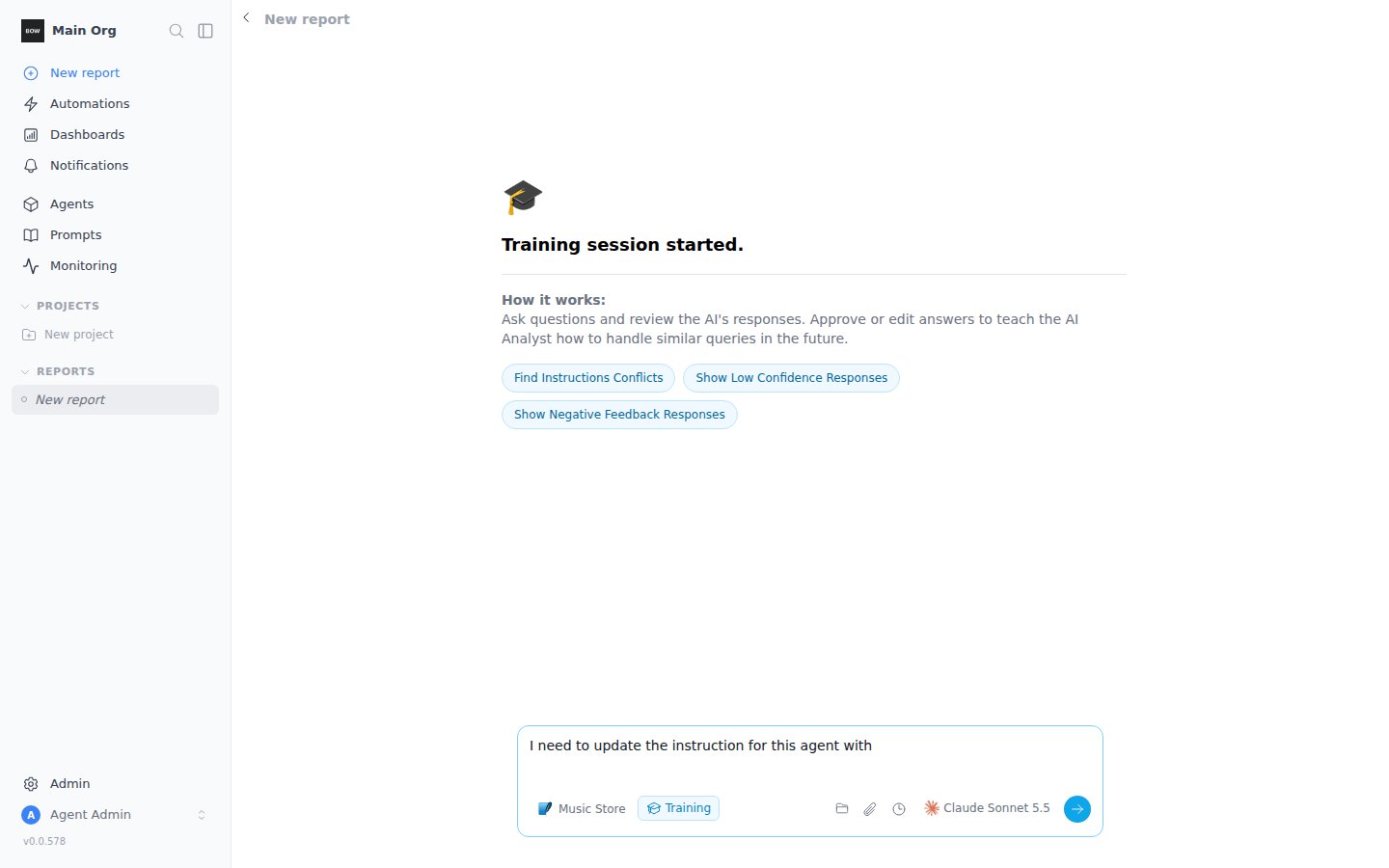
* **Training Mode is on.** An admin can check this in **Settings → AI Settings → Agent capabilities → Training Mode**. It is on by default.
* **You manage the agent.** Training is available to people who can manage the agent's instructions. If you don't see **Training** in the prompt box, ask an admin for manage access to the agent.
## Before you start
* **Training Mode is on.** An admin can check this in **Settings → AI Settings → Agent capabilities → Training Mode**. It is on by default.
* **You manage the agent.** Training is available to people who can manage the agent's instructions. If you don't see **Training** in the prompt box, ask an admin for manage access to the agent.
 ## Step 1: Start a training session
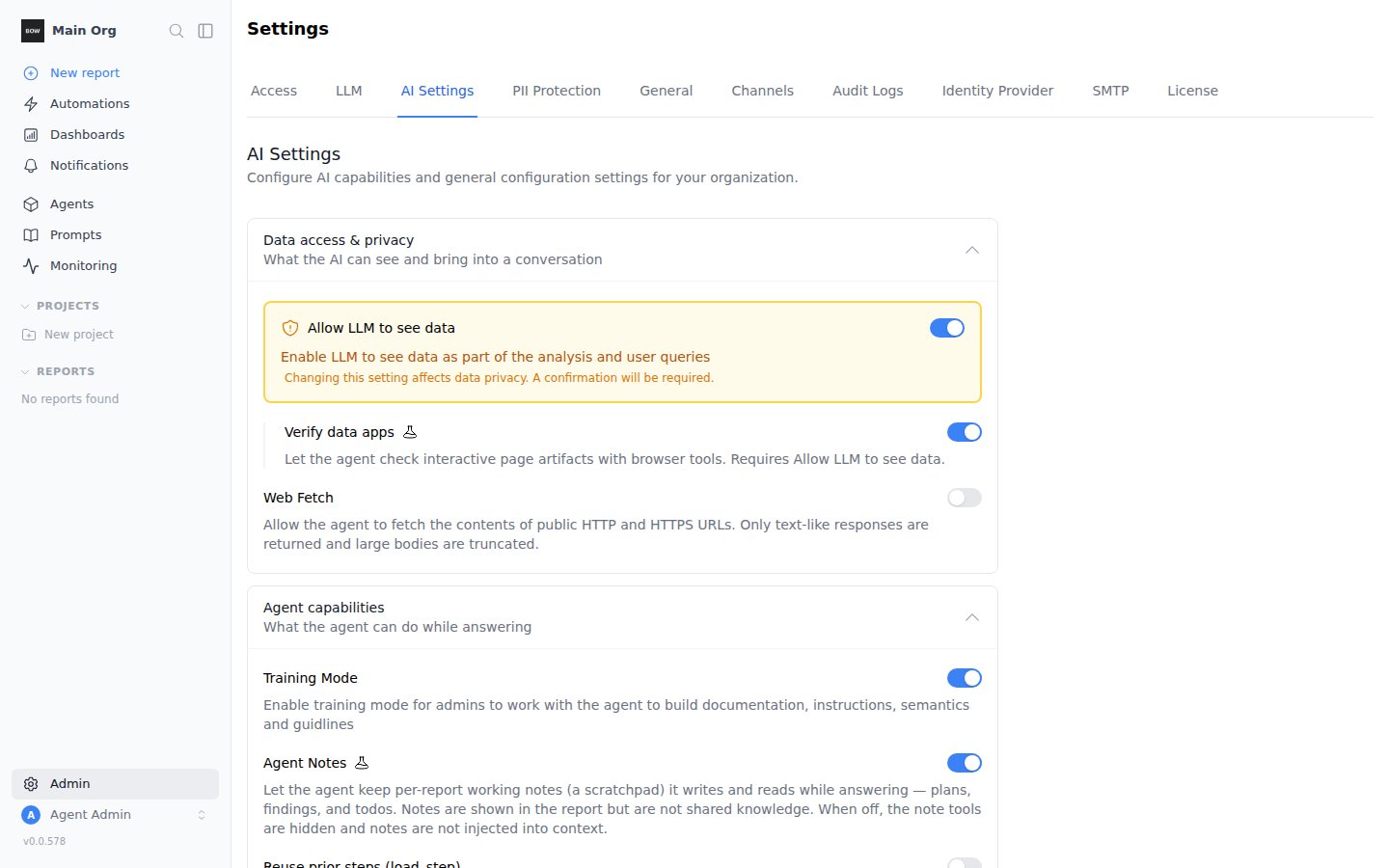
Open **Agents**, select the agent, click **⋯** at the top right, and choose **Start a training session**.
## Step 1: Start a training session
Open **Agents**, select the agent, click **⋯** at the top right, and choose **Start a training session**.
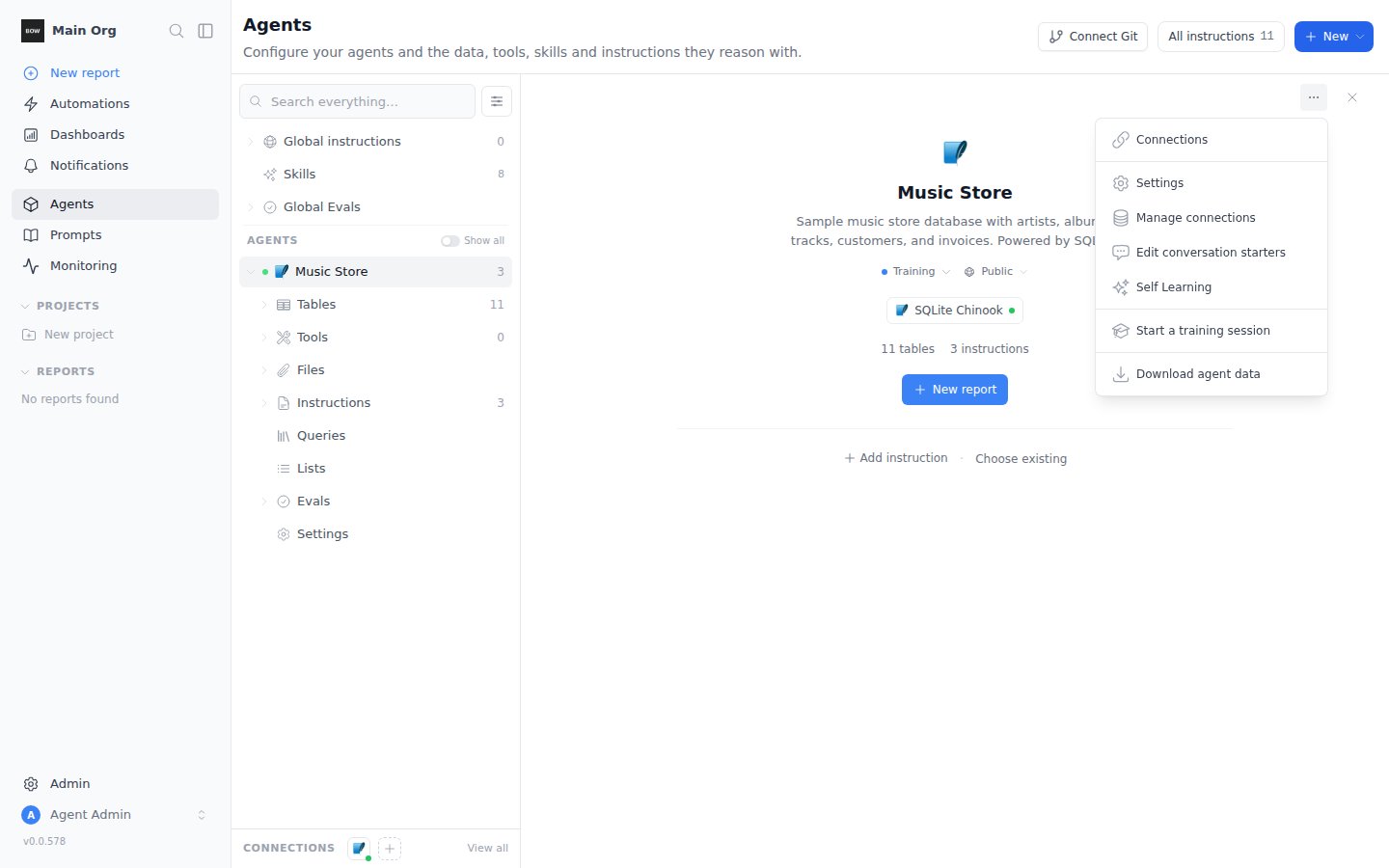 A new report opens in Training mode with the agent already selected. The prompt box is outlined in blue, and the mode button reads **Training**.
You can also switch any report to Training: click the **Chat** button in the prompt box and choose **Training**. Switch back to **Chat** the same way.
A new report opens in Training mode with the agent already selected. The prompt box is outlined in blue, and the mode button reads **Training**.
You can also switch any report to Training: click the **Chat** button in the prompt box and choose **Training**. Switch back to **Chat** the same way.
 ## Step 2: Have the agent inspect the data
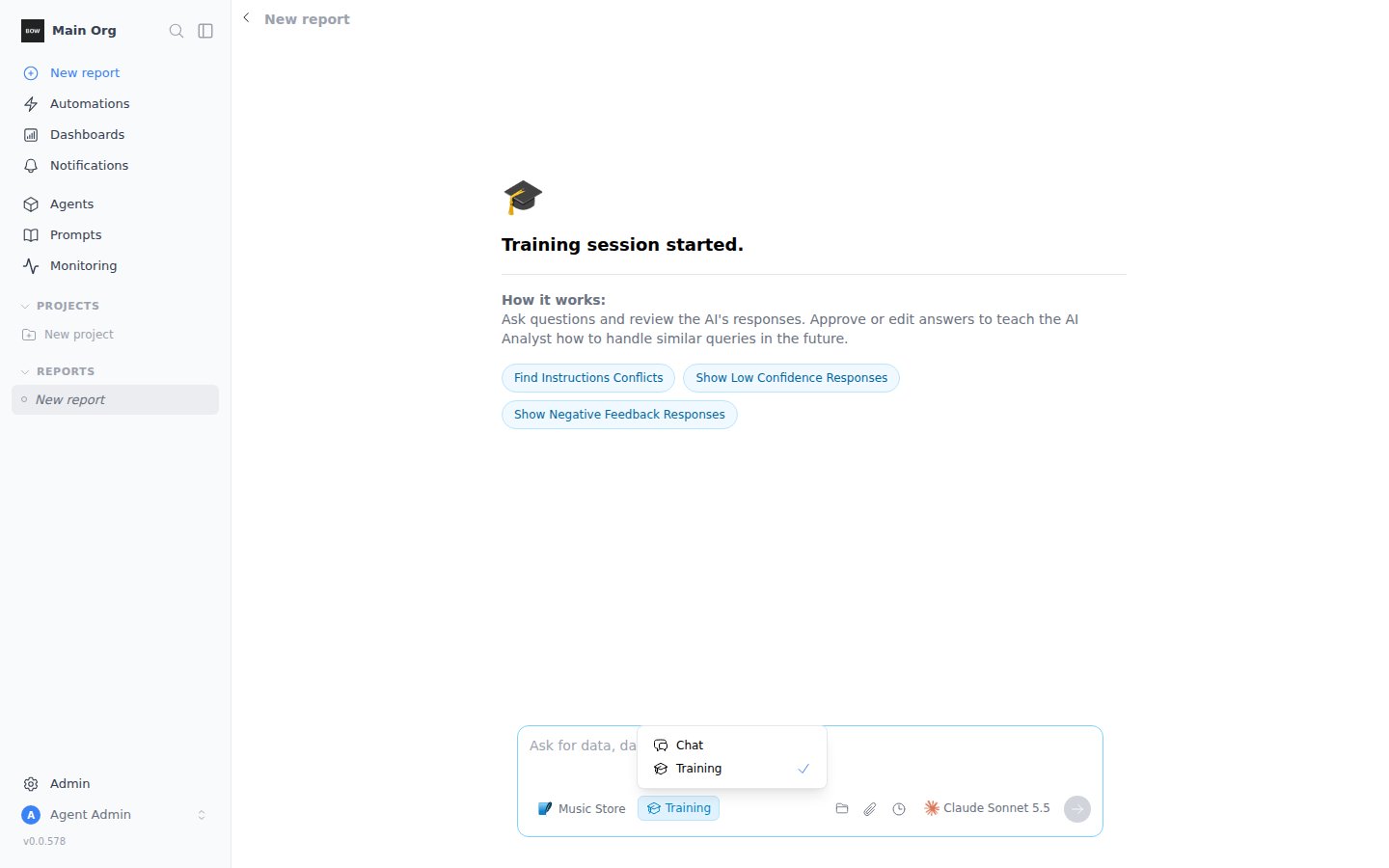
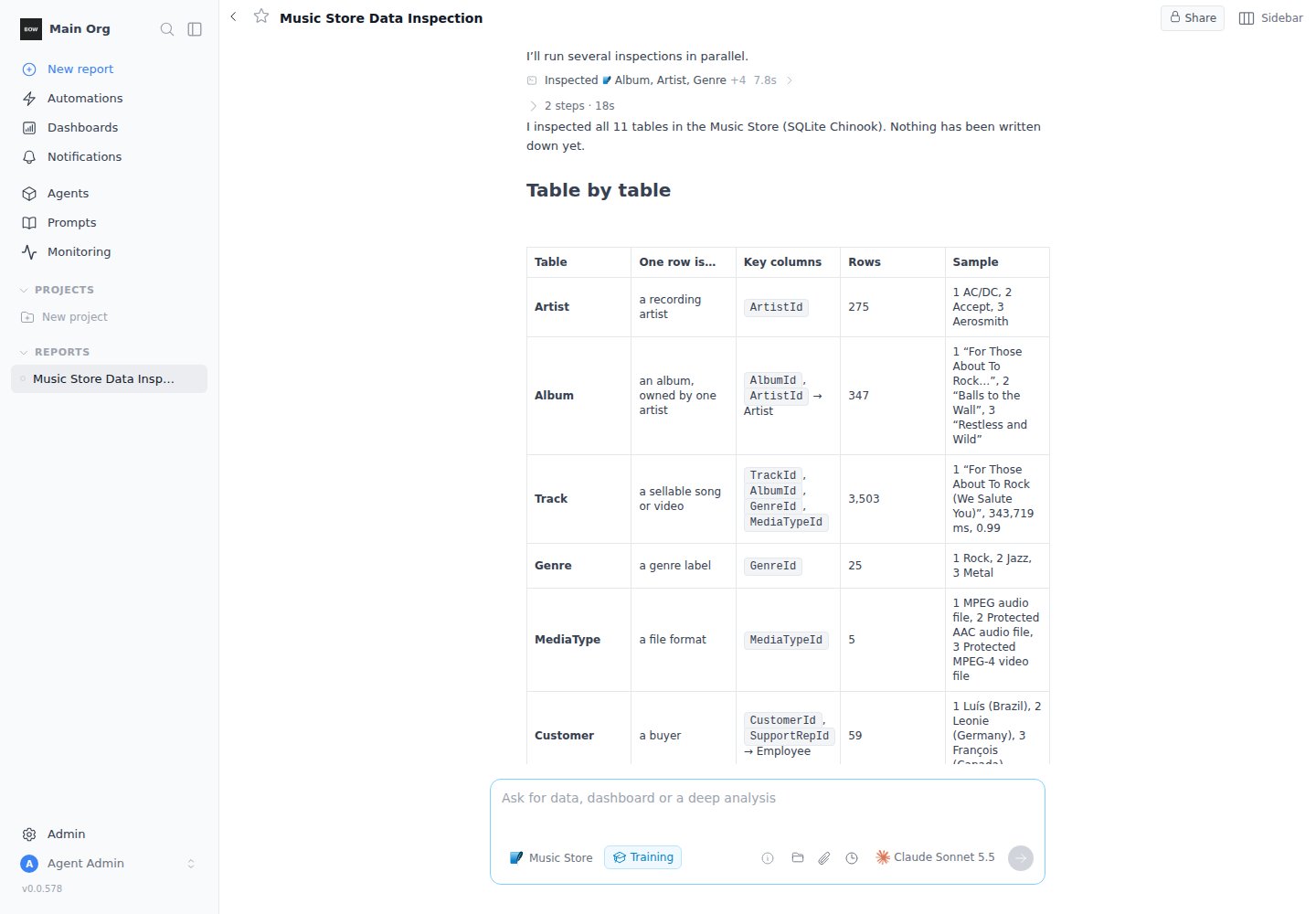
Start by asking the agent to look at the real data, not just the schema. Instructions guessed from column names are often wrong.
> *Inspect the data before we write anything down. For each table, tell me what one row represents, the key columns, and show a few sample rows. Point out status-like columns with their distinct values, date ranges, and anything surprising (nulls, odd codes, units).*
The agent reads every table, samples real rows, and reports what it found. It ends with the questions the data can't answer, such as which column counts as revenue or what a code means.
## Step 2: Have the agent inspect the data
Start by asking the agent to look at the real data, not just the schema. Instructions guessed from column names are often wrong.
> *Inspect the data before we write anything down. For each table, tell me what one row represents, the key columns, and show a few sample rows. Point out status-like columns with their distinct values, date ranges, and anything surprising (nulls, odd codes, units).*
The agent reads every table, samples real rows, and reports what it found. It ends with the questions the data can't answer, such as which column counts as revenue or what a code means.
 ## Step 3: Teach it the relationships
Next, have the agent work out how the tables connect and test each join against the data:
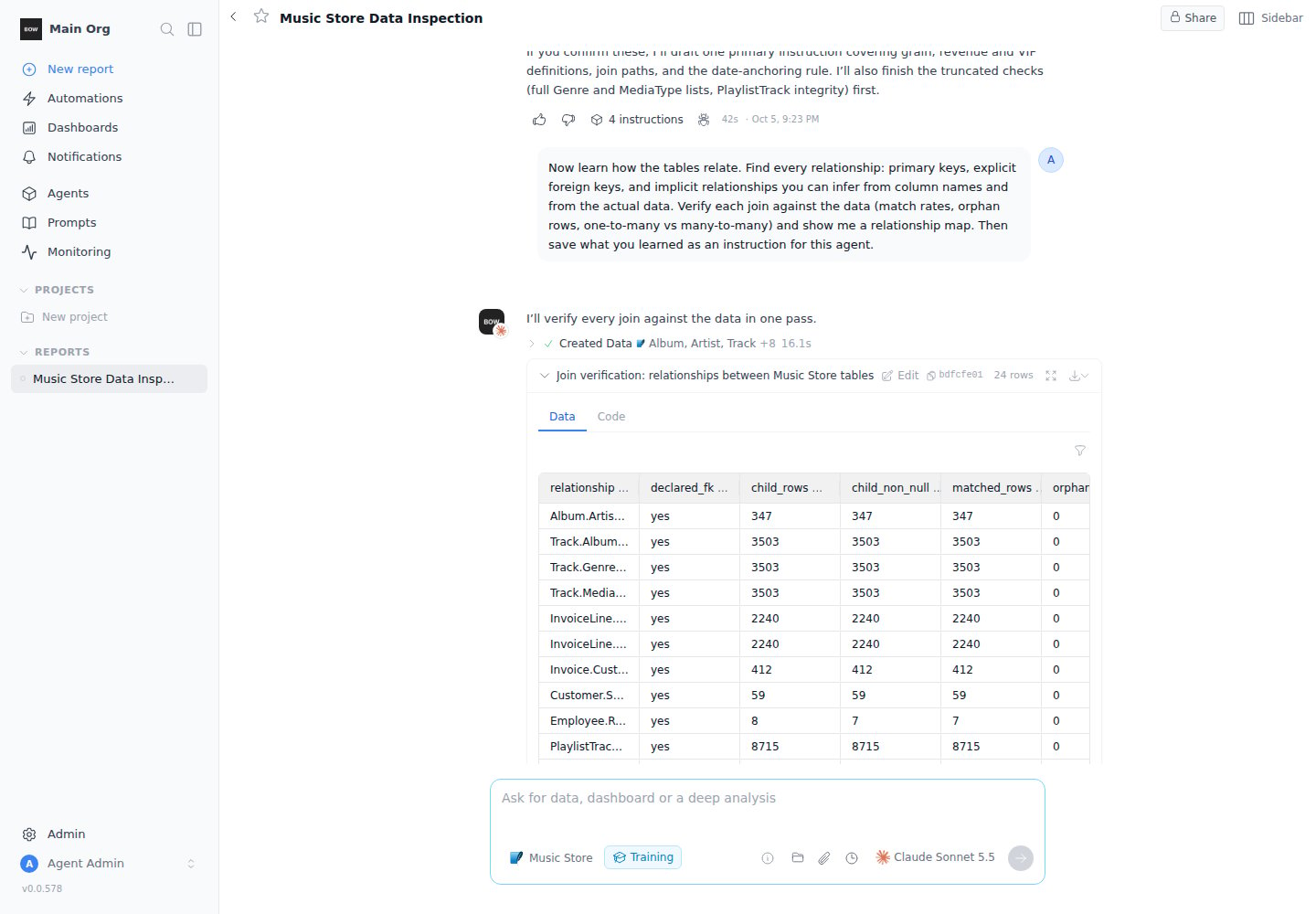
> *Now learn how the tables relate. Find every relationship: primary keys, explicit foreign keys, and implicit relationships you can infer from column names and from the actual data. Verify each join against the data (match rates, orphan rows, one-to-many vs many-to-many) and show me a relationship map. Then save what you learned as an instruction for this agent.*
The agent runs a check query on every join and shows the result: how many rows match, how many are orphans, and the cardinality.
## Step 3: Teach it the relationships
Next, have the agent work out how the tables connect and test each join against the data:
> *Now learn how the tables relate. Find every relationship: primary keys, explicit foreign keys, and implicit relationships you can infer from column names and from the actual data. Verify each join against the data (match rates, orphan rows, one-to-many vs many-to-many) and show me a relationship map. Then save what you learned as an instruction for this agent.*
The agent runs a check query on every join and shows the result: how many rows match, how many are orphans, and the cardinality.
 It then summarizes the model as a relationship map. It also notes **implicit** relationships, such as two columns that always hold the same value, and **fan-out** rules, which say which joins multiply rows and how to aggregate safely.
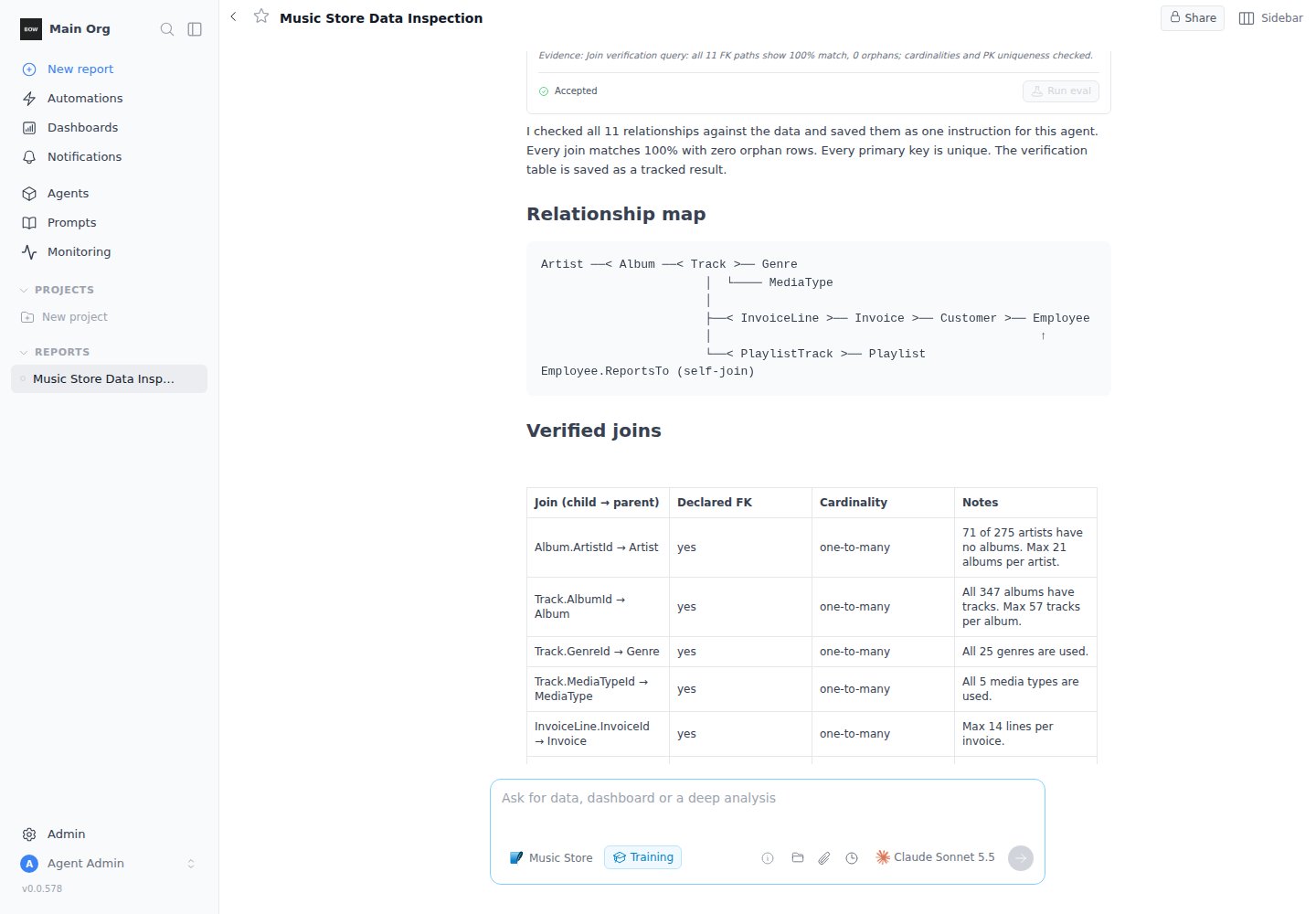 Relationships are where most wrong numbers come from. A join that silently drops rows, or a total summed after a join that repeats it, gives an answer that looks right but isn't. A verified relationship instruction prevents both.
## Step 4: Answer the agent's questions
The agent lists what it couldn't decide from the data. Answer in plain language and ask it to save the answers:
> *Answers: 1) Best sellers are the top 5 tracks by units sold in a month, for at least 3 consecutive months — update the existing instruction. 2) Revenue is SUM(InvoiceLine.UnitPrice \* Quantity). 3) Keep genres as they are. 4) Exclude video tracks from music questions unless the user asks for video. Save these.*
The agent checks the existing instructions first. When an answer changes an existing rule, it **edits** that instruction instead of adding a second, conflicting one.
## Step 5: Review and accept the changes
Every change appears as a card in the conversation. It stays a draft until you review it.
**New instruction.** The card shows the instruction text, the agent's **Confidence**, when it loads (**Load**), and the **Evidence** for it. Click **Accept** to make it live, or **Reject** to discard it. To change the wording first, click the text.
Relationships are where most wrong numbers come from. A join that silently drops rows, or a total summed after a join that repeats it, gives an answer that looks right but isn't. A verified relationship instruction prevents both.
## Step 4: Answer the agent's questions
The agent lists what it couldn't decide from the data. Answer in plain language and ask it to save the answers:
> *Answers: 1) Best sellers are the top 5 tracks by units sold in a month, for at least 3 consecutive months — update the existing instruction. 2) Revenue is SUM(InvoiceLine.UnitPrice \* Quantity). 3) Keep genres as they are. 4) Exclude video tracks from music questions unless the user asks for video. Save these.*
The agent checks the existing instructions first. When an answer changes an existing rule, it **edits** that instruction instead of adding a second, conflicting one.
## Step 5: Review and accept the changes
Every change appears as a card in the conversation. It stays a draft until you review it.
**New instruction.** The card shows the instruction text, the agent's **Confidence**, when it loads (**Load**), and the **Evidence** for it. Click **Accept** to make it live, or **Reject** to discard it. To change the wording first, click the text.
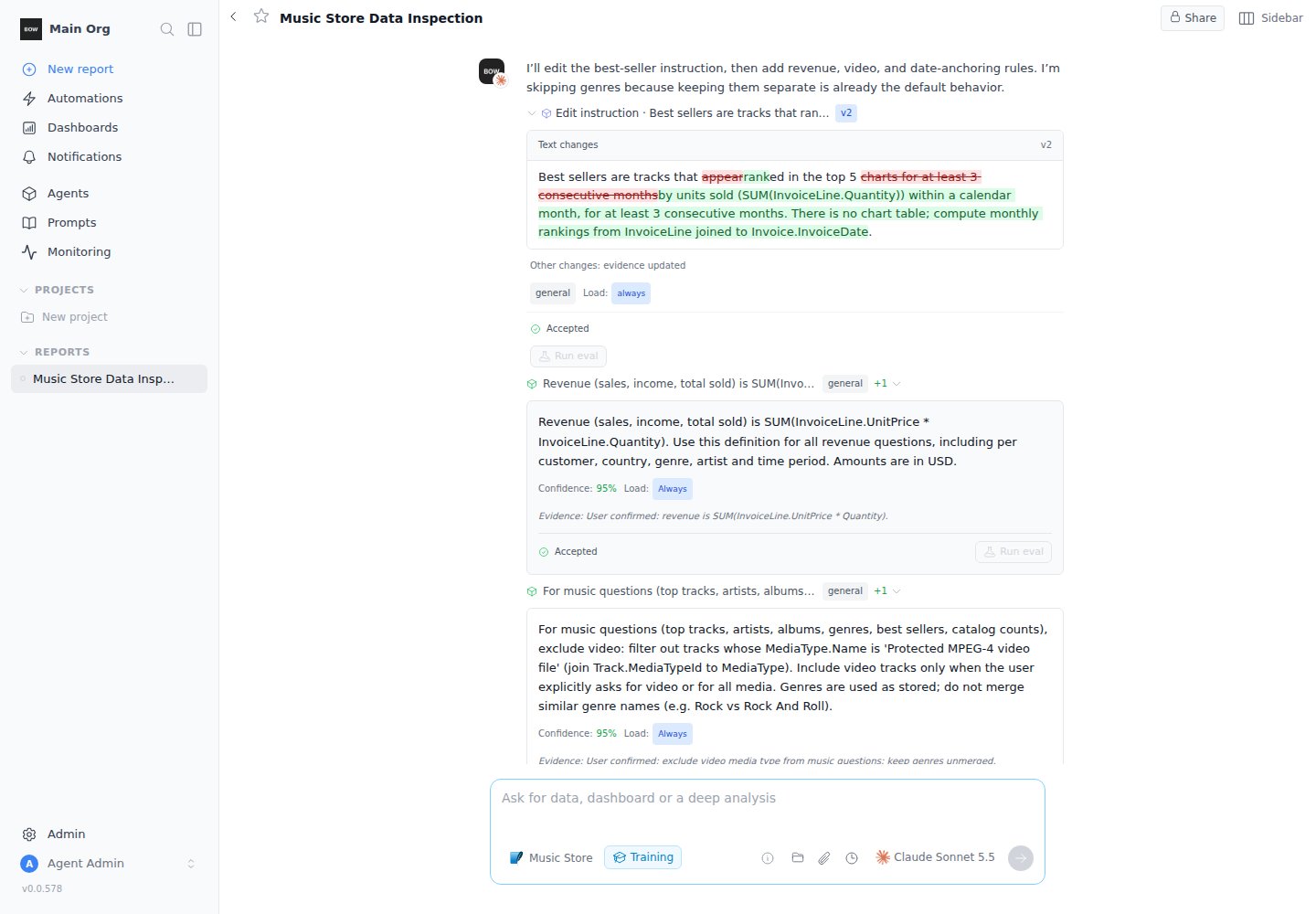
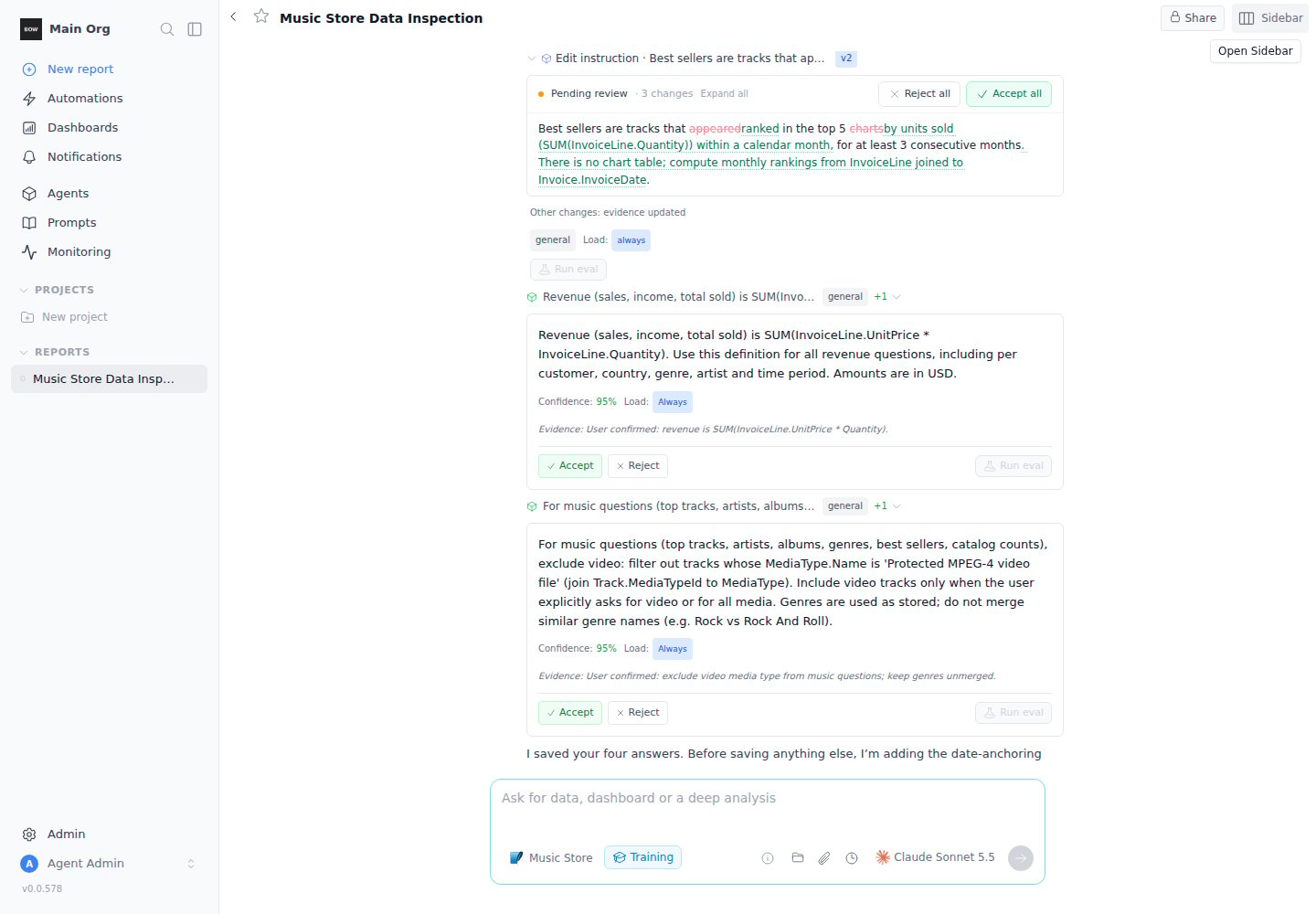 **Edit to an existing instruction.** The card shows the change as tracked changes: removed text in red, added text in green. Click **Accept all** or **Reject all**, or **Expand all** to accept or reject each change separately.
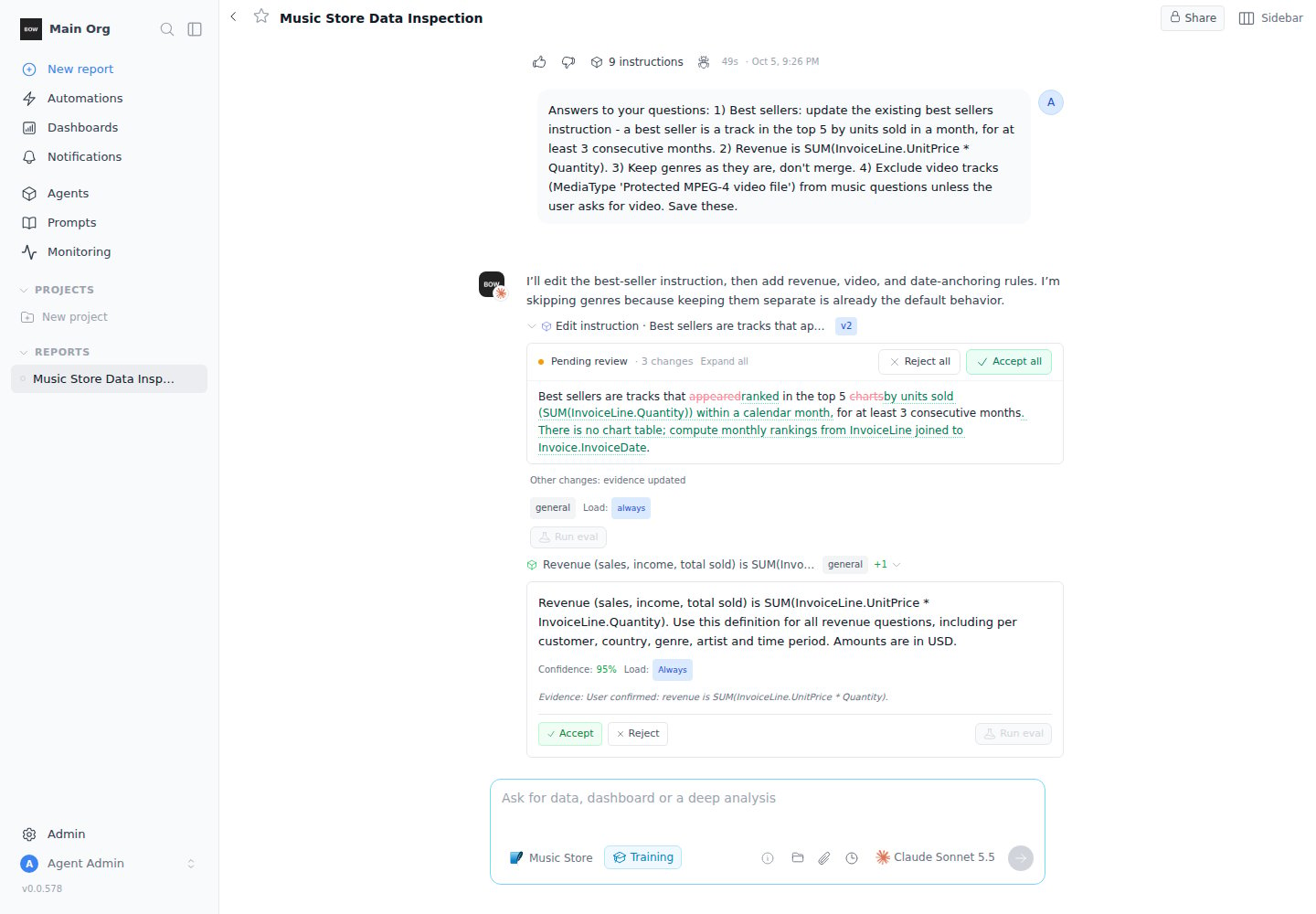 If the agent has evals, click **Run eval** on a card to test the change before you accept it. See [Evals and self-improvement](/agents/evals).
Accepted cards show **Accepted**. An accepted edit becomes a new version of the instruction (for example **v2**).
If the agent has evals, click **Run eval** on a card to test the change before you accept it. See [Evals and self-improvement](/agents/evals).
Accepted cards show **Accepted**. An accepted edit becomes a new version of the instruction (for example **v2**).
 ## Step 6: Check the result
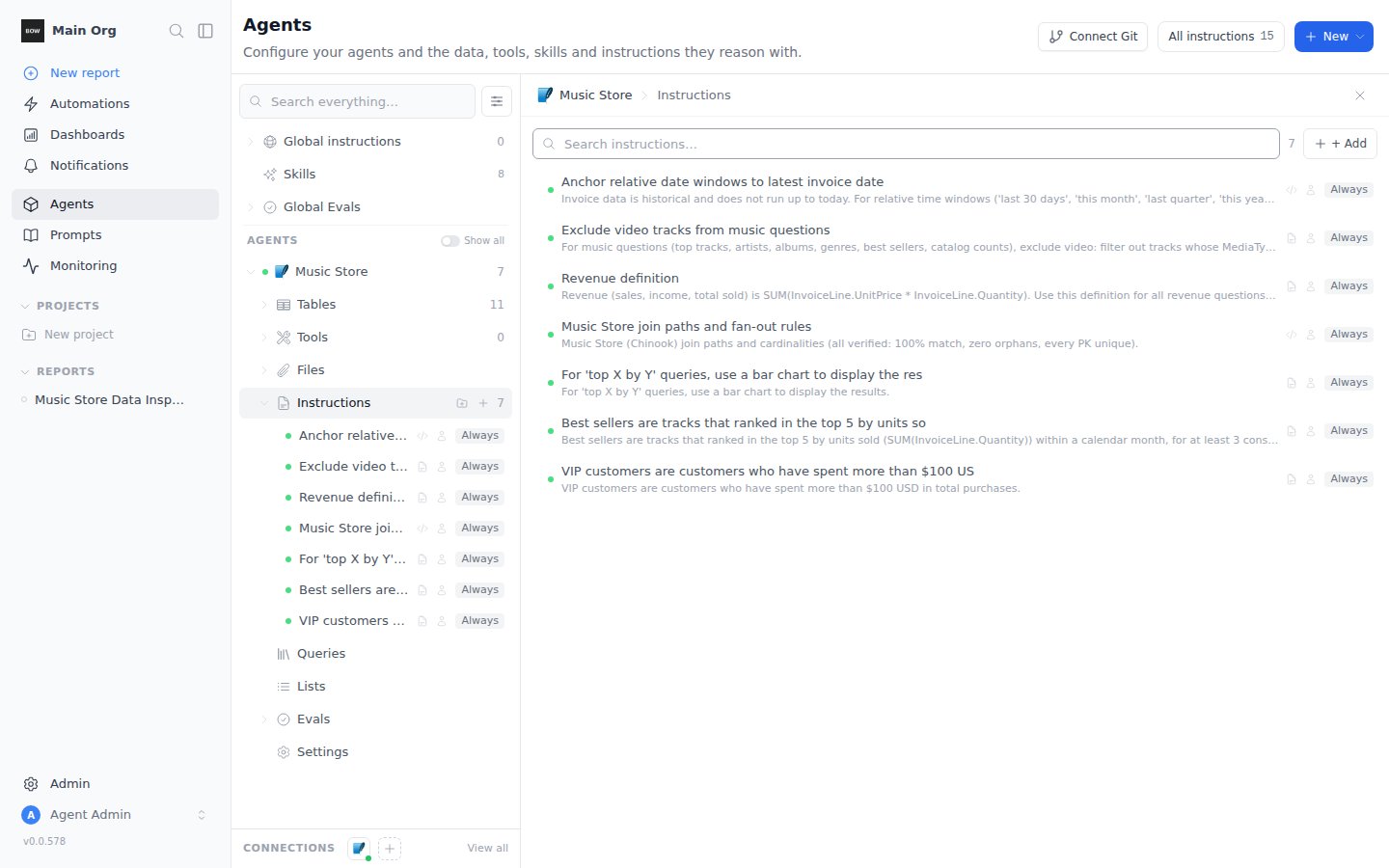
Open **Agents**, select the agent, and open **Instructions**. Accepted instructions are listed there and apply to every Chat conversation with the agent.
## Step 6: Check the result
Open **Agents**, select the agent, and open **Instructions**. Accepted instructions are listed there and apply to every Chat conversation with the agent.
 To test them, start a new report in **Chat** with the agent and ask a question that depends on what you taught it.
## More prompts to try
| Goal | Prompt |
| - | - |
| Get to know a table | *Show me 10 sample rows from the orders table and explain what one row represents.* |
| Decode values | *Which columns hold codes or statuses? List their distinct values and ask me what each one means.* |
| Find the keys | *Which column, or combination of columns, uniquely identifies a row in each table? Check for duplicates.* |
| Find hidden joins | *Which columns look like they reference another table but have no foreign key? Check how many values actually match.* |
| Prevent double counting | *Which joins multiply rows? Write a rule for how to aggregate amounts safely across them.* |
| Define a metric | *Revenue means net of refunds and excludes test accounts. Find the columns for that and save it as an instruction.* |
| Review weak answers | *Show low-confidence responses from the last 30 days and suggest instruction fixes.* |
| Learn from feedback | *Show responses with negative feedback and find the patterns behind them.* |
| Clean up | *Find conflicts or duplicates in this agent's instructions and propose merges.* |
| Lock it in | *Create eval cases for the rules we just wrote and run them.* |
A new training session also offers three starters: **Find Instructions Conflicts**, **Show Low Confidence Responses**, and **Show Negative Feedback Responses**.
## Tips
* **Inspect before you write.** Ask for sample rows and distinct values first, so every rule is based on the real data.
* **Verify relationships against the data.** Ask for match rates and orphan rows, not only the foreign keys the schema declares.
* **One topic at a time.** Data first, then relationships, then business rules. Short turns are easier to review.
* **Answer concretely.** "Revenue is SUM(UnitPrice \* Quantity)" is better than "use the normal revenue."
* **Keep rules general.** The agent won't save facts about a single record, and it doesn't propose rules it is less than 70% confident about.
* **Read every card before you accept it.** Reject anything that's wrong, or click the text to fix it first.
* **Changes stay on the agents in this session.** Instructions from a training session apply only to the agents selected in it.
## Find a training session later
Training sessions are saved like any report and marked **Training** in the **Reports** list. To show only training sessions, click the filter icon and set **Type** to **Training**.
To test them, start a new report in **Chat** with the agent and ask a question that depends on what you taught it.
## More prompts to try
| Goal | Prompt |
| - | - |
| Get to know a table | *Show me 10 sample rows from the orders table and explain what one row represents.* |
| Decode values | *Which columns hold codes or statuses? List their distinct values and ask me what each one means.* |
| Find the keys | *Which column, or combination of columns, uniquely identifies a row in each table? Check for duplicates.* |
| Find hidden joins | *Which columns look like they reference another table but have no foreign key? Check how many values actually match.* |
| Prevent double counting | *Which joins multiply rows? Write a rule for how to aggregate amounts safely across them.* |
| Define a metric | *Revenue means net of refunds and excludes test accounts. Find the columns for that and save it as an instruction.* |
| Review weak answers | *Show low-confidence responses from the last 30 days and suggest instruction fixes.* |
| Learn from feedback | *Show responses with negative feedback and find the patterns behind them.* |
| Clean up | *Find conflicts or duplicates in this agent's instructions and propose merges.* |
| Lock it in | *Create eval cases for the rules we just wrote and run them.* |
A new training session also offers three starters: **Find Instructions Conflicts**, **Show Low Confidence Responses**, and **Show Negative Feedback Responses**.
## Tips
* **Inspect before you write.** Ask for sample rows and distinct values first, so every rule is based on the real data.
* **Verify relationships against the data.** Ask for match rates and orphan rows, not only the foreign keys the schema declares.
* **One topic at a time.** Data first, then relationships, then business rules. Short turns are easier to review.
* **Answer concretely.** "Revenue is SUM(UnitPrice \* Quantity)" is better than "use the normal revenue."
* **Keep rules general.** The agent won't save facts about a single record, and it doesn't propose rules it is less than 70% confident about.
* **Read every card before you accept it.** Reject anything that's wrong, or click the text to fix it first.
* **Changes stay on the agents in this session.** Instructions from a training session apply only to the agents selected in it.
## Find a training session later
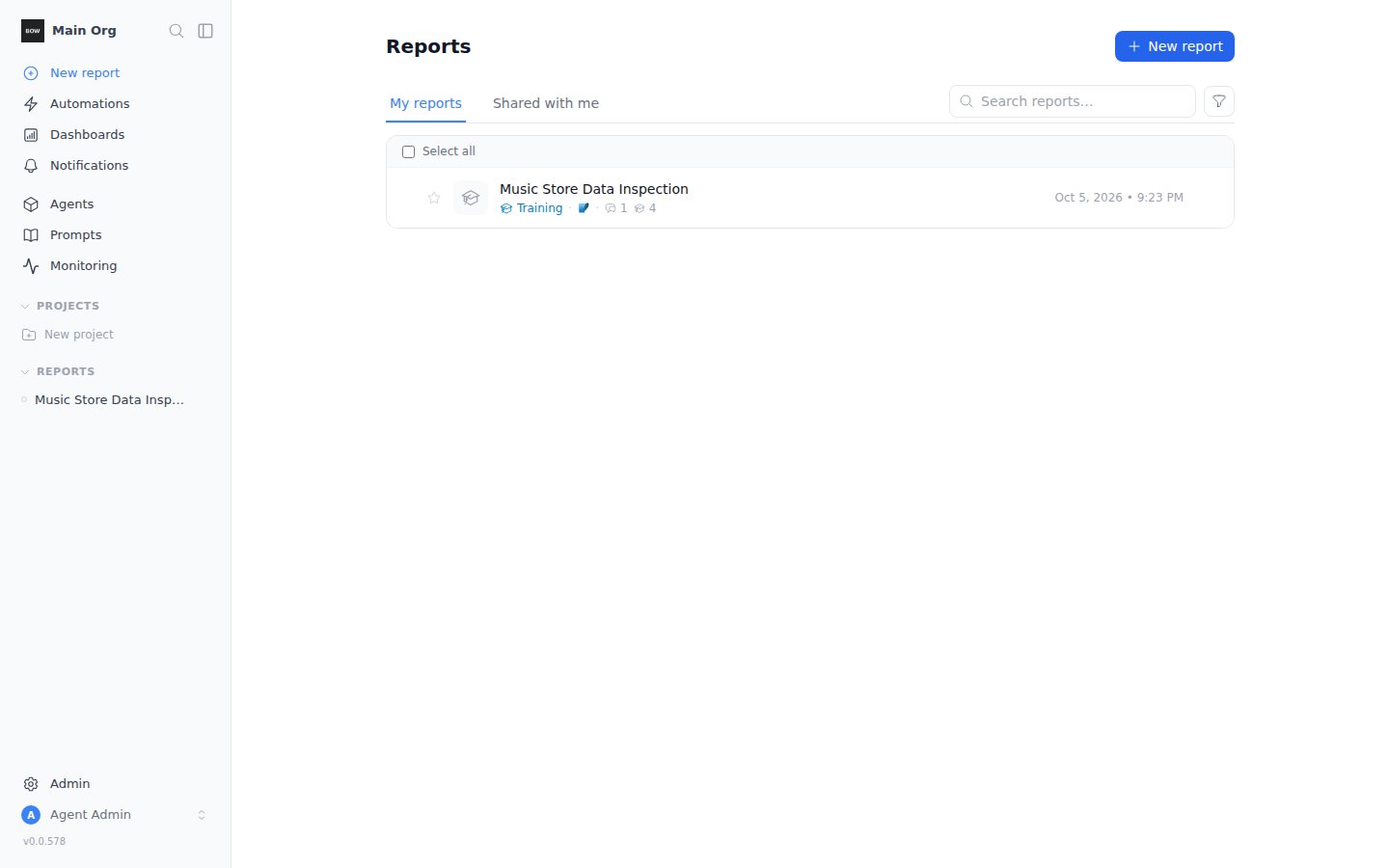
Training sessions are saved like any report and marked **Training** in the **Reports** list. To show only training sessions, click the filter icon and set **Type** to **Training**.
 Training mode is different from an agent's **Training** status, the label under the agent's name on the Agents page. That status marks an agent as live but still being improved. You can start a training session with an agent in any status.
## Related
* [Instructions and knowledge](/agents/instructions)
* [Evals and self-improvement](/agents/evals)
* [Chat with your data](/using-bow/reports)
This documentation is built and hosted on [Mintlify](https://mintlify.com), a developer documentation platform.
Training mode is different from an agent's **Training** status, the label under the agent's name on the Agents page. That status marks an agent as live but still being improved. You can start a training session with an agent in any status.
## Related
* [Instructions and knowledge](/agents/instructions)
* [Evals and self-improvement](/agents/evals)
* [Chat with your data](/using-bow/reports)
This documentation is built and hosted on [Mintlify](https://mintlify.com), a developer documentation platform.